
What is Bloom: one account, three places to trade
Bloom (bloombot.app) started out as a Telegram bot. The team later built two more tools: Bloom Manager, the web version at manager.bloombot.app, and Bloom Extension, a Chrome extension. You don't need a separate account for the web: the Telegram account you already use with the bot is also your key into Manager. From there, your wallets, pending orders, automated tasks and settings stay in sync across all three places.
On the Telegram side there are actually several bots. Solana has its own bot, running as two parallel instances hosted in Germany and the US; both do the same things, so if one is overloaded you switch to the other. The EVM chains use a different bot.
As for chains, Bloom trades on Solana, Base, Ethereum, BNB Chain, Ink, HyperEVM, Arc and Robinhood. The newest chain is Elysium, available since Nov 9, 2026.
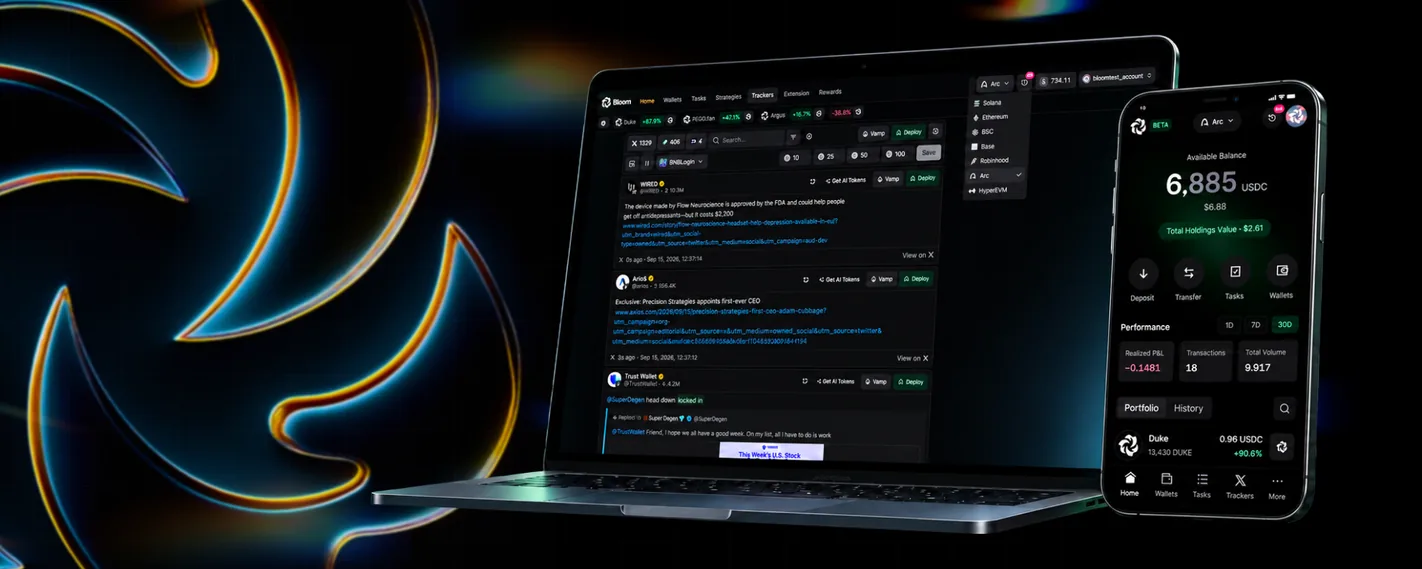
Manager has eight main pages. Home shows your PnL, the tokens you hold and your trade history. Tasks holds the copy trade, AFK, sniper and social tasks. The other six pages are Wallets, Auto Orders, Tracker, Rewards, Extension and Settings. Since Sep 17, 2026 Manager also runs on your phone right in the browser: open the page, log in, choose Add to Home Screen, and Manager sits on your home screen and opens like an app.
Quick review: where Bloom is strong, where it is weak, who it's for
Good for memecoin traders who want the machine to handle a lot of repetitive work: copying wallets, watching for new tokens, buying off X posts and taking profit on a script. Bloom also suits people who are used to trading by hand on terminals but want their orders to go through Bloom, and people who juggle many wallets and many chains at once.
Not for people just getting started with trading bots. Bloom's settings are very dense, and Bloom itself admits AFK takes time to tune properly. If safety is your top priority, read the Oct 26, 2026 incident section below carefully before you deposit.
- One account, many toolsThe Telegram bot, the Manager web app and Extension share the same wallets, orders and tasks; the API runs on the same order engine as the bot. Manager even has a mobile version.
- Many kinds of automationCopy trade, AFK, LP Sniper, six Social Tasks modes; Auto Orders sell groups can be attached to manual buys and to every type of task.
- Many chains, with BridgeSolana and EVM chains such as Ethereum, Base, BNB Chain; funds move between chains right inside the wallet, with a private transfer mode.
- Lower fees via referral link1% fee per side, down to 0.9% when you sign up through a referral link; cashback and referral commission can be withdrawn every 6 hours.
- Has been hackedOn Oct 26, 2026, an attacker took about 9,408 SOL from 9 users through a vulnerability in a third-party module. Bloom refunded everyone the same day, but the risk on the platform side is real, not just on the user's own device.
- Lots of settings, easy to get wrongThe copy trade and AFK filters are very detailed. Forget to set Max Buy Count and an AFK task can buy everything in sight; Safe Deployer also isn't 100% accurate.
- A few limits to rememberSocial Tasks created on Telegram expire automatically after 7 days. Each limit config holds at most 10 orders. Buying with USDC still needs SOL to pay network fees and tips.
If you want to put Bloom next to other bots on fees, chains and features, see our bot comparison page.
Manual trading on the Telegram bot
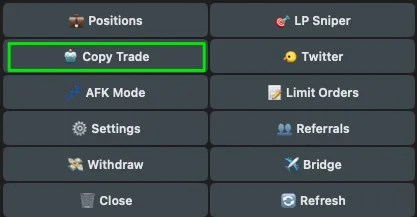
The bot's main menu has ten entries. We've regrouped them by task to make them easier to remember: tracking and placing orders has Positions, Limit Orders; automation has Copy Trade, AFK Mode, LP Sniper and Twitter; money in and out has Withdraw, Bridge; the rest is Referrals and Settings.
If you don't want to click through menus, type the shortcut commands. /positions, /wallets and /pnl show your wallets and results; /copy, /afk, /sniper, /twitter open the automated tasks; /settings and /withdraw cover settings and withdrawals. To look up a token quickly, type $ directly followed by the ticker, for example $BONK.
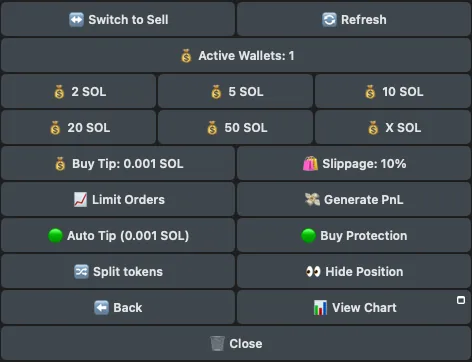
- Placing a buyPaste the token contract into the chat. The bot shows a few preset SOL amounts such as 2, 5, 10; for a different amount tap X SOL and type it in. Slippage and Buy Tip can be changed right on that menu.
- SellingThe Switch to Sell button flips the menu to selling, by percentage or by SOL amount. Initials sells just enough to get your cost back plus the fees and tip you paid. You can also set limit orders, take-profit and stop-loss levels here.
- Anti-sandwichWith Buy Protection on, orders are sent only through an MEV-protected route, avoiding sandwich attacks. Auto Tip lets the bot use the Jito tip level that's currently recommended.
- Paste to buyDegen Mode is turned on in Settings. Then you just paste the contract: the bot buys right away with the amount you preset, as long as the token matches the market cap and liquidity filters you set.
Bloom Extension: place orders through Bloom while you're on Axiom or GMGN
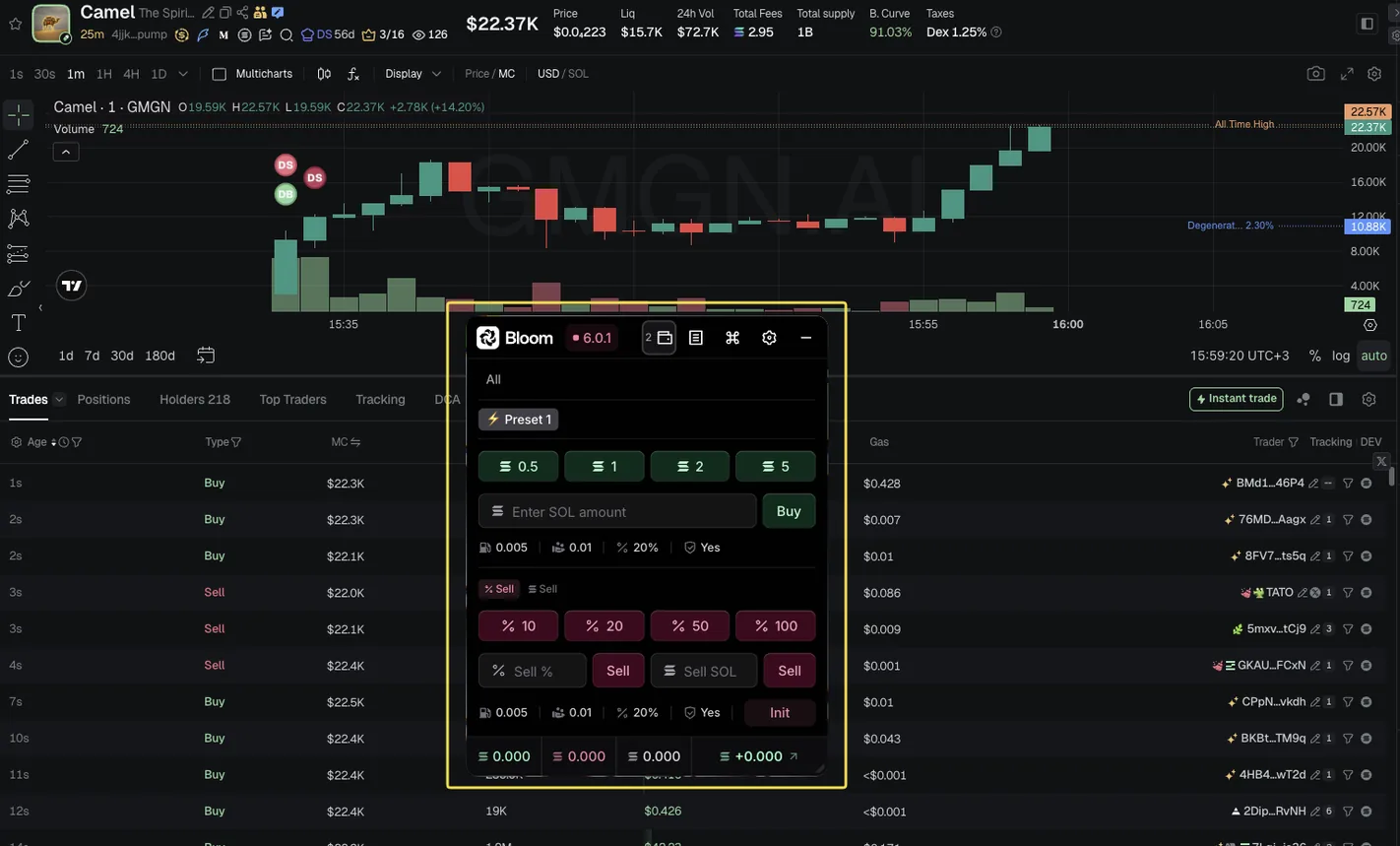
Many traders find tokens and watch charts on terminals such as Axiom, GMGN, Photon, BullX or DEX Screener. Bloom Extension adds an order panel called Trade Panel on top of the pages of a dozen-plus such terminals. Orders clicked in the panel go through Bloom's system; the terminal's own buy and sell buttons aren't used. Whichever token you open, the panel recognizes that token's chain automatically.
The panel has a wallet list, your pending orders, preset amounts, and two buttons, Dev Sell and Init; the latter sells exactly the amount you put in at the start. Hotkeys: CTRL+B shows or hides the panel; hold Space and press the keys Q through I to buy, A through K to sell. AutoBuy watches a Discord or Telegram Web channel you keep open: the moment a token address appears in that channel, a buy order fires.
Following news on X and Pump.fun: Tracker to read, Social Tasks to auto-buy
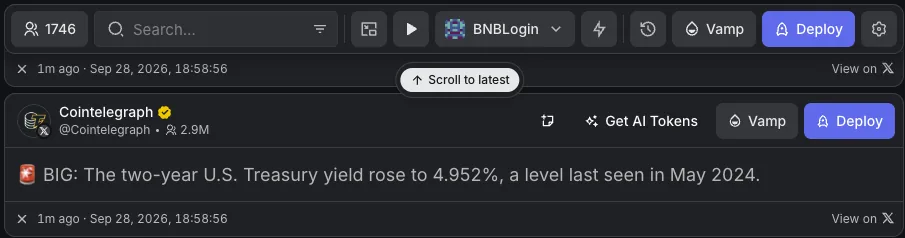
Tracker is a page in Manager that continuously shows new posts from the people you follow: X accounts, Pump.fun callers and Fomo users. Any post containing a token address comes with a quick-buy button. Bloom ships a default list; you add people in three ways: one account at a time, many accounts in one go, or by importing a CSV file.
Tracker's settings let you translate tweets into English or Chinese, get a warning before a post with an outbound link, and adjust the amounts on the quick-buy buttons. Every post also carries two buttons, Deploy and Vamp, for creating a new token without leaving Tracker (details in the Deploy and API section).
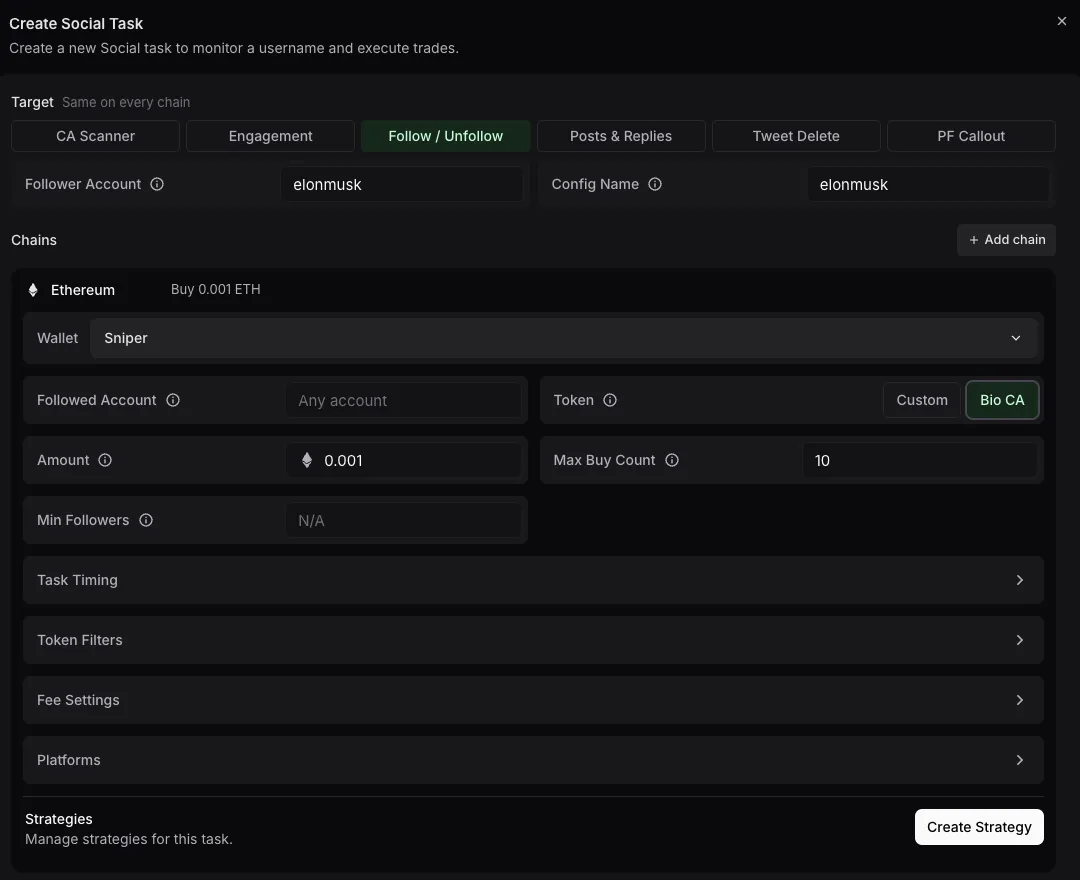
Social Tasks take it one step further: the bot trades automatically when something happens on social media. On the Telegram bot this feature is still under the Twitter button; its old name was Twitter Tasks. There are six trigger modes:
- Posts & RepliesEvery time an account you follow posts, replies, quotes or retweets, the bot buys or sells a token you've chosen in advance.
- CA ScannerWhen an X account you choose posts a token address, whether in a tweet, reply, quote or retweet, the bot buys. If the address is in an image, turn on Use OCR so the bot can read it.
- EngagementYou set a token and a specific tweet in advance. As soon as the other account replies to, quotes or retweets that tweet, the bot buys that token.
- Follow / UnfollowA buy or sell fires when the other account follows or unfollows someone. Choose Bio CA and the bot buys the token written in the bio of the person who was just followed.
- PF CalloutWhichever token a Pump.fun caller you're tracking has just mentioned, the bot buys it.
- Tweet DeleteThe order fires when the author deletes a specific tweet you're watching.
Copy trade on Bloom: copy wallets and fomo.family accounts too
Copy tasks can be created in two places. On the bot, open Copy Trade (or type /copy), tap Add new config, paste the wallet you want to follow and give it a name. On the web, go to Tasks in Manager, pick the Copy Trade tab and open Create Copy Trade Task.
Every config runs as an independent task: turn it on, turn it off, clone it or schedule it separately without touching any other task. If you need to follow many wallets at once, Mass Create sets up a batch of tasks in one go.
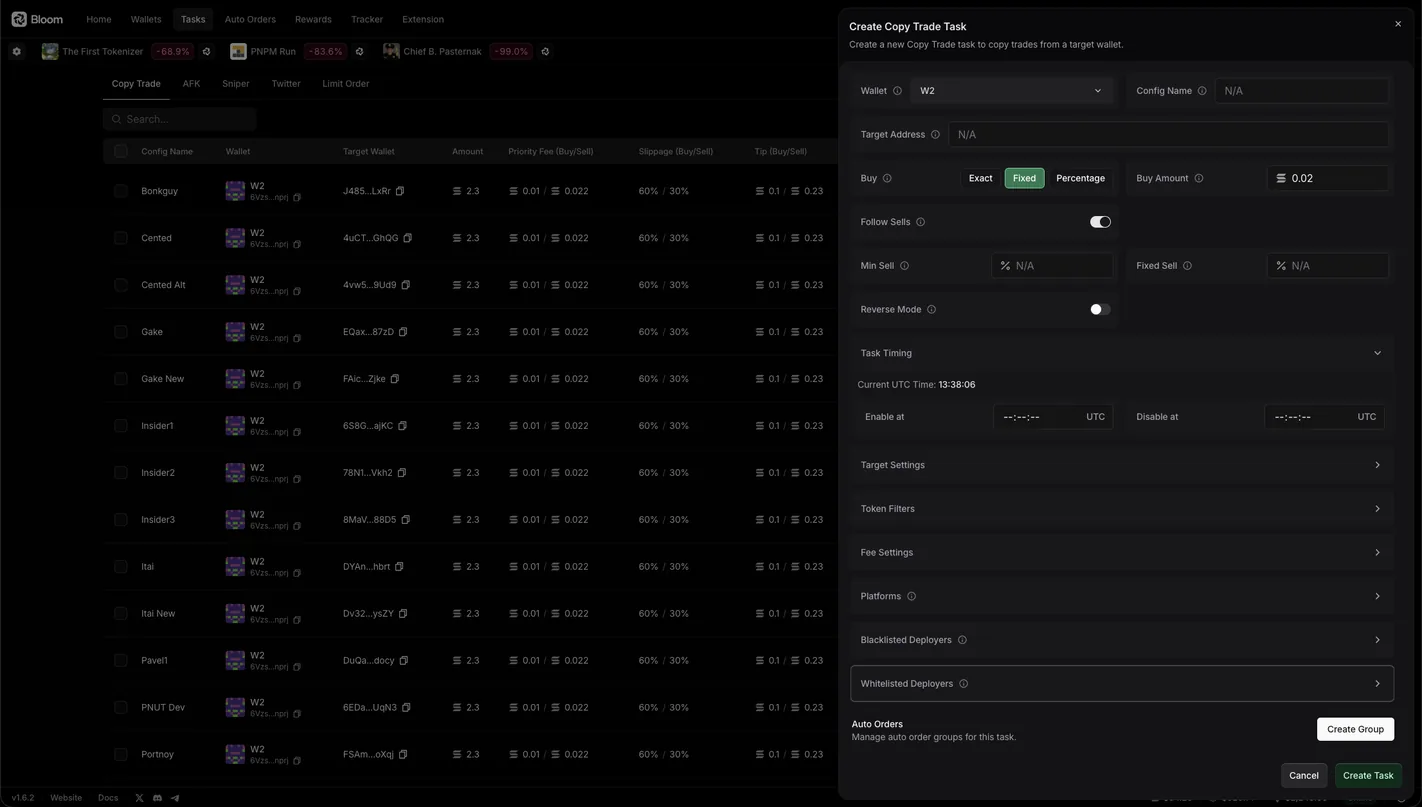
- How much per buyThree ways. Buy Exact buys exactly the amount the source wallet spent. Buy % takes a percentage of the source wallet's order; set it above 100% and you buy bigger than they do. Buy Fixed uses a fixed amount of SOL for every order. Max Buy caps each order.
- When to sellFollow Sells sells at the same ratio as the source wallet: if they dump 50%, you dump 50% too. Sell On Transfer covers the case where the source wallet doesn't sell but transfers the token elsewhere: the bot sells your share. Reverse Mode does the opposite: it only buys when the source wallet sells.
- Which orders get skippedThe source wallet's order size range (below the minimum or above the maximum isn't copied), market cap, token age, share held by the dev. First Interaction only copies the first time the source wallet touches a token. On top of that: one buy per token, skip tokens the source wallet created itself, a blocked dev list and an allowed dev list.
Catching freshly launched tokens: AFK Mode and LP Sniper
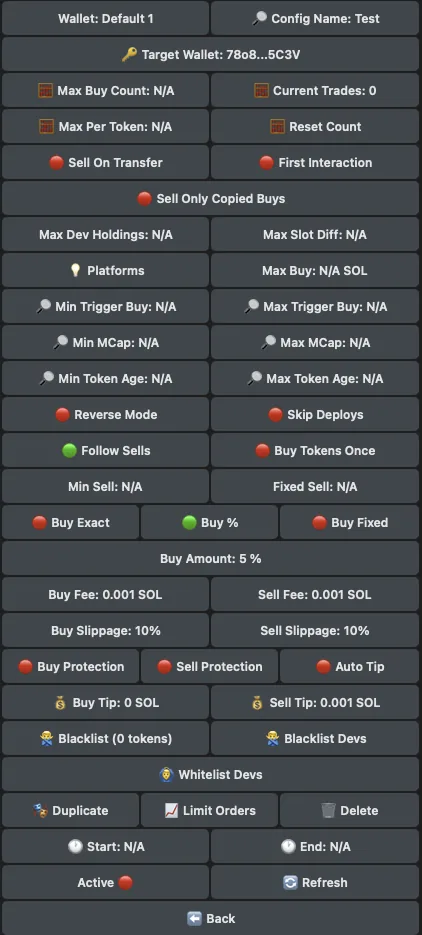
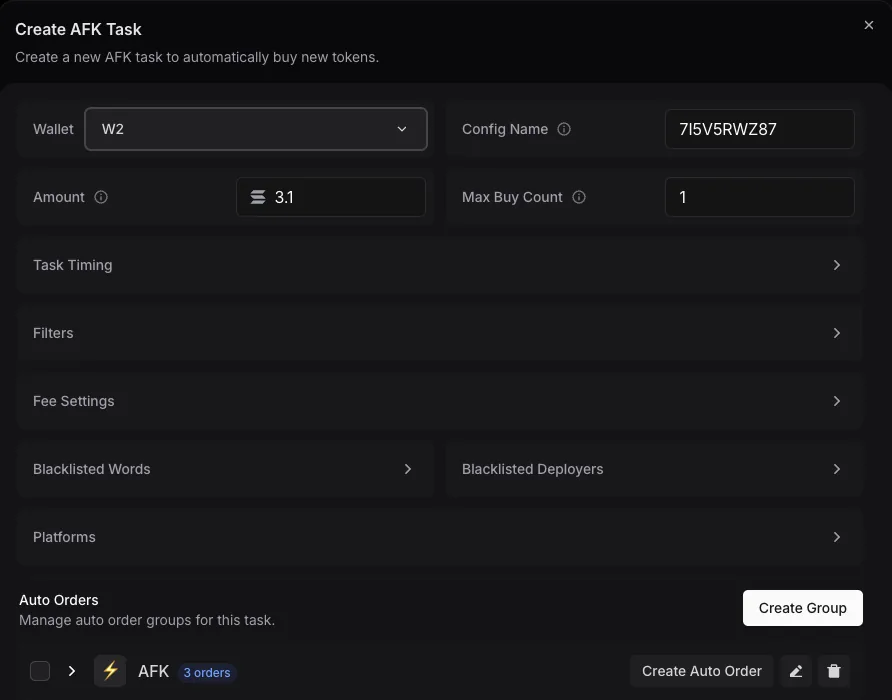
AFK Mode works for you while you're away from the screen. You pick the launchpads to watch, for example Pump.fun, LaunchLab or Raydium; any new token there that passes your filters gets bought automatically. You can run several AFK configs in parallel to test a few strategies at once.
The filters look closely at the token creator: how much SOL the dev bought of their own token, how many tokens they've created and how many of them ever made it to a DEX. There's also max tax, required words in the name or ticker, banned words, a blocked dev list, and whether the trading pair is SOL, USDC or stock tokens. Safe Deployer uses an outside service to weed out suspicious devs, but Bloom says plainly it isn't 100% accurate.
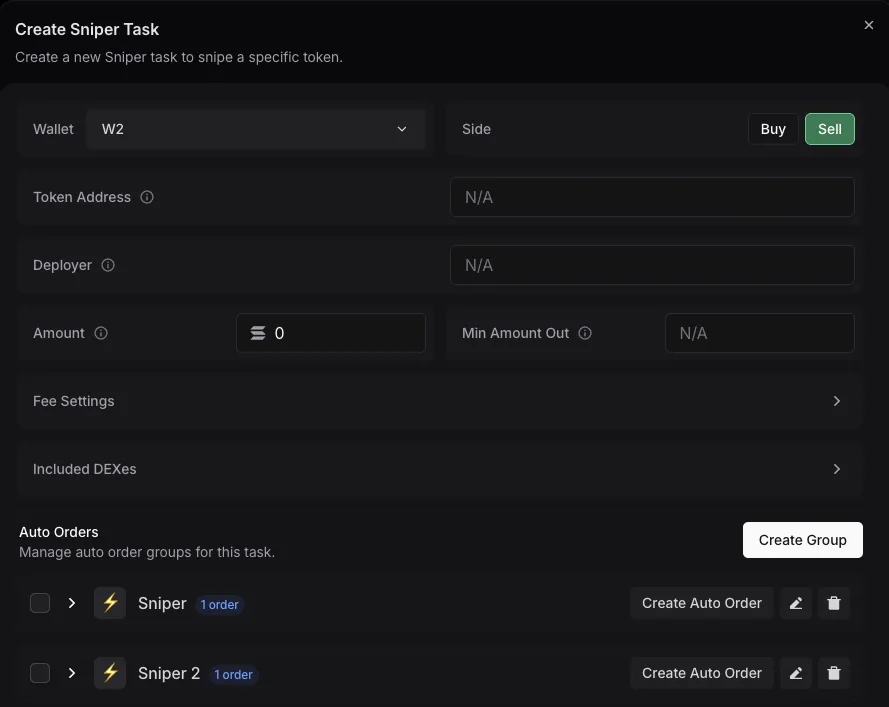
LP Sniper targets the moment a token is added to a liquidity pool. You enter the token address, add a dev wallet if you want (type -1 if you don't need one), the SOL amount to spend, the minimum amount of tokens you accept receiving (Min Amount Out), priority fee, tip, then pick the DEX. The moment the pool opens, Bloom fires the buy as fast as it can.
Switch Side to Sell and the task becomes Insta Dump: as soon as the pool goes live it sells the percentage of your tokens you set. If you want automatic take-profit after sniping, attach an Auto Orders group (section right below).
Letting the bot sell: Limit Orders and Auto Orders strategies
Limit Orders wait for the price or market cap to hit the level you set before buying or selling. Each config holds up to 10 orders; the total number of pending orders can't exceed 1,000.
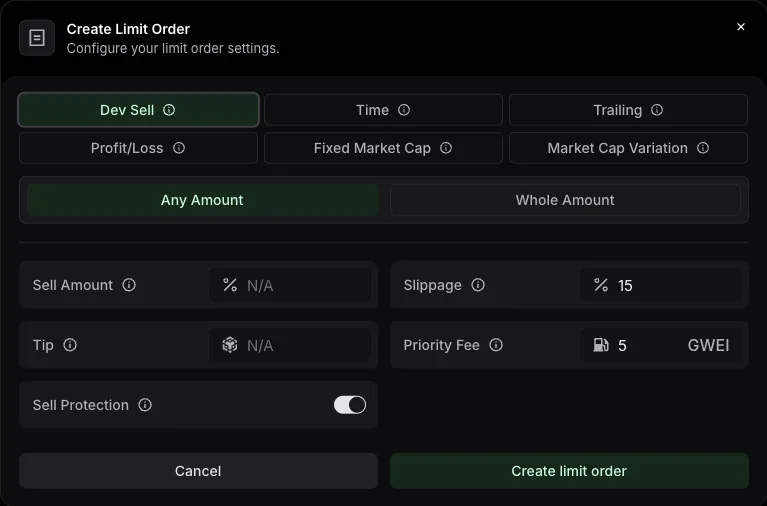
Auto Orders are something else: these are sell orders the bot creates by itself after every buy. Using them takes three steps: create a group, add sell strategies to the group, then attach that group to a manual buy or to a copy trade, AFK, sniper or social task. The strategy types:
- Profit/LossTake profit and stop loss by percentage. For example +200% sells when the price triples, -25% sells once you're down a quarter.
- TrailingThe stop-loss level ratchets up with the highest price; if the price falls from the peak by more than the allowed amount, the bot sells.
- Dev SellThe moment the dev sells their tokens, the bot sells too.
- TimeSells when a preset period runs out, written as 30M, 1H or 1D.
- Market cap levelsFixed Market Cap sells when the market cap hits a fixed number. Market Cap Variation waits for the market cap to rise or fall by exactly the range you choose, then sells.
Multiple wallets, PnL tracking and moving funds between chains
In Wallets, you create a new wallet or import an existing one, then give each wallet a role: default wallet, spot wallet, copy trade wallet or sniper wallet. To run one order on multiple wallets, tap Active Wallets and pick the wallets to use: every buy or sell then goes through all of them. Copy trade, AFK and sniper tasks are the exception: their wallets are assigned per task.
Manager's Split / Consolidate tool does two opposite things. One is spreading a token across many wallets: split evenly, split randomly, by custom percentages, or a private transfer through Houdini Swap. The other is gathering tokens from many wallets into one wallet.
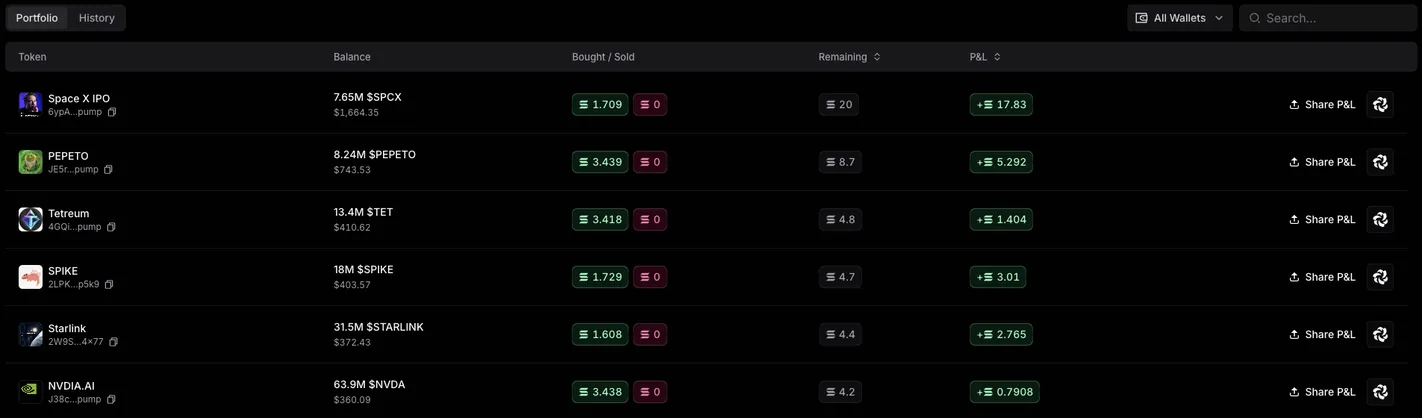
To see results, the Positions button on the bot and the Home page on Manager show which tokens you're holding, how much you bought and sold, and your PnL. PnL Calendar (the /pnl command) lays out results day by day and builds a ready-made summary image for you to post on X.
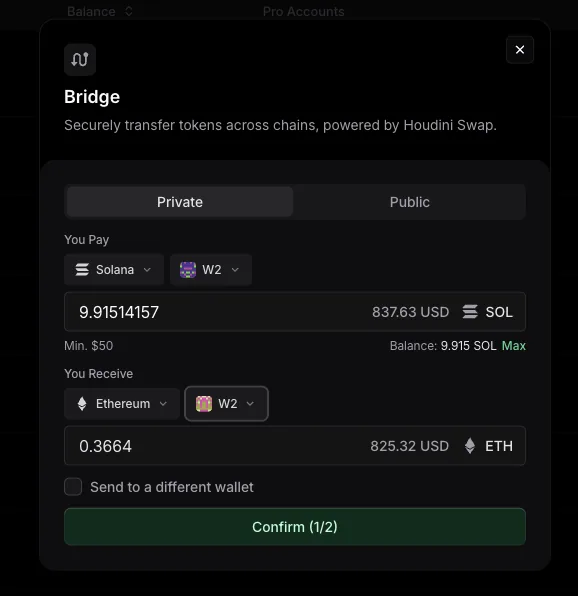
Each wallet has a Bridge button (on Telegram it's the Bridge menu) to move funds between Solana, Base, Ethereum, BNB Chain, Robinhood and Arc. Transfers run through Houdini Swap in two modes. Public is a normal transfer, with a fresh deposit address every time. Private is a hidden transfer: neither the recipient nor outsiders can trace it back to the sending wallet.
If you want the funds to land in a different wallet rather than the current one, enter the address in the Send to a different wallet field.
For token creators and developers: Deploy, Vamp, API
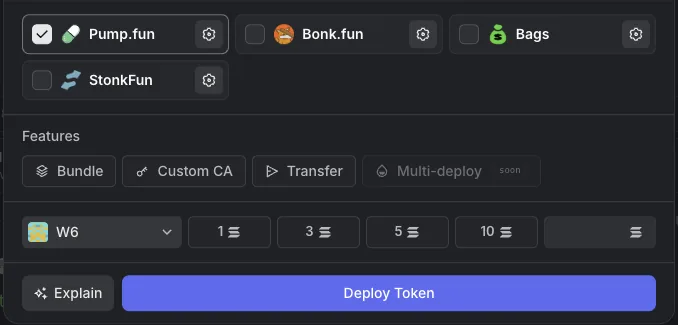
From a post in Tracker, the Deploy button opens a new-token panel. You pick the wallet to deploy from, set the name and ticker, take the image from a tweet, from the library or have AI generate one, attach the X post link, then choose the launchpad: Pump.fun, Bonk.fun, Bags, one, two or all three. Enter the amount and tap Deploy Token; the first buy is made by the deploying wallet itself.
Vamp is a shortcut: paste the address of an existing token and Bloom fills in that token's name, ticker, image and description in the new-token form. It comes with a few bundle modes, meaning using multiple wallets to bundle early buys.
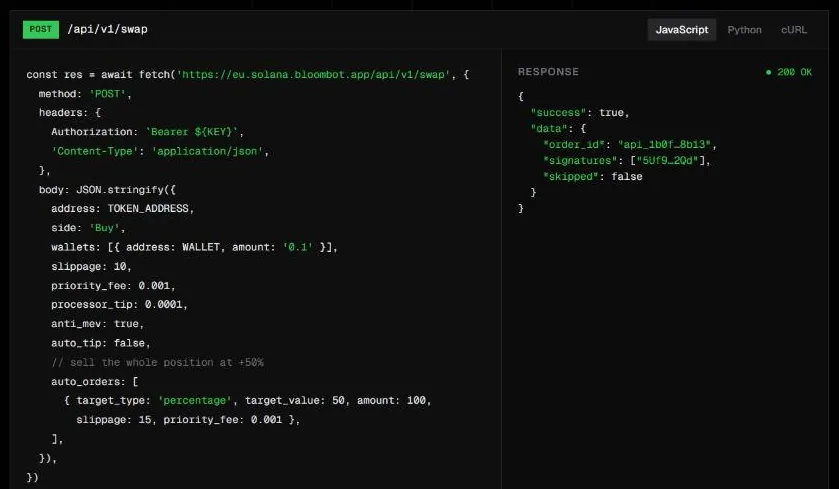
For developers, Bloom has a REST API that shares the order engine with the bot. The main endpoints: /ping tests the connection; /wallets fetches the wallet list; /swap buys and sells across 1 to 20 wallets, with take profit, stop loss and trailing attached; /deploy creates a token on pump.fun, Bonk or Bags, Solana only. You get the key in Manager: click your account name, open API Keys, choose the chain and tap Create API Key.
How much Bloom charges, and how cashback and referral commission work
Bloom takes 1% on every buy and every sell. Sign up through a referral link and you get 10% of that fee back as cashback, so you actually pay 0.9%. On top of that, you pay priority fees, network fees and Jito tips on Solana, at the levels you set yourself in settings.
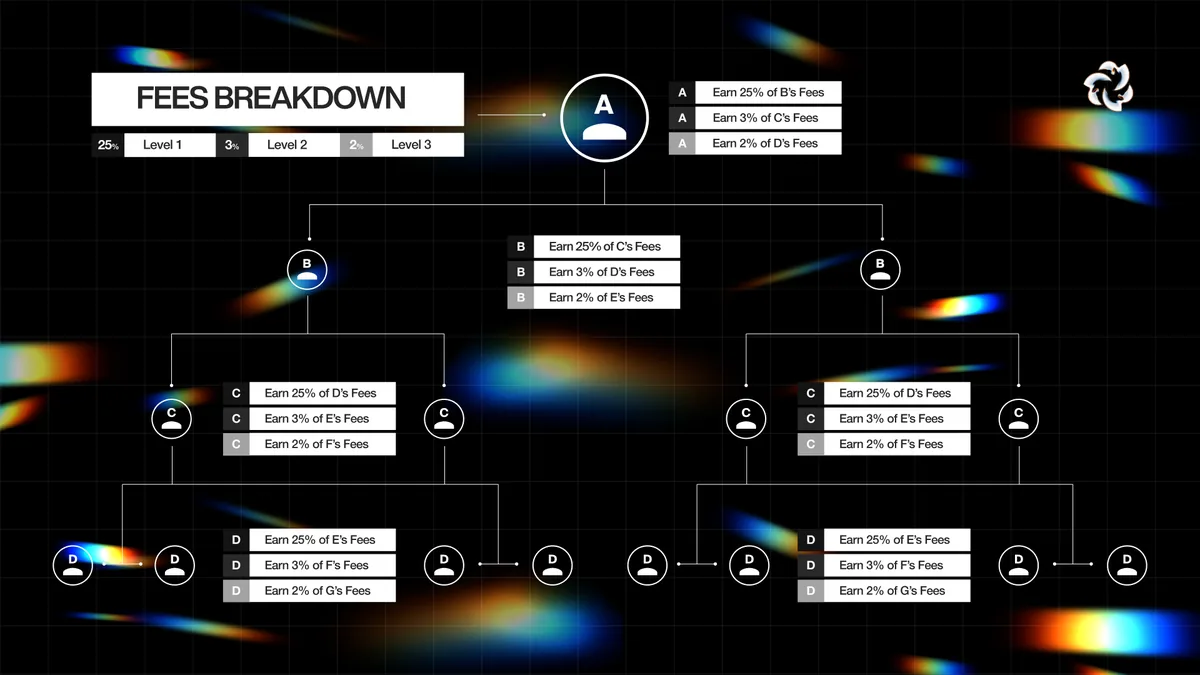
If you invite others to use Bloom, you earn referral commission on the 1% fee they pay, split across three tiers: 25% for the people you invite directly, 3% for the second tier, 2% for the third.
Both cashback and commission accumulate in Referrals on Telegram or Rewards on Manager. You can withdraw once every 6 hours, as long as the balance is above the threshold, for example 0.1 SOL, 0.05 BNB, or 0.01 ETH on Ethereum and Base.
Five habits for keeping your wallet safe when using Bloom
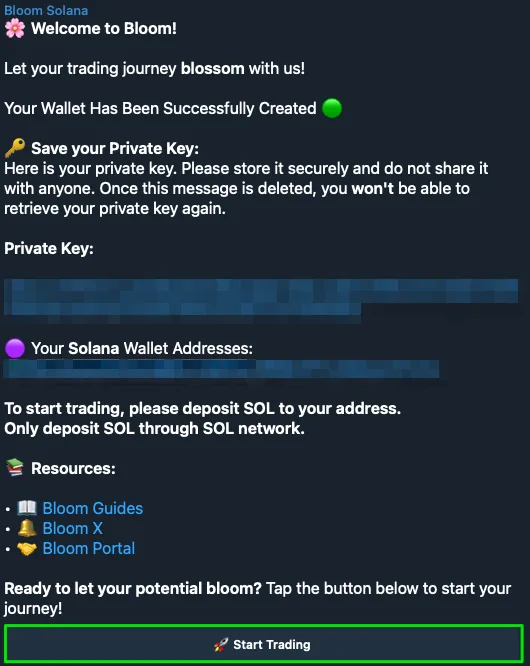
- Save your private key from the startThe first message the bot sends contains the private key of the wallet it just created. Copy the key somewhere safe, delete the message, and don't give the key to anyone.
- Lock your withdrawal addressTurn on address locking to fix the receiving address for withdrawals. Changing it means unlocking and waiting 24 hours, so even if a scammer takes over your account they can't immediately switch to their own address.
- Only use official linksdocs.bloombot.app, manager.bloombot.app, bloombot.app, plus the Telegram bots named in Bloom's documentation.
- Turn on anti-sandwichEnable Buy/Sell Protection to lower the risk of MEV bots sandwiching your buys and sells.
- Deposit just enough, withdraw profitsDeposit on the right network. Keep only the capital you plan to trade in the bot's wallet; when you're in profit, move it to your own wallet.
The Oct 26, 2026 incident: 9,408 SOL lost, refunded in full the same day
On Oct 26, 2026, Bloom announced it had been attacked. The attacker exploited a remote code execution (RCE) vulnerability in a module built by a third party, then drained about 9,408 SOL, worth roughly $947,000. The funds were in 49 wallets belonging to 9 users. Bloom stated that no private key was leaked; apart from those 49 wallets, no wallet was touched. As a precaution, Bloom shut down the entire system and warned in advance: once the system came back, everyone would have to log in to Bloom Manager and Extension again.
The same day, Bloom confirmed it had paid back 100% to all 9 users, 9,408 SOL in total, with the Solscan link for each refund transaction.
Bloom came back online on Oct 27, 2026, one day after the incident. DefiLlama data shows Bloom's volume returned right away on Oct 27, at about $349,000, and in the following days ran between $200,000 and $560,000 a day. From Oct 30, Bloom was again posting AFK orders running as normal. Elysium was added on Nov 7 and Nov 9, 2026, supporting copy trade, AFK and the X buy tasks.
In our view, the way Bloom handled it is a plus: it gave clear numbers, refunded in full the same day, and provided transaction links anyone can verify. But the vulnerability was on the platform side, so no matter how carefully you guard your key, you should still keep only the amount you're actively using in the bot's wallet.
Try Bloom in three steps
- Sign up through our linkStart from this link and your fee per order is 0.9% instead of 1%.bloombot.app
- Open the bot, save your private keyOn Telegram, read the terms and tap Continue. The bot creates a wallet and sends the private key: copy it carefully, delete that message, then tap Start Trading. If you prefer the web, go to manager.bloombot.app and log in with the same Telegram account you just used.
- Deposit a little, lock the address, test smallDeposit SOL, or ETH, BNB… into the wallet, making sure to pick the right network. Lock your withdrawal address first, then run a test buy or a copy trade task with a small amount; only raise your capital once it looks fine.
Through our referral link, at no extra cost.
Open BloomScreenshots taken on November 16, 2026; the interface may change. Not investment advice: memecoins are high-risk, only use money you can afford to lose.