
Which bots Pepeboost includes and which chains they run on
Pepeboost is the name for a whole family of Telegram bots. The latest release is @pepeboost_swap_bot, which puts eight chains in one chat: Ethereum, Base, Arbitrum, Solana, BNB Chain, X Layer, HyperEVM and Robinhood Chain. According to Pepeboost's guide, this handle is the only official account for the multi-chain version; the earlier Ethereum bot is now named @pepeboost_swap_old_bot.
Four single-chain bots still run alongside it:
- Solana: @pepeboost_sol_bot. This bot has a few extra features of its own: sniping the moment a pool opens, DCA, and burning empty token accounts to get back the SOL once paid as rent.
- BNB Chain: @PepeboostBsc_bot.
- Base: @PepeboostBase_bot.
- Tron: @PepeboostTron_bot, with an energy rental service so you pay lower network fees.
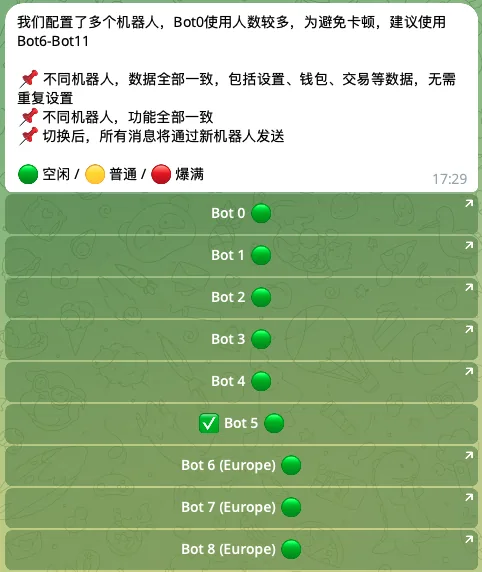
Because the Solana bot has a lot of users, Pepeboost runs backup instances. Type /bots and tap the less busy one to switch; your wallets, settings and trade history carry over intact.
The multi-chain bot works in English and Chinese. The older bots add Russian, Traditional Chinese and Vietnamese.
Quick review: strengths, weaknesses and who it suits
- One bot for many chainsSolana and seven EVM chains share one bot, and the EVM chains share one wallet address. If you trade both Solana and BNB Chain or Base, you don't need to juggle several bots.
- Lots of copy trade optionsBuy a fixed amount or a ratio of the source trade, three ways to sell, separate gas for each followed wallet, and a filter to copy only once the token has a pool.
- Auto sell measured from the fill priceA take-profit and stop-loss template attached to every buy, anchored to the actual fill price; you don't have to set it by hand after each entry.
- Token check as soon as you paste the CASource code, contract permissions, pool lock, taxes and top 10 holder share show right on the order panel; anti-MEV can be toggled separately for buys and sells.
- Cashback with no signup10% fee cashback, rising to 30% as your volume grows, for anyone using the Solana bot, the BNB Chain bot, or joining the multi-chain bot via an invite link.
- Each bot works differentlyThe older bots have their own quirks: /referral instead of /invite, a cap of 10 or 5 wallets, a limit order syntax like "30,50", and (on the Ethereum and BNB Chain bots) limit orders that expire after 72 hours. Sniping at pool open and DCA are exclusive to the Solana bot. Read the guide and check which bot each section is talking about.
- Wallet sits on a serverPepeboost's servers sign orders for you, including orders placed from the Chrome extension. How safe your funds in the bot are depends on Pepeboost's side too.
- Fees both ways1% on buys, 1% on sells, on top of gas, priority fee and anti-MEV tip. The smaller the order, the more the fees eat into your profit.
- Solana copy only mirrors simple tradesThe source wallet must trade a token against SOL, buy-only or sell-only, for the trade to be copied.
- No demo modeEvery order uses real money; the multi-chain bot is only available in English and Chinese.
Good fit for traders who play memecoins on both Solana and EVM chains and want to do everything inside Telegram; people who like copy trading wallets but want to decide the exit themselves; people who browse tokens on GMGN, Axiom, pump.fun or DEX Screener and want a buy button right on the page; people with a community who want to earn commission.
Not a fit for anyone who is only comfortable holding their own wallet keys, or beginners who want to practice on a paper account. To compare Pepeboost with other bots on chains, fees and features, see the comparison table.
Opening the bot for the first time: home screen, wallets and switching chains
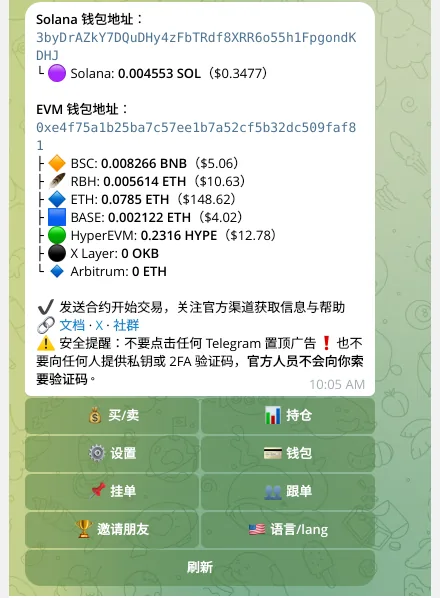
After /start, the bot asks whether you want English or Chinese. The home screen shows two addresses, a Solana wallet and an EVM wallet (shared across all EVM chains), with the balance on each chain. Send funds to the address of the chain you want to trade and you can place orders.
The row of buttons below leads to buy/sell, positions, copy trade, limit orders, wallets, settings and invite friends, plus a refresh button and a language switch. Every button has a matching typed command; we've collected them in the command table near the end of the article.
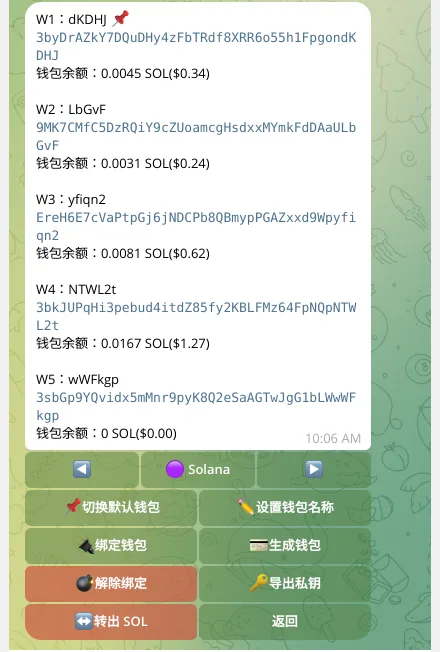
Manage wallets at /wallets. Tap the arrow to switch chains, then create a new wallet or import an existing one via private key, rename, set a default wallet, export the key, withdraw, or remove a wallet from the bot. The older bots cap the number of wallets: 10 on the Solana bot, 5 each on the Ethereum bot and the Base bot.
One easy-to-miss point: an EVM wallet has the same address on every EVM chain, but funds on BNB Chain, Base or Ethereum are separate balances. To buy with a wallet other than the default, switch it right on the token's order panel; the change applies only to the order you're placing.
To move funds to another chain, type /bridge: pick the source and destination chains, the sending and receiving wallets, then enter the amount. The bot quotes the expected amount received, the minimum received and the fee; if you agree, tap to send. Past transfers can be reviewed in /bridges.
Finding tokens: XXYY, the lookup bot and community channels
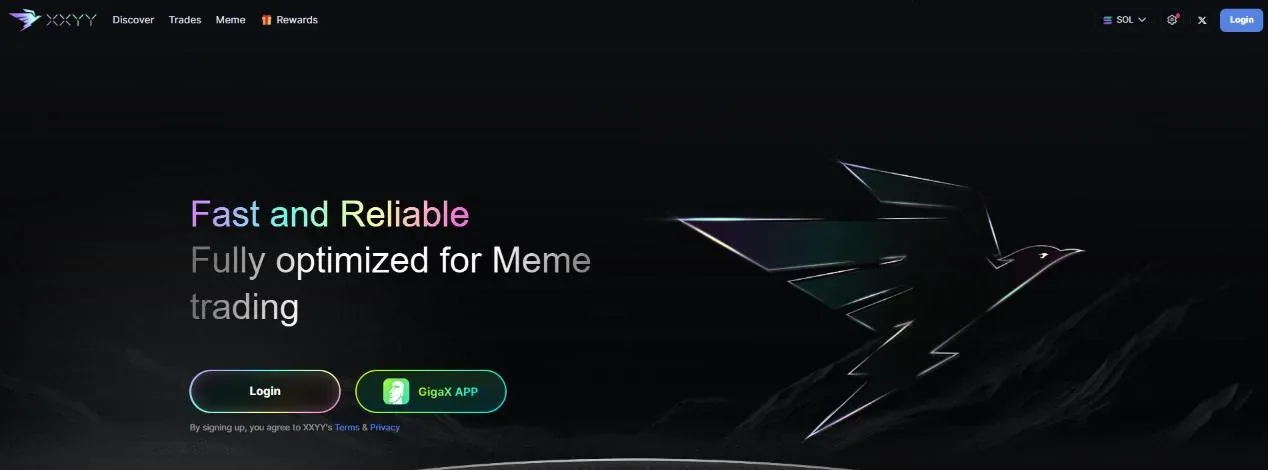
If you want to view tokens on a screen wider than a chat window, Pepeboost's guide suggests XXYY (xxyy.io). XXYY and the bot share one referral program. Pepeboost describes XXYY as offering:
- a real-time scanner for newly launched tokens, with many filter types;
- tracking of posts on X;
- a preselected list of KOL wallets to follow;
- trading across multiple wallets, with auto sell.
XXYY runs on Base, Ethereum, BNB Chain and Solana. On mobile, you can pin it to your home screen to open it like an app.
Inside Telegram itself, the Pepeboost community also has a token lookup bot, a wallet tracking bot and a new token alert channel; according to the guide, all three are free.
- @xxyy_query_bot for group chatsAdd the bot to your Telegram group and when a member sends a CA, the bot returns the token info. /bind attaches your invite code to the bot: whenever anyone in the group taps through from there to trade, the commission goes to you. The bot also has /lb (a profit leaderboard based on the CAs looked up), /calls and /pnl.
Paste the CA, read the safety panel, then hit buy
Manual trading starts with sending the contract address (CA) to the chat. The bot detects the token's chain by itself and opens the order panel. The older bots also accept Dextools, Birdeye or DEX Screener links, as long as the link contains the token address.
The top of the order panel is data: wallet balance, how much of the token you hold and your cost basis, current price, market cap, pool depth. Next is the safety panel, which answers a few questions worth asking before you buy:
- Is the contract source code verified, and has ownership been renounced?
- Is the pool locked, and what are the buy tax and sell tax?
- Has the token's DEX Screener profile been paid for?
- What percentage do the top 10 wallets hold?
Below the panel are links to DEX Screener, XXYY, X and the chain's block explorer.
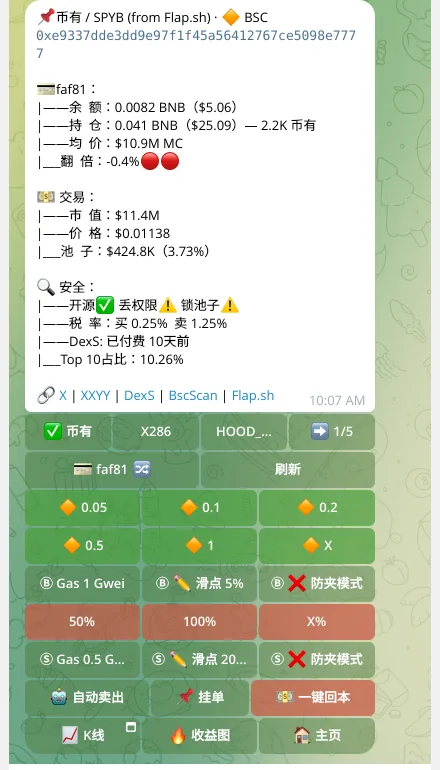
- Buy buttonsThe green buttons are preset buy amounts; for a different amount, tap X and type it in. If you've turned on the second confirmation step, the bot asks once more before sending.
- Sell buttons50%, 100% and X% to type your own are built in. Another button calculates how much to sell to get back exactly your initial cost, letting the rest ride.
- Adjust on the spotSwitch the wallet for this order right on the panel. Priority fee, slippage and anti-MEV are also adjusted here, separately for buys and sells.
- The other buttonsOpen the candlestick chart, generate a PnL image for this token, get a share link for the token with your invite code attached, or switch to placing a limit order or auto sell.
If you're used to checking tokens on the web, there's also Pepeboost's Chrome extension Unified Trading. The extension puts an order box on four sites: pump.fun, dexscreener.com, GMGN (gmgn.ai) and Axiom (axiom.trade). Orders placed from that box go straight to your Pepeboost account in Telegram and run there, with the result shown back on the page. To link the extension to the bot, you tap a Telegram link the first time. The extension's privacy policy, effective Aug 17, 2026, says the extension doesn't hold wallet keys and doesn't sign transactions itself: the wallet stays server-side, just as when you use the bot.
Order settings: fastest, or protected against sandwich bots
Pepeboost lets you pick one of two routes for sending orders. Speed mode pushes the order out as fast as possible, at the cost of a risk of being sandwiched by other bots. Anti-MEV mode goes through a private channel so it's harder to sandwich, though sometimes a beat slower.
All parameters live in /settings. Pick the chain first and then adjust, because each chain keeps its own set: priority fee and slippage (two fields each, for buying and for selling), the amounts of the quick buy buttons, the ratios of the quick sell buttons, then the toggles for second confirmation, risky order warning, anti-MEV and auto sell.
New parameters apply only to orders placed after you save. Limit orders and auto sell orders created earlier keep running at the old level.
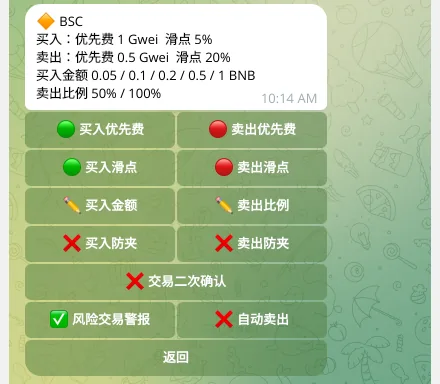
- What slippage to useThe guide suggests 10–15% in speed mode. For anti-MEV mode, they recommend 100% (i.e. unlimited) so orders fill easily. For Pump.fun or Moonshot tokens that haven't left the bonding curve, use about 30%.
- Priority fee on SolanaThe normal level is 0.005 SOL, 0.01 SOL if you need speed, and 0.02 SOL or more when it's urgent. Paying more doesn't mean the order is guaranteed to succeed.
- Solana bot onlySmart Gas adds fees automatically depending on network conditions. There's also a mode where pasting a CA buys immediately, using the amount you've preset.
Sniping at pool open and trading Pump.fun tokens with the Solana bot
Sniping at pool open is a feature exclusive to @pepeboost_sol_bot. You send the CA of a token that hasn't started trading, enter how much SOL to put in, and turn on anti-MEV if needed. When the pool opens on the DEX, the bot buys right away. The priority fee the guide suggests for sniping is 0.01 SOL or more. Snipe tasks live in /snipe, where you can view, refresh or cancel each one.
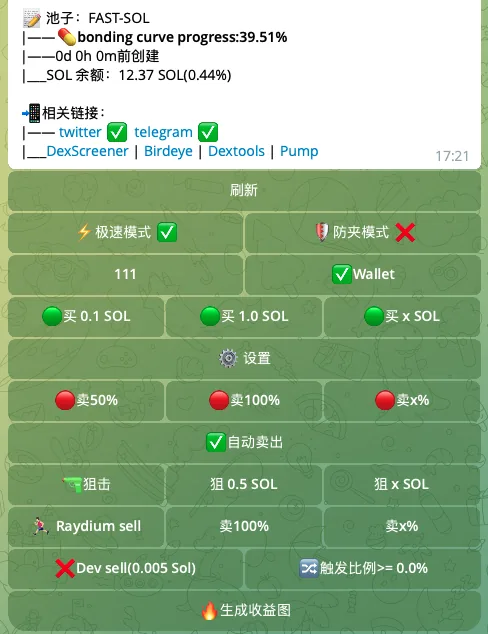
For Pump.fun tokens that haven't left the bonding curve (same for Moonshot and Makenow), you trade as normal, with slippage and fees set separately. The order panel adds two buttons:
- Raydium sell: schedule in advance to sell a portion the moment the token graduates from the bonding curve to a pool. The button name dates from when Pump.fun still sent tokens to Raydium; now that destination is PumpSwap.
- Dev sell: if the dev wallet's sales hit the ratio you set (say 25%), the bot dumps your whole position.
Limit orders and auto sell templates so the bot watches the price for you
There are two places to set a limit order: the /orders command, or the matching button right on the token's panel. You choose buy or sell, pick the condition type (a price level, a percent up or down, or a market cap level), then enter the buy amount or the sell ratio and the order's expiry.
The older bots use a shorter syntax: typing "30,50" means that when the price is up 30%, sell 50% of the tokens. If the first number is negative, the order becomes a stop loss.
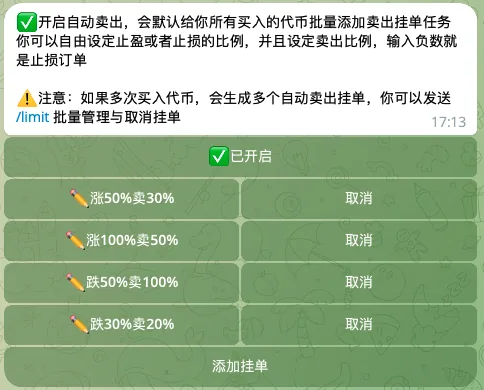
Auto sell goes further than a limit order: it's a take-profit and stop-loss template applied to all buys. You turn it on and add tiers one by one, for example price doubles (up 100%) sell half, price halves (down 50%) sell everything. From then on, every time a buy fills successfully, the bot takes the exact fill price as the reference and generates sell orders from the template automatically.
Turning Auto sell off only stops the bot from creating sell orders for your next buys. Sell orders already generated keep running until you go to /orders and cancel them one by one. The Solana bot alone also has DCA, which splits one buy into several smaller ones.
Copy trade: choose how to buy, how to sell and the filters
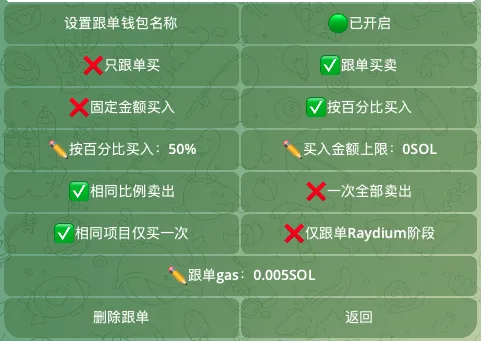
To copy a wallet's trades, type /copytrade (or /follow), tap to create a new task, choose which of your wallets will do the buying, then paste the address of the wallet to follow. Before saving, the bot checks whether that wallet is already being followed and whether it's on the right chain. On the older bots it's even faster: paste a wallet address into the chat and a copy button appears, and you can follow up to 10 wallets.
- BuyingTwo ways. Fixed: whenever the source wallet buys, you buy the same amount, say 0.1 SOL. Ratio: set 50% and if the source wallet goes in with 1 SOL, your order is 0.5 SOL; this mode has a cap so you don't overbuy.
- SellingThree ways: don't copy sells (you decide when to exit), sell at the same ratio the source wallet sells, or sell everything the first time the source wallet sells.
- FiltersThe bot enters each token only once. On Solana, you can copy only once the token has reached a DEX pool, skipping the bonding curve stage (the guide calls that pool Raydium); BNB Chain has a similar option with PancakeSwap.
- Gas per walletEach tracked wallet has its own fee level. The old Ethereum bot defaults gas to 1.1x the source wallet's gas so your order gets processed first, and it has a gas cap.
Tracking positions and reading the report after each fill
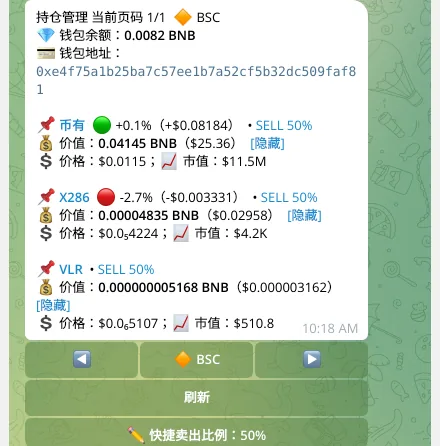
Type /asset to see the tokens you hold, split by chain. Each row has the current value, PnL in percent, price, market cap and a quick sell button, 50% by default but changeable. If tiny leftover tokens clutter the list, tap hide; to see them again, go to the management section.
Each time an order fills, the bot sends a notice: the amount spent, the number of tokens, the price and market cap at fill, and the balance left in the wallet. Alongside it is a PnL table for that token alone: total bought, total sold, the amount still held, how many x the profit is and how long you've held.
1% fee, cashback and referral commission
Pepeboost's trading bot takes 1% on every order, on both buys and sells. On top of that are network costs: gas, priority fee, and the tip for the anti-MEV channel if you turn it on.
In return, Pepeboost pays back part of that 1%. The starting cashback is 10% of the fee, for users of the Solana bot and the BNB Chain bot, plus anyone who reaches the multi-chain bot through an invite link. As your volume grows, the cashback rises on its own to 15%, 20%, 25%, up to a maximum of 30%, and you don't have to sign up for anything. Counting only the bot's fee, 10% cashback means you actually pay 0.9% each way, and 30% cashback leaves you paying 0.7%.
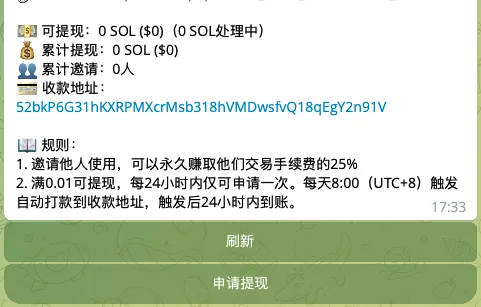
To invite others, type /invite to get your link (the older bots use /referral). According to the guide, you earn for life a share of the fees paid by the people you invite, depending on the chain:
- BNB Chain: 35%
- Tron: 30%
- Solana: 25%
- Ethereum and Base: 20%
If you have your own community, Pepeboost accepts applications for a higher rate, up to 40%. Commission can be withdrawn once it reaches 0.01 SOL (or 0.01 BNB, 0.01 ETH), with at least 24 hours between withdrawals.
Keeping your wallet safe: 2FA, private key and common traps
For the wallets in the bot, Pepeboost's servers sign orders on your behalf. A sensible way to use it is to treat it like a pocket wallet: keep only the capital you plan to trade, and withdraw profits to a separate wallet.
- Turn on 2FA before depositing a lot/twofa links the bot to an authenticator app. From then on, withdrawing funds or exporting the private key both require a 6-digit code.
- Save the key the first timeA newly created wallet only shows its key once, so copy it somewhere safe right away. When you export again with /export, the bot tries to delete the message containing the key after a few seconds; even so, check yourself that the message is gone.
- Removing a wallet isn't withdrawingRemoving a wallet from the bot leaves the funds in it untouched. But if you remove it without having saved the key, you have no way to get back into that wallet.
- Only one real multi-chain botThe official account for the multi-chain version is @pepeboost_swap_bot. Open it from the guide or the official group, and don't tap pinned ads in Telegram.
- Nobody needs your keysThe Pepeboost team would never ask for your private key or 2FA code. If someone messages you promising commission support, an airdrop or compensation and asks for your key, don't hand it over.
- Deposit on the right networkAn EVM wallet has the same address on every chain but the balances are separate, so before sending funds in, double-check the receiving network.
At our check on Oct 28, 2026, we found no confirmed hack involving Pepeboost. That doesn't replace the steps above: a wallet on a server still carries the risk of whoever holds it.
Shortcut commands worth remembering
Every button on the home screen has a typed equivalent. We've grouped them by what you need to do:
- Quick view/start or /menu takes you back to the home screen, with balances and deposit addresses. /asset lists the tokens held on each chain, with PnL and a quick sell button.
- Automated orders/orders (/limit also works) holds limit orders and auto sell orders. /copytrade (or /follow) is for creating and editing copy tasks.
- Wallets and transfers/wallets to create, import, rename, pick the default wallet and withdraw. /bridge moves funds to another chain, /bridges shows where a transfer is.
- Security/twofa turns on two-step verification, /export exports the private key.
- Settings and invites/settings adjusts each chain separately. /invite shows your invite link, commission and cashback.
- On the Solana bot/snipe manages snipe tasks, /bots switches to a backup instance.
Getting started with Pepeboost in four steps
- Open the bot through our linkYou pay no extra fee compared to finding the bot yourself.docs.pepeboost.io
- Pick English, store the wallet keyType /start and choose English; the bot shows the Solana wallet and the EVM wallet. Use /export to get the private key, store it somewhere safe, then turn on /twofa.
- Adjust settings for the chain you'll useIn /settings, choose the order sending mode, set slippage per the suggestions above and turn on Auto sell with at least one stop-loss tier.
- Deposit a little, test smallDeposit SOL, BNB or ETH over the right network, paste a token's CA and try a small buy. Only when everything works as expected should you copy a wallet or place large orders.
Through our referral link, at no extra cost.
Open PepeboostScreenshots taken on November 16, 2026; the interface may change. Not investment advice: memecoins are high-risk, only use money you can afford to lose.