
What BONKbot is and who it's for
BONKbot is one of the oldest Telegram bots for trading Solana tokens. It now has three parts, all tied to the same account:
- Telegram bot @bonkbot_botThe core: wallet, buying and selling, limit orders, DCA, settings. This bot alone doesn't snipe.
- Telemetry webA browser-based terminal, logged in with your BONKbot account. Most of the token discovery tools live here.
- Nighthawk sniper botA separate bot for sniping, open only to people on the whitelist.
In our view, BONKbot suits people who pick their own tokens and press their own buttons. The bot can't copy another wallet's trades yet; you can only track wallets.
Besides Solana, BONKbot added the Robinhood chain on Nov 19, 2026. On this chain you can place limit orders, trailing stop loss and DCA, trade with USDG or ETH, and use Auto Strat to automate limit orders. To move funds over, bridge right inside the bot with the /bridge command. Switch chains on the Home page.
Press Start in @bonkbot_bot for the first time and the bot creates a Solana wallet for you, with the address right in the welcome message. Once there's SOL in the wallet you can place orders, with no external wallet to connect and no signing every transaction.
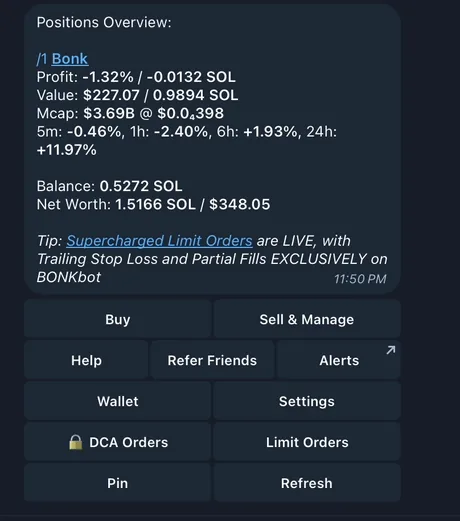
/start opens the main menu. At the top is a table of the tokens you hold: value, market cap, PnL, and the latest price move. Below are the buttons, grouped by task so they're easy to remember: trading with Buy and Sell & Manage; pending orders in DCA Orders and Limit Orders; and the rest are Settings, Wallet, Help, Alerts, Pin, Refer Friends and Refresh (refreshes balance and prices).
Buy with one paste, sell right from the position card
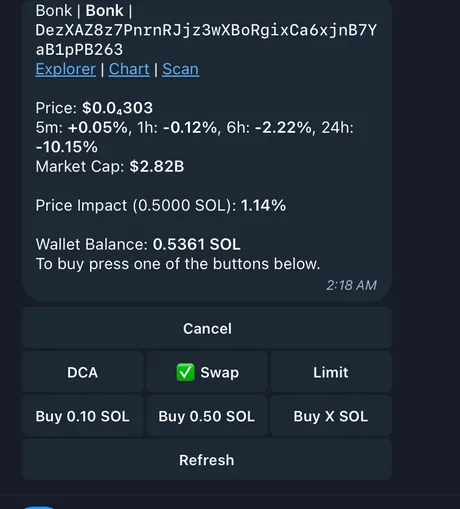
The fastest way is to paste the token's address into the chat, or a link to that token on Birdeye, Meteora, Pump.fun or DEX Screener. Going through the menu, press Buy and then send the name or address. The bot returns the price, market cap, wallet balance, price change across timeframes from 5 minutes to 24 hours, and how much your order will move the price for the amount you plan to put in.
The top row of buttons picks the order type: Swap fills instantly, Limit waits for a price, DCA splits it into several buys. Below that are a few preset amounts, such as 0.10 or 0.50 SOL; for a different amount press Buy X SOL and type it in. BONKbot says orders route through Jupiter, plus a routing setup they built themselves.
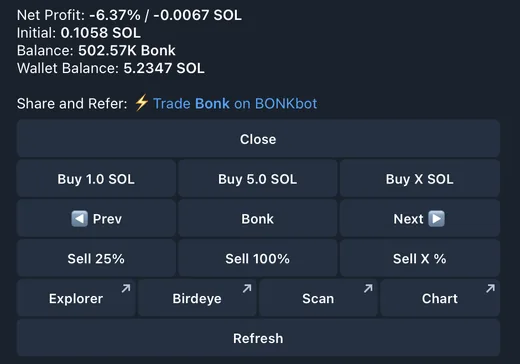
Tokens you've bought sit in Sell & Manage. Each position shows the amount you put in, whether you're up or down (both % and SOL), current value, market cap and price movement. The line most worth watching is Net Profit: real profit after DEX fees, the price impact your own order caused, and the 1% BONKbot takes.
The arrows flip through your tokens. Right on the card are the buy-more button and the sell buttons Sell 100%, Sell 25%, Sell X %, along with shortcuts to Solscan, Birdeye, the chart, and a share link with your referral code built in. One button few people notice is Sell Initial, which you turn on in the sell button setup: the bot sells just enough to recover your initial cost, and the rest of the tokens ride on.
Take profit, stop loss, DCA: let the bot watch the price for you
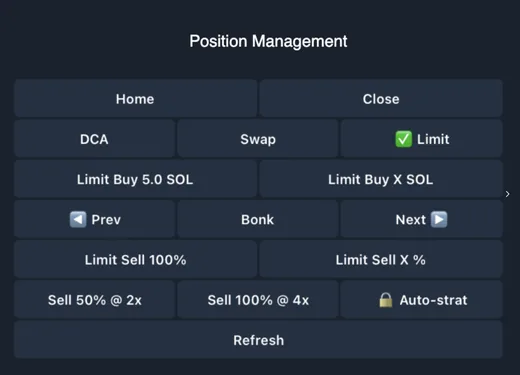
Limit buy orders are placed right on the buy card; the Position Management section also has a button to turn on Limit, next to the Auto-strat button.
- Buy when price hits a levelBuy Dip waits for the price to fall to your level before buying. Buy Breakout is the opposite: it buys once the price breaks above the level. On the buy card choose Limit, type the SOL amount, then type the trigger level.
- Sell when price hits a levelTake Profit sells when the price rises to the level, Stop Loss cuts when the price falls to the level. Trailing Stop Loss moves the stop level up with each new peak. For example: if market cap drops to 0.8x of the latest peak, sell half.
- Four ways to enter a triggerBy USD price, by market cap like 150K, 2M, 1B, by % (+5%, -5%), or by multiple like 0.8x, 2x.
- DCAChoose the total amount, number of orders and interval. For example, spread 0.5 SOL over 5 orders 10 minutes apart: 0.1 SOL each, done after 50 minutes. Track and cancel in DCA Orders.
Settings: speed, slippage and sandwich protection
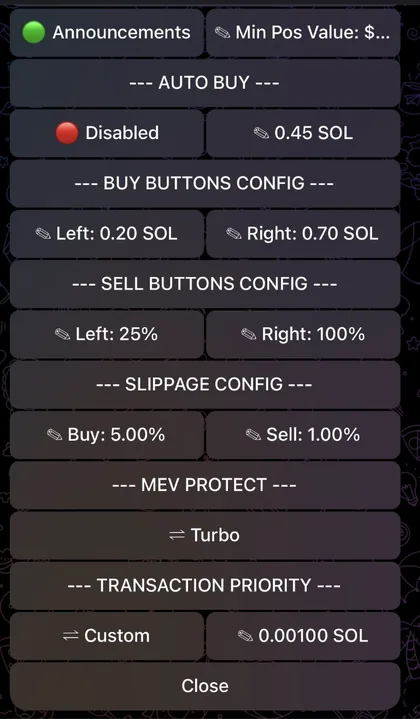
- Auto BuyWhen on, the bot treats every token address you paste as a buy order, using your preset SOL amount and not asking again. The main Telegram bot has no sniper, so this is its fastest way into a trade.
- Sandwich protectionMEV Protect works with Jito and has two modes. Turbo uses Jito when that route is the fastest; otherwise the order goes the normal way with no protection layer. Secure always shields the order, at the cost of being slower; to make up for the speed, pay a higher tip.
- Priority feeTransaction Priority: choose Very High, High, Medium, or type your own fee level.
- Buttons, slippageChange the amounts on the buy buttons and the percentages on the sell buttons; slippage for buys and sells is set separately; cap the price impact.
- Misclick protectionWith Sell Protection, every sell order needs one extra confirmation click.
Nighthawk: to snipe, switch to the second bot
The main bot doesn't snipe; that belongs to Nighthawk (@nighthawk_bonkbot), a separate bot linked to your BONKbot account by wallet address so the two share a wallet. To use it you need to get on the whitelist: send your Telegram ID to the BONKbot account manager; if you came through a referral, ask on Discord.
You fund two places: the Nighthawk wallet holds SOL for sniping, while the BONKbot wallet needs SOL for the fees of later transactions.
- How to set a snipeSend Nighthawk the Meteora pool ID or the token's address on Pump.fun, then adjust manually or use a preset you've saved.
- Precision modeYou set a market cap ceiling; if the token goes past the ceiling, the bot doesn't buy. If the snipe misses, the loss is a fixed amount you set in advance. Beginners should use this mode.
- Speed modeBuys at any market cap; the higher you set the tip and fee, the earlier you get in. That amount is gone even if the order fails to buy.
- When a snipe landsThe token you bought shows up in BONKbot, with a deeplink to sell right away. Pending snipes can be viewed and canceled with /start.
Telemetry: find tokens with momentum and brand-new launches
The Telemetry website (telemetry.io) acts as BONKbot's terminal: log in with your BONKbot account, trade with the bot's own wallet, and it runs on both desktop and phone. The menu has five items: Dashboard first, Sentinel last, and Discovery, X-Ray and Portfolio in between.
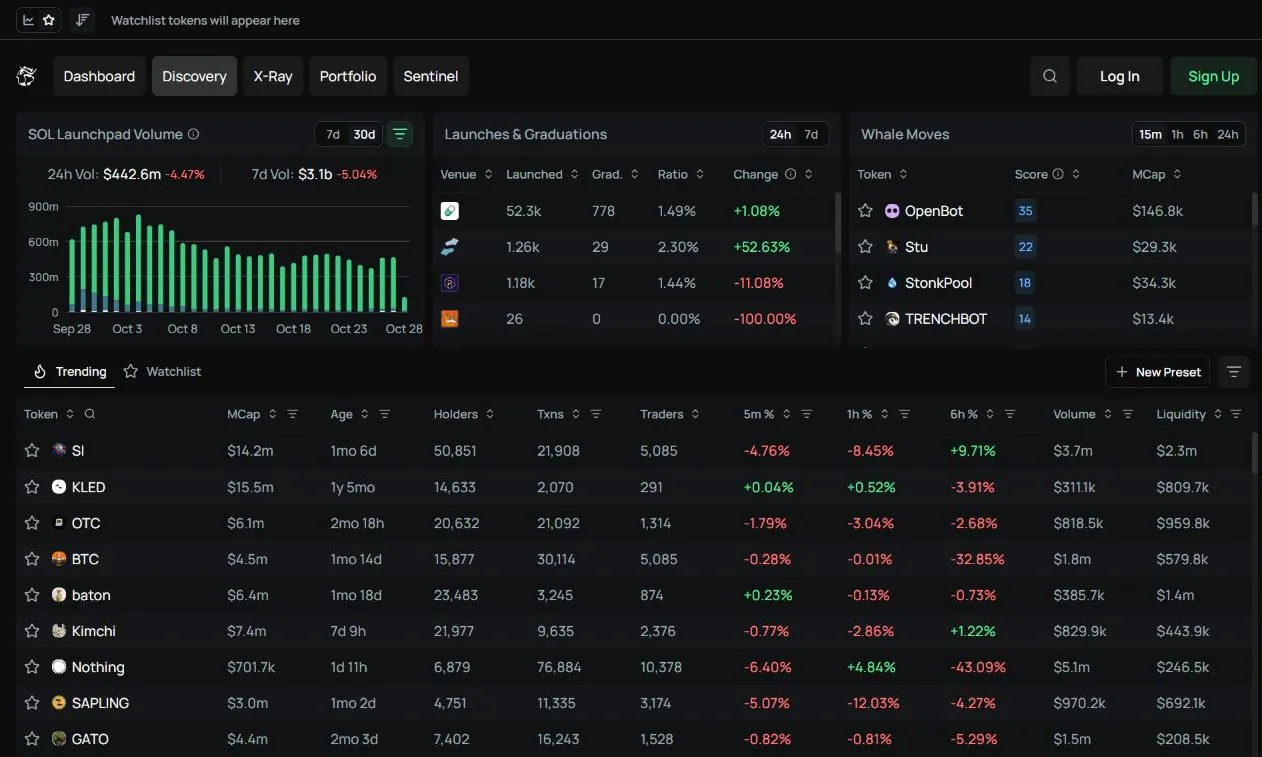
The default page is Discovery: a table of tokens with momentum, ranked by Telemetry's algorithm. Each row shows token age, holders, market cap, liquidity, volume and price change; the filters let you screen out tokens by dev holding % and top 10 wallets holding %.
Next to the table are three widgets. Whale Moves shows which tokens big wallets are accumulating; orders under $25,000 aren't counted. Launches & Graduations counts new tokens per launchpad and how many have graduated to a DEX. The third widget is SOL Launchpad Volume. For a specific token, type the address or name in the search box at the top; the shortcut key is /.
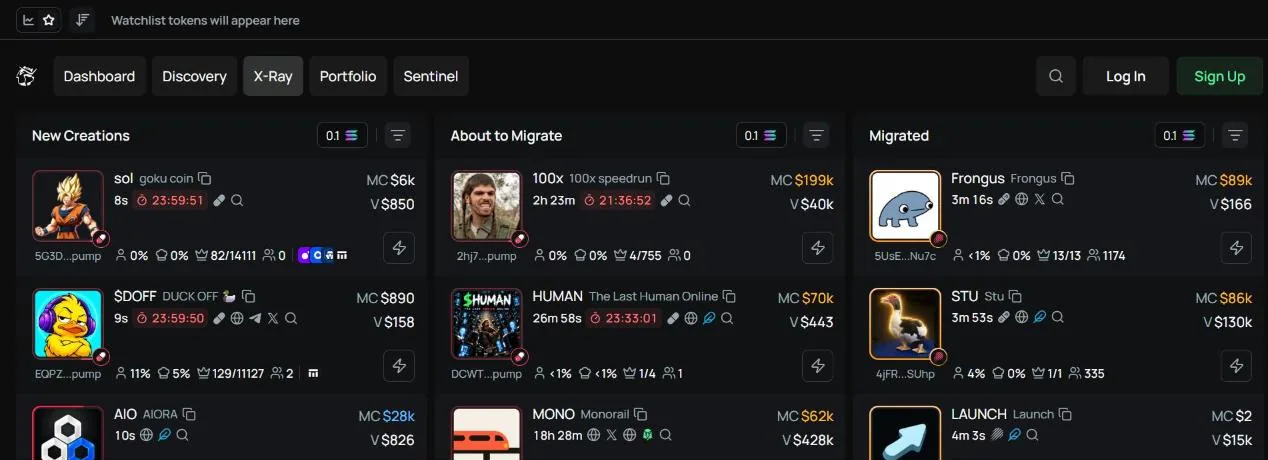
For brand-new tokens, check X-Ray. This page pulls together tokens from Solana launchpads and splits them into three columns by lifecycle: New Creations for freshly created tokens, About to Migrate for tokens about to leave the bonding curve, Migrated for tokens that have reached a DEX. Each column can be filtered on its own; hover over a column and it pauses so you can read. You can open X-Ray full screen, or collapse it into the sidebar while you place orders.
In our view, X-Ray's filters are the most detailed part of Telemetry:
- launchpad: Pump.fun, LaunchLab, Moonit, Boop, LetsBONK, Believe and a few others
- dev wallet: where its funds came from (over 80 exchanges, bridges and betting sites), how many assets it holds, what % of the token it holds
- the average value of the top 10 wallets, and keyword filtering
- safety signals: paid for DEX Screener, LP burned, mint and freeze authority disabled
Dashboard: build your own screen, replay the market with Rewind
Dashboard is first in the Telemetry menu and only opens once you're logged in. This screen is assembled from widgets; the Customize button lets you pick widgets and arrange them the way you like to follow the market.
The three widgets below were added in March 2026:
- Heavy HittersA stream of large orders on Solana tokens. Each row shows the token, the wallet, buy or sell side, the order value and how long ago it was placed.
- Flow ScannerMeasures money flowing into each token with buy volume, sell volume, Net Flow (the difference between the two) and RVOL, which tells you whether volume is high or low compared to normal. Timeframes from 5 minutes to 24 hours.
- Community TrackerRanks a token's X communities by how fast they're adding members and how active the posts are, so you can spot a community heating up before the price has time to run.
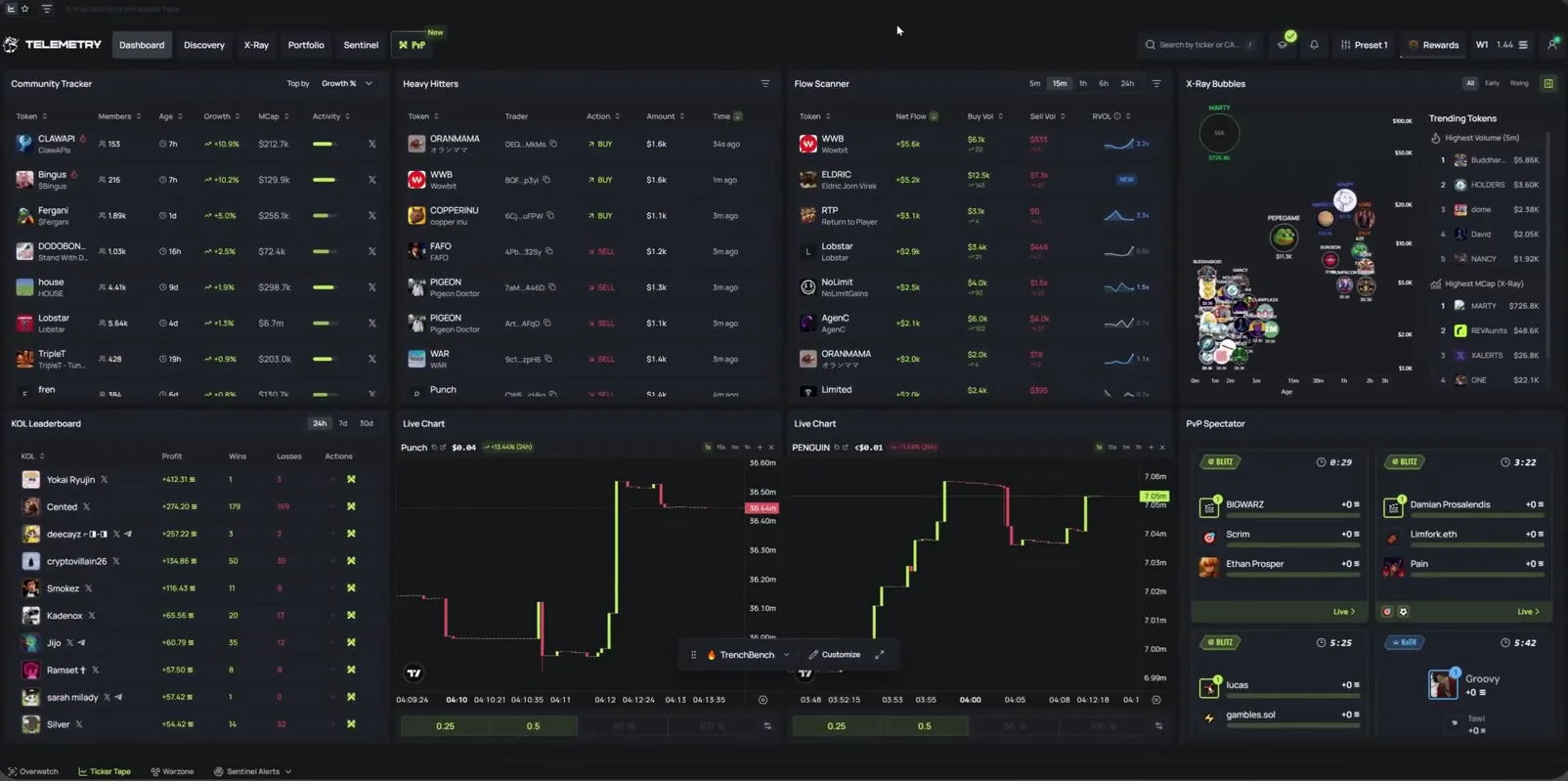
That video also shows Live Chart (a mini chart with a quick buy button), KOL Leaderboard (ranks KOLs by profit, winning trades and losing trades over 24 hours, 7 days and 30 days) and X-Ray Bubbles.
Rewind has been on the Dashboard since Sep 11, 2026, for when you come back after being away for a while. Rewind recaps the last 1h, 6h or 24h: which tokens pumped hard, which deflated, which moved sideways; an AI-written market summary; and whether the wallets on your watchlist accumulated more, sold, or are still holding.
Wallet Tracker: watch other wallets trade and decide yourself whether to follow
BONKbot doesn't have a feature for the bot to auto-trade by following other wallets. The closest thing is Wallet Tracker on Telemetry: trades from the wallets you track show up as soon as they land onchain, every chart shows the name or emoji you tagged the wallet with, and there's a sound alert each time that wallet buys or sells.
- Bulk add walletsPaste a whole list of addresses; pull in the top 100 KOL wallets from KOLscan, or high-profit wallets on atm.day; or import a file exported from another wallet tracking tool, for example Axiom.
- Summary per tokenFor each token: which wallets are accumulating, whether they're in profit or at a loss, and what percentage they still hold, meaning whether they've dumped yet.
- ConfluenceAn alert when several wallets on your list buy the same token.
- Live Trades feedReal-time trades. Click a row to see the token chart, or view the transaction on Solscan. The [ key hides or shows the Wallet Tracker bar.
Trading on Telemetry: charts, Turbo Mode, Portfolio and Kill Cam
The chart on a Telemetry token page is TradingView, with your average buy price, the orders you've placed, the dev's orders and the orders of the wallets you're tracking already drawn in.
The Token Info panel answers the questions you should ask before buying: which wallet is the dev, where its money came from, whether there was bundling at launch, what percentage the top 10 wallets and the dev hold, how mint and freeze authority are set, whether LP is burned. Right below it are five tabs: holders, top traders, history, orders, pending orders.
- Turbo Mode4 or 8 buttons, click and it fills, no confirmation. Hold Space and the Q W E R row becomes buy keys, the A S D F row becomes sell keys. Four presets P1 to P4 save Jito tip, slippage and anti-MEV mode so you can switch quickly.
- PortfolioSplits positions into three groups: open, closed, hidden. Each position shows the amount you put in, the amount sold, realized PnL and the unrealized part on paper, along with a chart showing how much each token takes up in your portfolio.
- Wallets on webCombines the balances of all your wallets. To deposit, use the wallet address or scan the QR code. The docs, when we read them, still listed withdrawing on web as "coming soon".
At the bottom edge of every Telemetry page is a toolbar. At our last check in late October 2026, it had five buttons: Overwatch, Ticker Tape, Kill Cam, Price Alerts, Sentinel Alerts, the last three of which require login. The two alert buttons are covered in the next section; the rest:
- OverwatchA sidebar you assemble from modules like Wallet Tracker, Watchlist, Portfolio, Whale Moves, Sentinel Alerts, Trending; drag, resize or remove modules as you like. The [ key hides or shows Overwatch.
- Ticker TapeA strip scrolling across the top of the page: choose Show Active Positions to see your open positions, or Show Watchlist to see the tokens in your watchlist. If you use several watchlists, you can switch between them right on the strip.
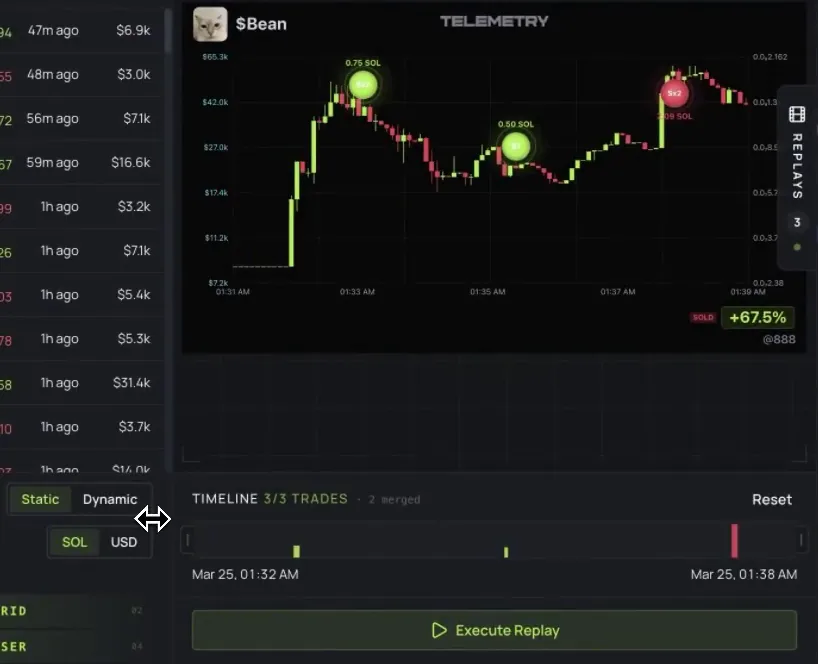
Kill Cam turns your trade into a PnL video clip: the chart replays the exact stretch you traded, with your buy and sell points marked. You pick a Dynamic or Static camera angle, show PnL in USD or SOL, choose the part worth watching on the Timeline, then press Execute Replay; when it's rendered, save it as a GIF and post it. Every video you've made is saved in My Replays.
BONKbot introduced Kill Cam in March 2026. On Aug 25, 2026, they announced the feature is now available in both places, the BONKbot bot and Telemetry.
Let tokens come to you: Sentinel, Price Alerts and the Telegram channel
With Sentinel (also login-only), you set your conditions once and let the machine do the watching: any token that matches triggers an alert right away. BONKbot released the intro video for this tool in March 2026.
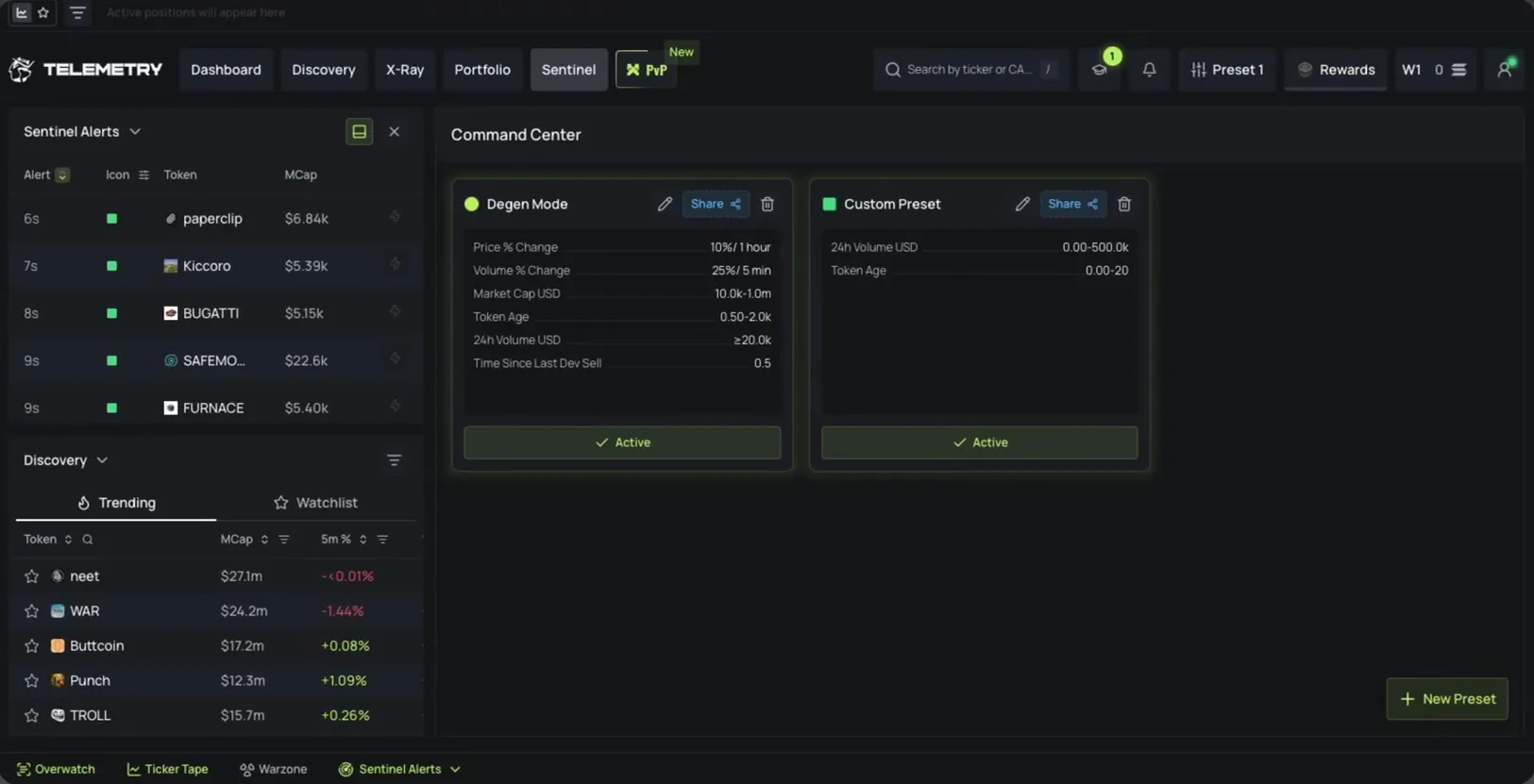
The first time you open Sentinel, you're invited to pick a template: Alpha Picker finds tokens that are both showing up on social media and have healthy metrics; IDGAF is the balanced template, with a social media check step; Degen Mode hunts high-risk plays, with tight filters.
Or build your own preset: choose metrics in Select Alert Metrics, and set a lower and upper bound for each. There are plenty of metrics: market cap, liquidity, token age, buy-to-sell ratio, time since migration, holders, % LP burned, % top 10 holders, % bonding curve, minimum number of trades, 24-hour volume, % change in price and in volume. Try it with Test Mode, and if it looks good, Save.
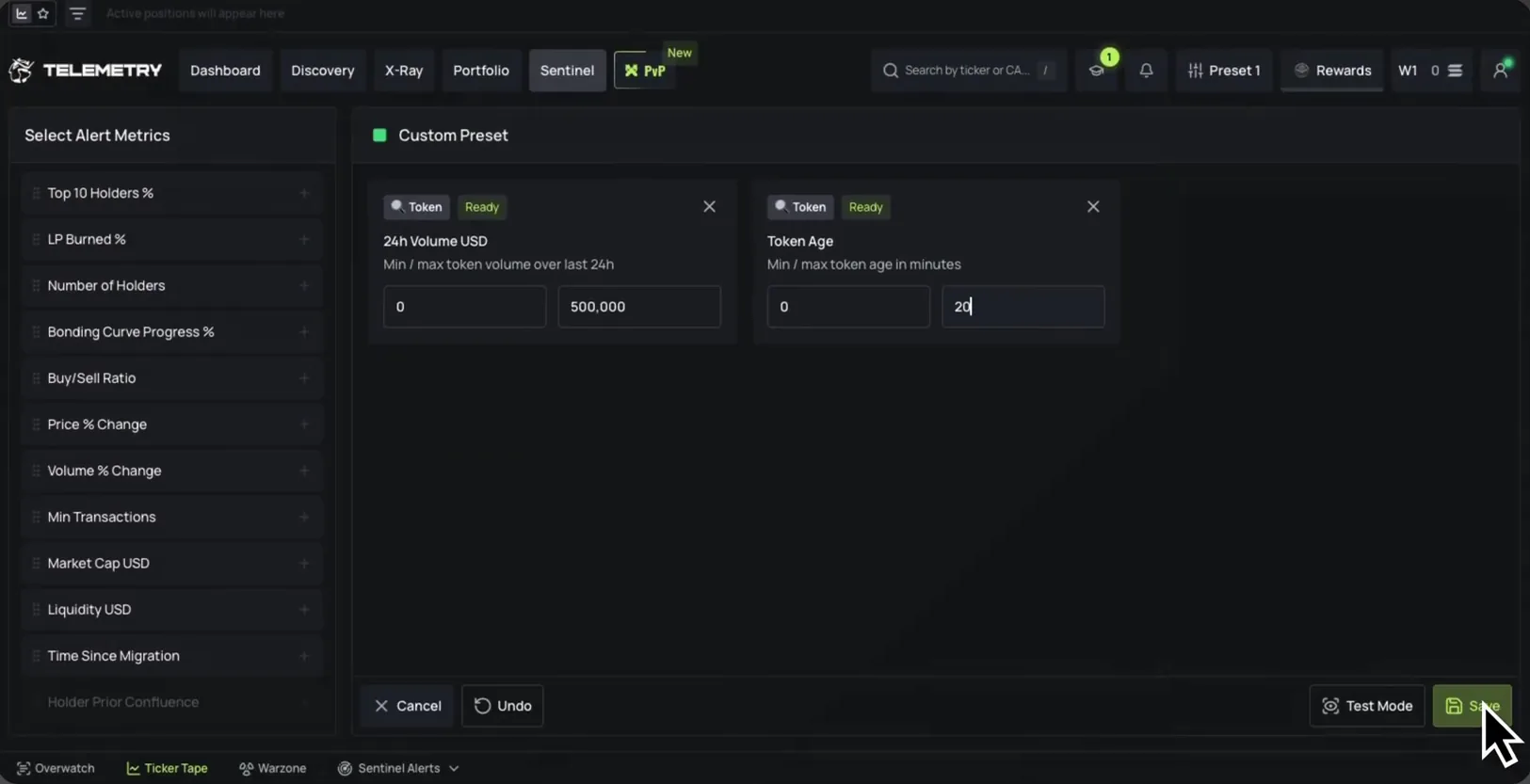
The presets you save are collected in Command Center. There you turn each preset on or off with the Active button, edit it, delete it, or press Share to send it to someone else. When a token matches, Telemetry shows the message "Sentinel has found a match" and adds the token to the Sentinel Alerts panel, with the match time and market cap. This panel opens from the toolbar at the bottom, or you can attach it to Overwatch as a module.
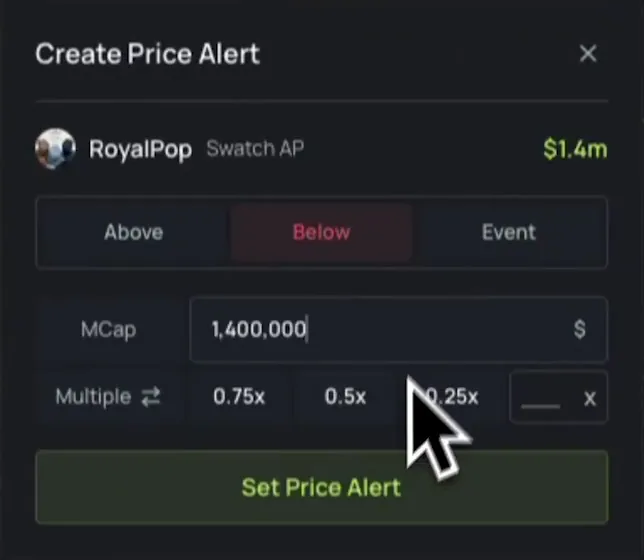
For a token you're already watching, use Price Alerts. Open the token's page, press Set Alert, choose Above to be alerted when market cap rises past a level, Below when market cap falls under a level. The level can be a specific number, or a multiple: 0.25x, 0.5x, 0.75x. The Event tab alerts you when the dev sells, when the dev buys, or when the token migrates. The alert pops up right while you're trading. Every alert you create is in one list, opened with the Price Alerts button on the bottom bar; there you can turn them on, off or delete them.
In the Telegram bot, the Alerts button leads to the BONKbot Token Alerts channel. Every post in the channel has a button to buy that token right inside BONKbot. The channel is split by signal type:
- Fresh Wallets: newly created wallets that bought a token right after being funded
- New Pools: new tokens with a pool larger than $500
- Burned: the pool's LP has been burned
- 30M Trending: the 10 tokens with the biggest price gain in 30 minutes
- Renounced: the token has renounced mint authority
- Burned & Renounced: meets both of the conditions above
1% fee per trade, tiered cashback and referral commissions
Opening the bot and setting it up costs nothing. BONKbot charges 1% on every buy or sell that fills successfully. On top of that there's the priority fee paid to the Solana network, plus a tip to Jito if you turn on anti-MEV.
Cashback on Telemetry brings the effective fee down. The rebate is paid in SOL, and the rate depends on your tier: Iron, the lowest tier, gets 5%; Platinum III, the highest tier, gets 25%. Your tier is based on recent volume: your own trading volume across all BONKbot products, multiplied by 5, plus the Telemetry volume of accounts you invited directly. The rebate is claimed with a button click on Telemetry.
- Referrals through the Telegram botYou get 30% of whatever fees your referral pays in their first month, 20% in the second month, then 10% with no end date. Paid straight to your wallet.
- Referrals through Telemetry30% of the base fee is split across three tiers: tier one is the people you refer directly, tier two is the people they refer, then a third tier. Paid in SOL.
- Deep linkA link that, when clicked, opens a specific token in BONKbot right away; the party that integrates the link earns 5% of the fees from buys that go through it.
- Token IncineratorFor approved token projects: each project gets its own referral link, and 20% of the fees new users pay (10% for existing users) is used to buy that token and burn it.
Keeping your wallet safe: The Signer, 2FA and the March 2024 drain
BONKbot doesn't store private keys the conventional way but hands them to The Signer: this system encrypts the key and places it in a secure server-side environment; BONKbot says even its own staff can't view it. An order is only signed when it matches the exact transaction pattern you approved.
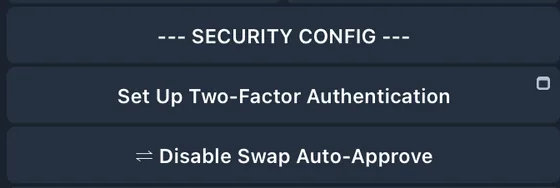
- Turn on 2FATurn on 2FA in Settings → Security Config so that every SOL withdrawal or seed phrase export requires a code. Also turn off Swap Auto-Approve and buy and sell orders will need 2FA too. Keep the backup codes the 2FA gives you safe.
- Use the official botThe real bot is @bonkbot_bot along with the side bots run by BONKbot itself: Neo, Monza, McQueen, Sonic, Furiosa. Fake bots usually lure you into depositing SOL.
- Nobody DMs you firstReal BONKbot admins don't message anyone first and never ask for your private key. Ads running inside the bot may contain links, so be careful clicking them too.
- Treat it as a hot walletThe bot wallet should only hold the amount you plan to trade; when you're done, move the funds back to your main wallet.
As for the incident: on Mar 29, 2024, about 2,800 SOL was drained from hundreds of Solana wallets. BONKbot denied the bot was hacked, citing its logs: every account caught up in this had exported its private key beforehand and used that key elsewhere; wallets that hadn't exported their key stayed safe.
GemsRadar's verdict: strengths, weaknesses and who it suits
Strengths
- Fast entries, few stepsPaste an address and you get a buy card, turn on Auto Buy and it buys right away; a buy or sell is done in a few seconds, with no external wallet to connect and no signing every transaction.
- Automated orders that cover the basicsLimit levels by market cap, price, multiple or %; trailing stop; DCA; Auto-Strat automatically attaches take profit and stop loss to every buy.
- Plenty of token discovery toolsDiscovery, X-Ray (which can even filter by where the dev wallet got its funds), Sentinel, Wallet Tracker, Rewind, all on Telemetry, sharing a wallet with the bot.
- Multiple layers of wallet protectionThe Signer, 2FA for withdrawals and seed phrase exports, Swap Auto-Approve, Sell Protection.
- Clear fees, with cashback1% per filled order, free to open the bot; cashback on Telemetry up to 25% at the top tier.
Weaknesses
- No auto copy trade yetYou can only track other wallets. If you want the bot to copy trades automatically, see the copy trade bots we rank.
- Sniping isn't open to everyoneThe main bot has no sniper; Nighthawk needs a whitelist spot, requires funding two wallets, and Speed mode costs fees even on misses.
- No withdrawals on web yetThe Telemetry docs, when we looked, still list withdrawing on web as "coming soon".
- Pending orders may underfillIf price moves too fast, a limit order may only fill partially.
- You have to stay alert yourselfLinks in the bot's ads need caution, and fake bots like to lure people into depositing SOL; check the exact bot name before you fund it.
Suits people who trade Solana memecoins manually, want everything tidy inside Telegram, and want to set take profit and stop loss right when they buy. People who like hunting tokens themselves with filters will also find plenty to use on Telemetry.
Doesn't suit people who want the bot to copy another wallet's trades automatically, or who need to snipe but haven't gotten onto the Nighthawk whitelist. To put BONKbot side by side with other bots on fees, features and security, see the comparison table.
Try BONKbot in four steps
- Open BONKbot on TelegramThis is our referral link; using it costs you no extra fees.bonkbot.io
- Press Start, turn on 2FA firstThe bot creates a Solana wallet for you. Before depositing, open Settings → Security Config and turn on 2FA, and keep the backup codes safe.
- Deposit a little SOL, test a small orderTransfer a little SOL from Phantom or from an exchange to the bot wallet. Pick a token, test a small buy, then attach take profit and stop loss.
- Move to Telemetry once you're comfortableLog in to telemetry.io with your BONKbot account; the wallet is still the same one. Get used to X-Ray and Wallet Tracker before building Sentinel presets.
Through our referral link, at no extra cost.
Open BONKbotScreenshots taken on November 23, 2026; the interface may change. Not investment advice: memecoins are high-risk, only use money you can afford to lose.