
What Terminal is and who it's for
Terminal is a memecoin trading terminal that runs right in your browser. It started out as Padre, a multi-chain memecoin trading tool. Pump.fun announced the acquisition of Padre on Oct 24, 2025, aiming to bring more liquidity to tokens launched on Pump.fun, and renamed the product Terminal. The name is new but the address is the same: you still go to trade.padre.gg, and official announcements are posted on X at @TradingTerminal.
On chains, the trade.padre.gg homepage lists six networks: Solana, Ethereum, Base, BNB Chain, Arc and Robinhood.
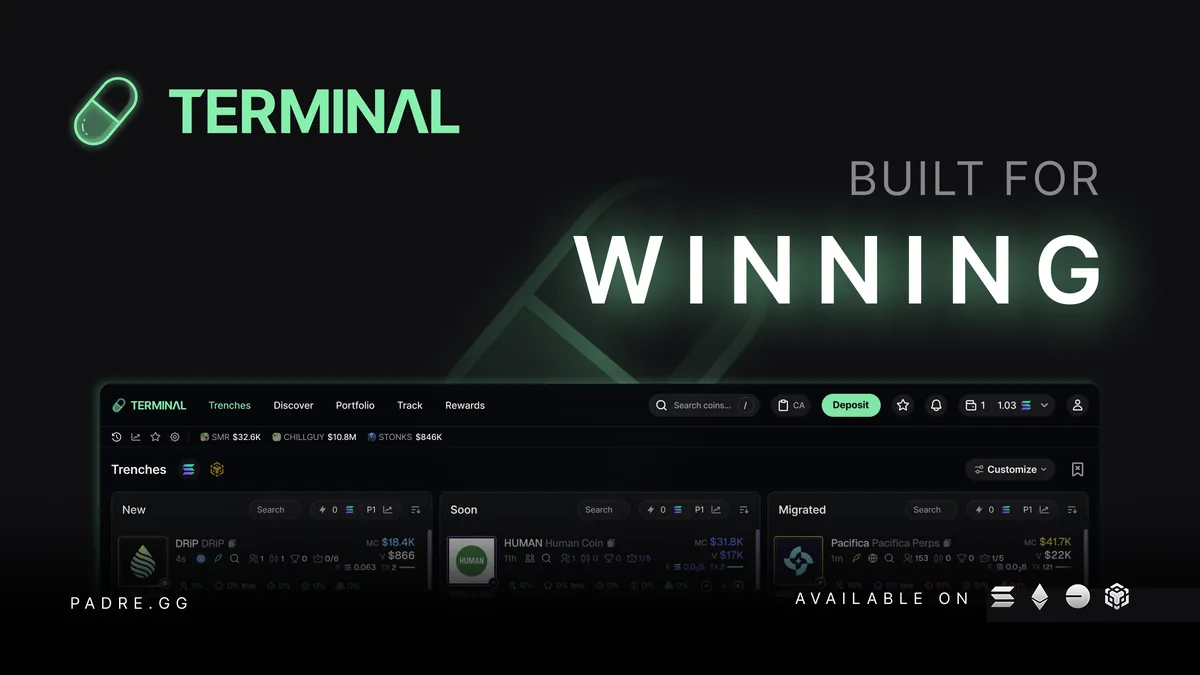
The menu bar has five items: Trenches for new tokens, Trending for tokens that are heating up (Terminal's promo image labels this one Discover), Track for following wallets and X, Portfolio for positions and wallets, and Rewards for cashback and bonuses. Most tools can also be turned into widgets, meaning floating panels on your screen: Trenches, Trending, Watchlist, Alpha Tracker, Wallets Tracker, PnL Tracker and Feed (a stream of X posts). That way you can watch one token while keeping an eye on everything else.
In short, Terminal is for people who pick their own tokens, place their own orders and want several signal sources on one screen. If you're weighing browser-based tools, see our ranking of web-based bots.
Finding tokens: the three Trenches columns, Trending and the token page
The first page that opens is Trenches. New tokens are sorted into three columns by lifecycle stage:
- New: tokens just created on a launchpad.
- Soon: tokens whose bonding curve is about to fill.
- Migrated: tokens that have moved to a DEX and have a pool.
This split helps you pick your entry timing: very early right after launch, just before migration to a DEX, or later once there's a pool.
Each column has its own toolset: a keyword search box, an amount field for quick buys, a preset called P1 and filters specific to that column. To change how things are displayed, click Customize; to switch chains, use the chain button to pick Solana or BNB Chain.
When you want to know which token is pulling the most trades, switch to Trending. The Oct 1, 2026 update reworked this page and added volume broken down by trading platform. That tells you which platform most of the money into a token is coming through.
Pick a token and Terminal opens its trading page: chart, holder list, top traders, trade history, and the order panel right beside it. Since Nov 18, 2026, Terminal also shows how many traders have hidden that token. A lot of hides is usually a sign the token is seen as junk.
Since October 2026, Arkham wallet labels appear throughout Terminal. That way you can tell whether a wallet belongs to an exchange, a fund, or someone whose identity has been established.
If you already know the token you want, type the ticker, name or contract address into the search box. The box has a built-in button to paste the CA from your clipboard.
Tracking whales, dev wallets and X accounts
The tracking tools all sit together under Track. The two main ones:
- Wallets TrackerWhenever a wallet on your list buys or sells, Terminal alerts you right away. Each wallet can be given a name and its own notes, and you can mute alerts if a wallet trades too often. Since Oct 1, 2026, you can also import a whole batch of wallets at once.
- FeedBrings X posts into Terminal. You can add any account; after about 1 minute the stream starts running, and from then on the account's new posts show up right on your trading screen.
Dev wallets have their own tool. With Tracked Dev Highlights, available since July 2026, you mark the dev wallets you care about, each in a color of your choice, and Trenches makes their new tokens stand out among hundreds of others. To cut the noise, do the opposite: block the devs or X accounts you never want to see again.
KOL wallets and wallets with Arkham labels are also flagged by Terminal. When a well-known wallet is accumulating a token you have open, you spot it right away.
Manual trading: one-click buys, hotkeys and USDC mode
The fastest order type is Instant trade. You preset a few amounts and a few percentages, and after that every buy or sell takes a single click, or a hotkey if you've assigned one. On a fresh token, where a few seconds can change your entry price completely, this is faster than typing numbers for every order.
Network fees and slippage can be set in two ways. You can fill in the tip, priority fee and slippage yourself, or click a button to apply the settings Terminal recommends. Beginners should start with the recommended set, learn how orders fill, and only then tweak things by hand.
USDC mode is for people who don't want the funds waiting on an order to swing up and down with the SOL price. The order is still sized in SOL, but the payment is made in USDC. This mode only applies to some tokens, so check before placing an order.
Set orders in advance and let Terminal run them
You can't always sit watching the chart. Terminal has the usual pending orders, plus a few order types tied to how memecoins actually behave:
- Buy at a price you chooseLimit is an order that waits for a price. Dip waits for the price to fall to your level before buying. Breakout, added on Oct 1, 2026, does the opposite: it only buys once the price has broken above that level.
- Take profit and stop lossTP/SL presets your take-profit and stop-loss levels. Trailing stop loss moves the stop along with the price, so while the token keeps rising, more of your profit is locked in.
- Buy graduallyDCA spreads an amount over multiple buys instead of going in all at once. DCA orders only run on a single wallet, not on a group of wallets.
- Orders based on token eventsMigration Snipe enters right when a token migrates to a DEX. Dev Sell makes your sell order follow the dev wallet's selling.
- Price alertsPrice Alerts ping you when the price hits a level you set; whether to buy or sell is up to you.
In our view, Dip and Breakout are most useful when you have to step away from the screen: set two scenarios in advance, buy cheaper if the price drops, or only buy once the price has cleared a level.
Trading with multiple wallets and front-running protection
Terminal's multi-wallet support is fairly complete. You select several wallets at once, place one order, and the buy or sell runs on all of them. Wallets you often use together can be grouped. Tokens spread across many wallets can be consolidated in one place, and likewise tokens in one wallet can be split across several. Wallets you no longer use can be archived to keep the list tidy.
To keep your buys from getting jumped, Terminal has two options:
- FortifyUses up to 4 wallets to protect a single buy, making it harder for copy bots to slip a trade in around yours. To enable it: a tip of at least 0.001 SOL and slippage of at least 10%.
- Trusted leaders onlyMulti-wallet buys are held until it's a trusted validator's turn to produce a block, and only then sent. To use it, you must turn on anti-MEV and set a minimum tip of 0.001 SOL.
These two options aren't free. Both cost you a tip, and Fortify also forces slippage of 10% or higher, meaning you accept a fill price that can be off by 10% or more from the price when you placed the order. For small buys, we only turn them on when we're genuinely worried about getting jumped.
Positions, wallet management and PnL
Everything you hold is in Portfolio: pending orders, tokens you're holding, buy and sell history and transfer history. Wallets are handled by the Wallets section: manage your wallet list, set the wallet that receives withdrawals, and check each wallet's balance.
Your session's profit and loss shows live in the PnL Tracker. If you want to recalculate from scratch, for example when starting a new session, you can reset it to 0 any time.
If you like showing off gains, there's a full kit: shareable PnL cards, custom background images, and a tool that turns a card into a video with background music, ready for social media. When you assess your own performance, look at Portfolio and your trade history, not just your prettiest card.
Posting calls and group trading with Lobby
Terminal adds a community layer. With Callouts, you can post a call for a Solana token without leaving Terminal. A call can only be posted if you're holding that token, with a minimum of $1, and each token can only be posted once.
Once posted, the call can be sent to one or more Lobbies. A Lobby is a shared trading group: inside it, everyone can see the calls and the buys and sells of the other members.
You can also follow other users and edit your Pump.fun profile right inside Terminal.
What each trade costs and what you get back
Terminal takes 1% on every trade, on both buys and sells. On top of that there are two other kinds of cost: what you pay the network (priority fee, tip) and the fee charged by the launchpad that issued the token.
Part of the 1% fee comes back as cashback. By default you get 10% back. If you enter a referral code when signing up, anyone's code works, the rebate goes up to 35%; Terminal calls this "35% off fees" and announced it on Oct 1, 2026.
Here's an example with a 1 SOL buy: the Terminal fee is 0.01 SOL. With 10% cashback you get 0.001 SOL back, so the effective fee is 0.009 SOL. With 35% cashback you get 0.0035 SOL back, so the effective fee is 0.0065 SOL. Sells work the same way, and network fees and launchpad fees are outside this calculation.
Cashback and referral rewards all collect on the Rewards page. Once your balance reaches the minimum, the claim button lets you move it to your wallet. Besides cashback, Rewards also has credits and reward spins.
If you invite others, you earn a tiered referral commission on the fees your referrals pay, up to 40%. To put this fee next to other bots, see our bot comparison table.
Staying safe: right site, private keys, small balance in the bot wallet
When we reviewed this, we found no confirmation that Padre or Terminal has ever been hacked. But no incident so far doesn't mean no risk. Four habits we recommend:
- Go to the right siteOnly open trade.padre.gg, or come in through our link, and read news on X at @TradingTerminal. Save the address as a bookmark, and don't open Terminal through search ads.
- Your keys are yours aloneYour recovery phrase and private key are for no one else to know, including anyone who claims to be Pump.fun or Terminal support.
- Ask through the right channelIf you hit a bug, send it through Report bug right inside Terminal; if you need more help, go to the official Discord.
- Keep only the capital you're using in the bot walletThe trading wallet Terminal creates for you signs orders on your behalf. So keep only the funds you plan to trade in it, and move profits to your personal wallet.
Our verdict: strengths, weaknesses and who it suits
Good for people who trade memecoins by hand, use multiple wallets and want to filter new tokens, track wallets and read X right next to the order panel. Not for people who need a bot that copies trades automatically (see the copy trade bots we've ranked), or beginners who don't want to learn many order types and anti-MEV options yet.
- Token filtering by stageThree columns, New, Soon and Migrated, dev wallet highlighting, and blocking of noisy devs and X accounts.
- Strong multi-wallet supportOne order for a whole group of wallets, token consolidation and splitting, plus Fortify and Trusted leaders only to avoid getting jumped.
- See which wallets are buyingArkham labels, KOL labels, and volume by platform in Trending.
- Clear cashback10% by default, 35% if you sign up with a referral code.
- No hack on recordIn our review, no confirmed hack of Padre or Terminal.
- No automatic copy tradingTrack only gives signals; you still place the orders.
- 1% base fee each wayThat's before priority fees, tips and launchpad fees; the two anti-front-running options also require a minimum tip of 0.001 SOL.
- A few limitsCallouts only work for Solana tokens, USDC mode doesn't apply to every token, and DCA runs on one wallet.
- A lot to learnBeginners can easily switch on the wrong option and pay extra fees.
Three steps to try Terminal
- Open Terminal through our linkClick our link below. Going this way, you pay no extra fees at all.trade.padre.gg
- Log in and get a walletUnder Continue with, pick the login method you want, such as a Pump.fun account, Phantom wallet or MetaMask wallet, then pass the anti-bot check. After that, Terminal creates a trading wallet for you right away.
- Deposit a little, turn on anti-MEVDeposit with the Deposit button: SOL if you trade on Solana, or the gas token of that chain for other chains. Turn on anti-MEV, head to Trenches and try a few small buys, and only raise your size once you're comfortable.
Through our referral link, at no extra cost.
Open Terminal (Padre)Screenshots taken on November 23, 2026; the interface may change. Not investment advice: memecoins are high-risk, only use money you can afford to lose.