
What Photon does and who it's for
Photon is a web-based memecoin trading tool built by Tiny Astro. The Solana version has been around since January 2024, when it was called Photon HyperSpeed. At launch, Photon went after a problem every memecoin trader knows: slow data, where you have to keep hitting F5 to see a new price.
You don't install an app or open a Telegram bot. Everything happens in the browser, and the numbers on screen update in real time. Your buys and sells go out from a separate trading wallet that Photon creates for you.
In Photon SOL, the top menu bar splits things into six sections: Memescope, New Pairs and Trending for finding tokens; Orders for pending orders; Tracker for following wallets you care about, plus X accounts; and Portfolio for PnL. The same bar has a search box that finds tokens, wallets or pool (LP) addresses.
Photon also has a version for BNB Chain, called Photon BNB, with Memescope and multi-wallet management that work much like the SOL version. This article mostly covers the Solana version.
In short, on who it's for: Photon is for people who decide every trade themselves, want to see new tokens as early as possible and buy with a single click. If you need a bot that copies trades automatically, read the review section at the end before you choose.
Hunting fresh tokens: Memescope, New Pairs and Trending
Memescope is where Photon keeps pouring in new tokens, based on the filters you set. The screen is split into three columns following the token lifecycle:
- New: tokens that were just created.
- Graduating: the bonding curve is almost full and the token is about to graduate.
- Graduated: the token has made it to a DEX.
Each column has its own controls: a search box that takes up to 3 keywords, a SOL amount field used by the Quick Buy button, and three saved filter presets, S1, S2 and S3, that you can switch between. If you want to snipe on Photon, this is where you do it: set your SOL amount in the New column ahead of time, and when a token appears that you like, click buy, with nothing more to type.
In May 2025, Memescope 2.0 added a lot more customization. You choose which metrics show on the token card. Tokens can be filtered by website and social links, or by what the token check turns up. Each column gets its own alert sound, and you can block any dev you don't want to see again.
Later updates showed where a dev wallet was funded from and pulled in tokens from many launchpads, including Meteora DBC, Jupiter Studio, Pump, LetsBonk, Wen.dev, Moonshot and Stonk.
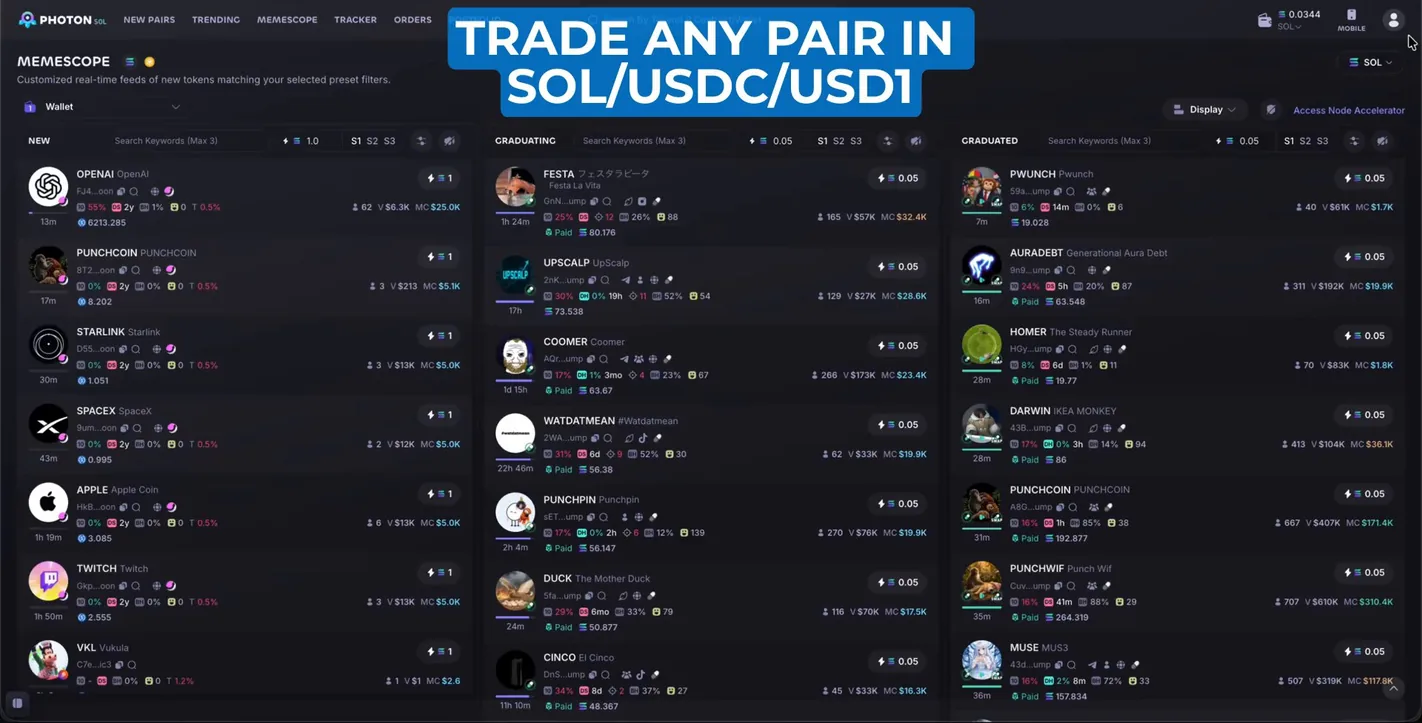
The other two menu sections complement Memescope. New Pairs is a list of newly created trading pairs. Trending ranks tokens by recent trading activity. In both, every row has a quick buy button, so you can enter a trade as soon as you see a token you like, without opening its detail page.
Check before you buy: the search box and the token page
In June 2025, Photon rewrote the search box. The new version has:
- a filter that removes junk tokens;
- an Originator button that pushes copycat tokens out of the results;
- an automatic warning when the pool holds less than 5 SOL;
- results sorted by the key metrics;
- tokens that have stopped trading are hidden automatically;
- quick buy right in the results list.
Click a token to open its detail page. The TradingView chart takes the middle, and the order panel sits on the right. The tabs below fall into two groups:
- checking holders: Holders, Top Traders, Bubblemaps, Dev Token;
- tracking orders and positions: Transactions, Orders, My Holdings.
The Data & Security panel counts the issues Photon found on the token, and clicking it opens the specific list. In our view, this is worth a glance before you buy any unfamiliar token.
The chart also marks a few kinds of events: when the dev claims fees, when the token migrates, and, from July 2026, KOL trades. Photon also shows how much total trading fees the token has generated, along with the average buy and sell price of the wallets you've grouped through filters.
Buying and selling: one click or a limit order
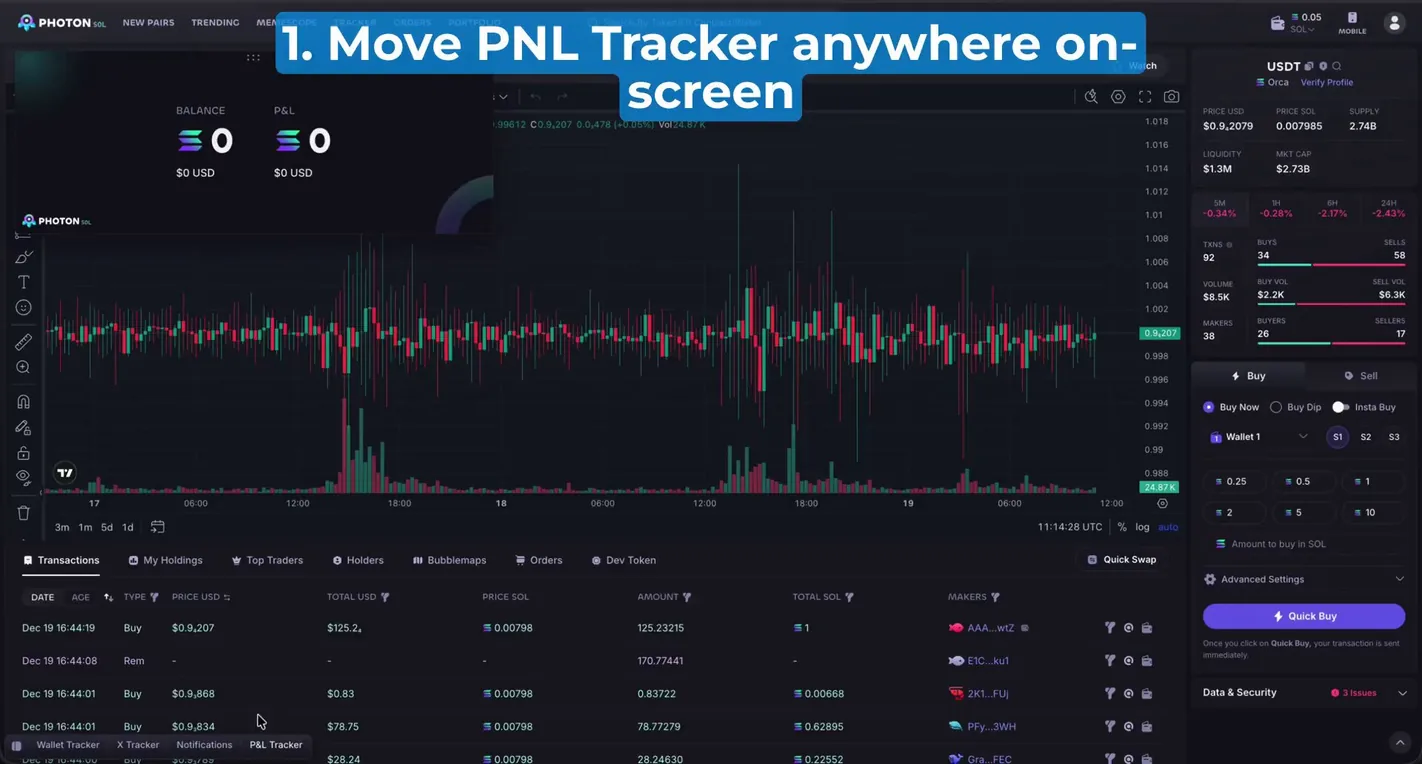
The order panel on the right of the token page offers two ways to buy: Buy Now enters immediately, and Buy Dip sets a limit order that waits for the price to fall to the level you set.
- Quick Buy: pick a wallet, pick an amount, clickIn Buy Now mode, you pick a wallet, take one of the preset SOL amounts or type your own, then click Quick Buy. The presets run from 0.25 and 0.5 SOL for test entries up to 1, 2, 5 or 10 SOL. The order goes out instantly and Photon doesn't ask for another confirmation. You'll find this quick buy button everywhere: search results, Trending, New Pairs and every Memescope column.
- Three presets: S1, S2, S3Each preset stores a set of buy settings, and switching presets swaps the whole set in one click. Slippage, priority fee and the deeper options live in Advanced Settings.
- Sell by percentageWhen you take profit, you pick from up to 6 preset sell percentages. Next to them is your own average sell price, so you can see right away where you got out.
- Limit orders: Buy Dip, take profit, stop lossWith Buy Dip, you set the price you want to buy at and leave the order waiting. Sell orders can be left pending too: set above the entry price, it becomes a take profit; set below, it becomes a stop loss. You can run several limit orders of the same type at once, and all pending orders sit in the Orders section.
- Pay in SOL or stablecoinsSince February 2026, you can pay in SOL, USDC or USD1 on any quick buy or sell button. Since September 2026, Photon supports more than 400 quote pairs.
Running multiple wallets: splitting capital, entering together, sending in bundles
Everything wallet-related lives in Wallet Management. The Generate Wallet button creates more wallets; on the same screen you deposit, withdraw, and archive wallets you no longer use.
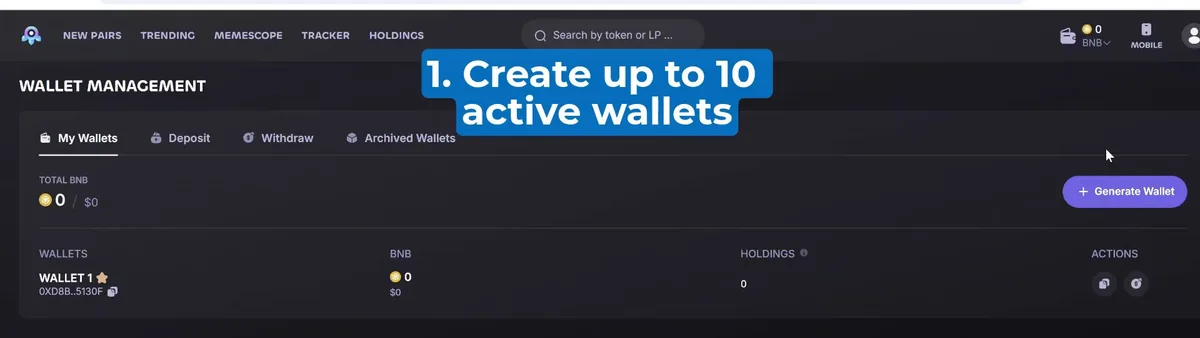
Once you have several wallets, Photon lets you:
- take funds from one wallet and spread them across several, split evenly or with a custom amount per wallet;
- use multiple wallets to buy or sell the same token in one go;
- split the tokens you're holding across several wallets;
- gather the tokens from multiple wallets onto one screen.
Bundle Send arrived in August 2025: orders from several wallets are packed into one bundle and sent as a single transaction. The aim is better fills and making it harder for copy bots to get in between your orders. The same release added Max Secure, a mode that protects your orders from sandwich attacks, a type of MEV where bots slip their own orders in before and after yours.
Tracking other wallets and X news, then entering trades yourself
The Tracker section has two parts. Wallet Tracker alerts you whenever a wallet on your watch list buys or sells, and that wallet list can be exported. X Tracker collects new posts from the X accounts you've added. P&L Tracker and Notifications sit in the bottom bar.
The Snap 2.0 release in July 2025 lets you turn the Notifications, Wallet Tracker and X Tracker panels into floating windows that you can drag wherever you like. The chart stays in front of you, and what your tracked wallets are doing is right beside it.
Reviewing PnL: Portfolio per wallet, P&L Tracker per session
Portfolio was revamped in September 2025 and isn't only for your own wallets: you can analyze any wallet. You see PnL, the share of tokens that were profitable and the average holding time, over 1 day, 7 days, 14 days or 30 days. It comes with a daily PnL calendar, a summary of each day's trades, and a PnL calendar you can download with one button to share.
Before you add a wallet to Wallet Tracker, open it in Portfolio: you'll see what share of its trades win, and whether it usually scalps or holds tokens for a long time.
P&L Tracker (December 2025) works per session. You hit start when you begin a session and stop when you take a break, pick one or several wallets to combine, then review the results of recent sessions and create a PnL card to share. This tracker widget can be dragged anywhere on the screen.
Fees: not in the docs, check the order panel
Photon doesn't put its fee in the public documentation. You only see the number in the order panel, right before you click buy. Outside sources say Photon charges 1% on both buys and sells.
The platform fee isn't everything. Every order also costs a priority fee and a tip paid to the Solana network, plus the fee of the launchpad that issued the token. On small orders, add all of these up before you work out whether you're up or down.
Photon has a referral program, but it only adds points for a leaderboard. Invited users get no cashback and no fee discount, so whichever referral link you join through, the fee is the same. To put this fee next to other bots, see our comparison table.
Fake sites, impersonator accounts and how to protect your wallet
From what we've seen, the biggest risk for Photon users comes from impersonators, not from flaws in the platform. In late 2025, scammers launched both fake Photon sites and fake apps, luring victims into connecting their wallets so they could drain them. Photon wasn't hacked in this: the people who lost money were the ones who landed on the wrong site or installed a fake app.
- Use one address onlyLog in at photon-sol.tinyastro.io and bookmark this page. Don't open Photon from links strangers send you.
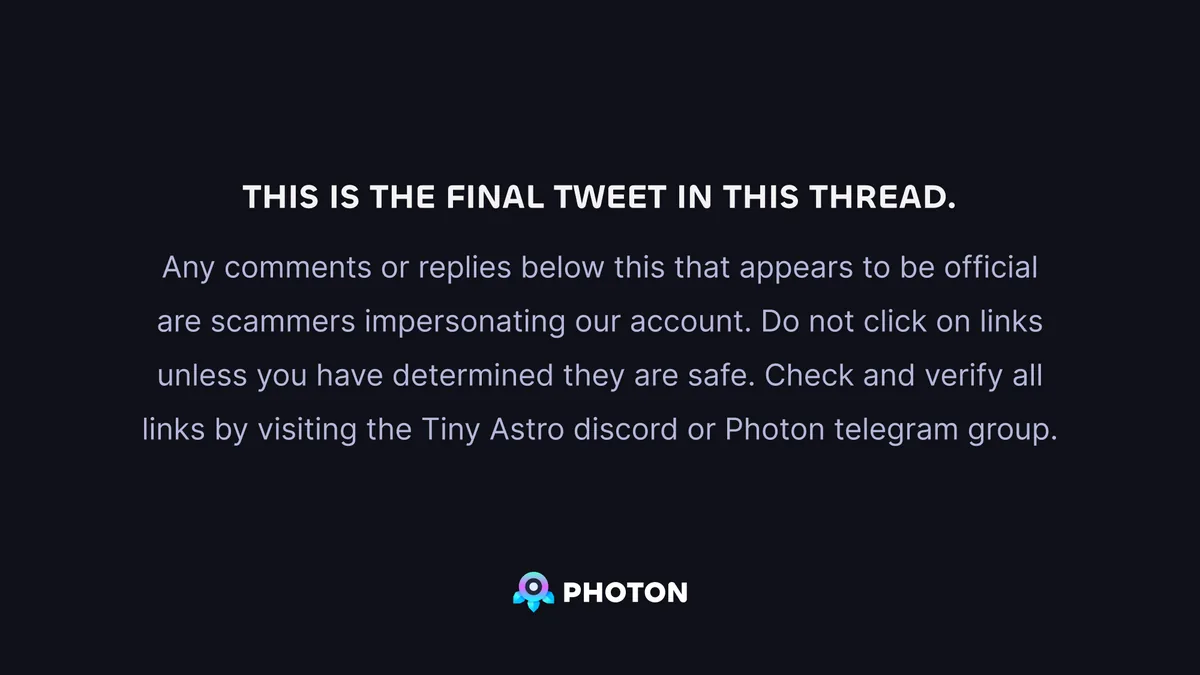
- Be careful with commentsAccording to Photon itself, a reply under their post that looks like it comes from the official account is usually an impersonator. Before clicking any link, cross-check it in Photon's Telegram group or Tiny Astro's Discord.
- Turn on Max Secure when buying new tokensThis mode lowers the chance of your order being sandwiched by MEV bots.
- Keep only working capital in the trading walletThe wallet Photon creates signs transactions for you, so deposit only the amount you plan to trade. Move profits to your own wallet.
Our verdict: strengths, weaknesses and who it fits
Good for manual traders on Solana who are used to hunting new tokens on launchpads and want everything they need to watch on one screen: fresh tokens, wallets worth following, X accounts, PnL per session. If you run several wallets at once, you also have the tools to split capital and enter trades simultaneously.
Not great for people who want a bot that copies trades automatically, people who need to see the fee schedule in the official docs before depositing, and beginners who aren't yet used to judging tokens on their own. Photon gives you a lot of filters and buttons, but every buy and sell decision is still yours.
- Systematic token huntingMemescope splits tokens into three stages, each column has its own filters and alert sound, you can block devs, and it takes in tokens from many launchpads.
- Fast entries everywhereQuick Buy is there from Memescope to search results, presets swap the whole settings set in one click, and limit orders handle take profit and stop loss.
- Full multi-wallet toolkitCapital splitting, simultaneous buys and sells, Bundle Send, plus Max Secure to cut the risk of getting sandwiched.
- Real results you can measurePortfolio can inspect any wallet, and P&L Tracker calculates your own PnL per session.
- No auto copy tradingWallet Tracker only sends alerts; you still place the orders.
- Fee not in the docsThe fee only shows in the order panel; outside sources say 1% on each buy and sell. Referrals give leaderboard points only, and invited users get no fee discount.
- No confirmation stepQuick Buy sends the order immediately, so entering the wrong SOL amount still goes through.
- Impersonation riskFake sites and apps appeared in late 2025, and Photon has to warn about fake accounts at the end of its threads on X.
If you're choosing between browser-based platforms, also see our web bot ranking.
Using Photon for the first time: three steps, small capital
- Go to Photon through our linkGoing through this link doesn't cost you a cent in extra fees.photon-sol.tinyastro.io
- Connect your Phantom walletClick Connect Wallet and sign to confirm with your Phantom wallet; logging in this way costs nothing. After that you get a Solana wallet created by Photon for trading. Need more wallets? Open Wallet Management and use the Generate Wallet button.
- Start with small capitalDeposit a little SOL through Deposit. Set a low Quick Buy amount, turn on Max Secure, then practice hunting a few tokens on Memescope. Once you're comfortable, raise your capital.
Through our referral link, at no extra cost.
Open PhotonScreenshots taken on November 16, 2026; the interface may change. Not investment advice: memecoins are high-risk, only use money you can afford to lose.