
What Trojan includes: a web terminal and a Telegram bot
Trojan is a toolkit for trading tokens on Solana, mostly built around new memecoins on launchpads. The team built the Trojan on Solana Telegram bot first, then Trojan Terminal, the web version at trojan.com. The two run side by side, both charge 1% on every successful trade, and both have copy trade, limit orders, DCA and MEV protection. The difference is in how you use them: the terminal lays out a lot of information on one screen, while the bot packs everything into a few buttons in a chat window.
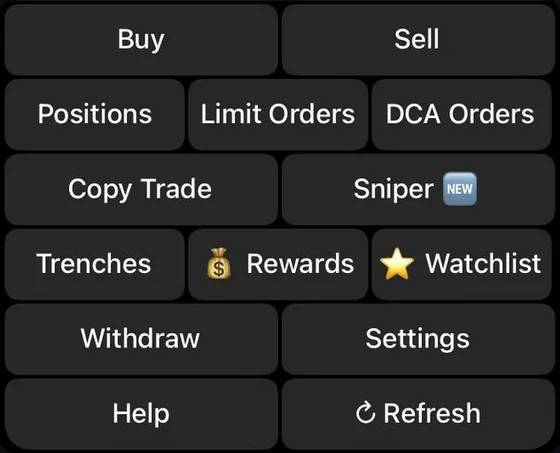
On Telegram, type /start to open the main menu. The first line is the Solana wallet address the bot created for you; send SOL to it and you can trade. The buttons are grouped by task: trading (Buy, Sell, Positions), pending orders (Limit Orders, DCA Orders), automation (Copy Trade, Sniper), token discovery (Trenches, Watchlist), plus Withdraw, Rewards, Settings and Help; the last button leads to a support group that is staffed 24/7.
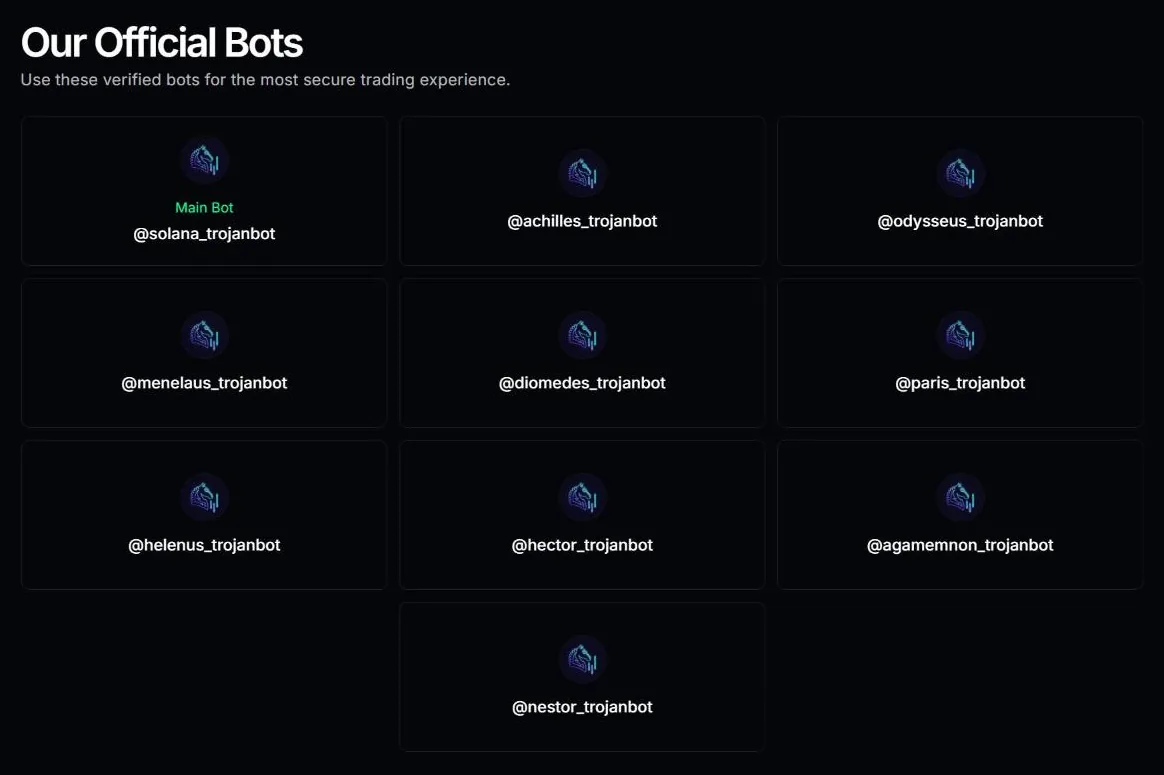
Besides the main bot, Trojan has a few backup bots. They share the load when it's crowded and use the same wallet and settings as the main bot.
In short: Trojan suits Solana memecoin traders who want to do everything in one place. The detailed strengths and weaknesses are in the verdict section near the end.
Finding new tokens: Trenches, Explorer and Watchlist
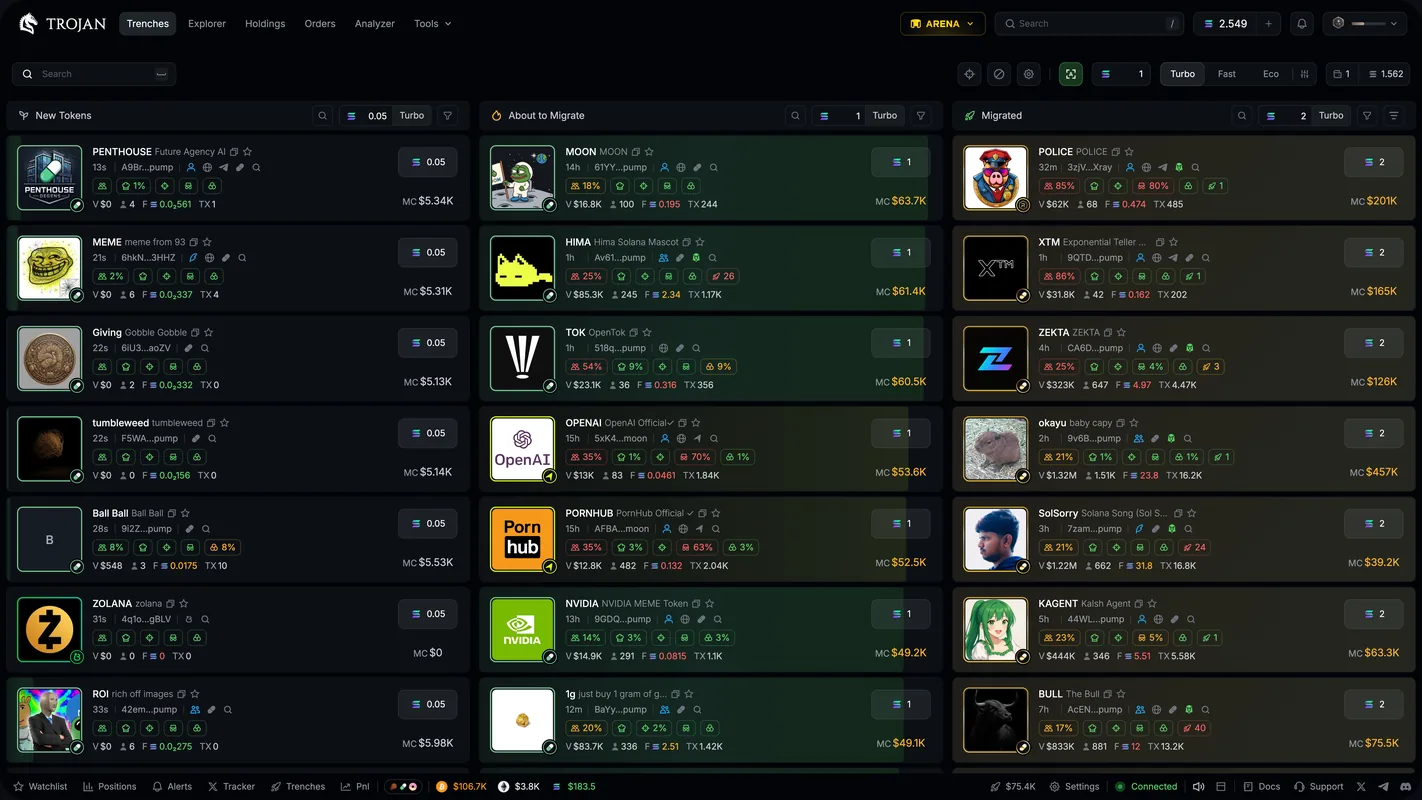
Trenches splits new tokens into three stages. Tokens just created on a launchpad sit in New Tokens. When the bonding curve is almost full, a token moves to About to Migrate; this column has an icon to sell or snipe right as the token starts migrating. Tokens that have reached a DEX pool are in Migrated. Each card's background is a progress bar: the fuller the fill, the closer it is to hitting the DEX.
Each column has its own quick-buy amount, for example a small one for brand-new tokens and a bigger one for tokens already on a DEX. You can also add a quick-sell button by %.
The filters are quite detailed: pick a launchpad; filter for tokens with socials, tokens that paid for DEX Screener, or tokens that are livestreaming; cap the holdings of the dev, snipers, insiders and the top 10; set ranges for market cap, volume, liquidity and token age. Hold the X key while hovering over a card to open the token's X page right away. The blacklist can be exported and imported.
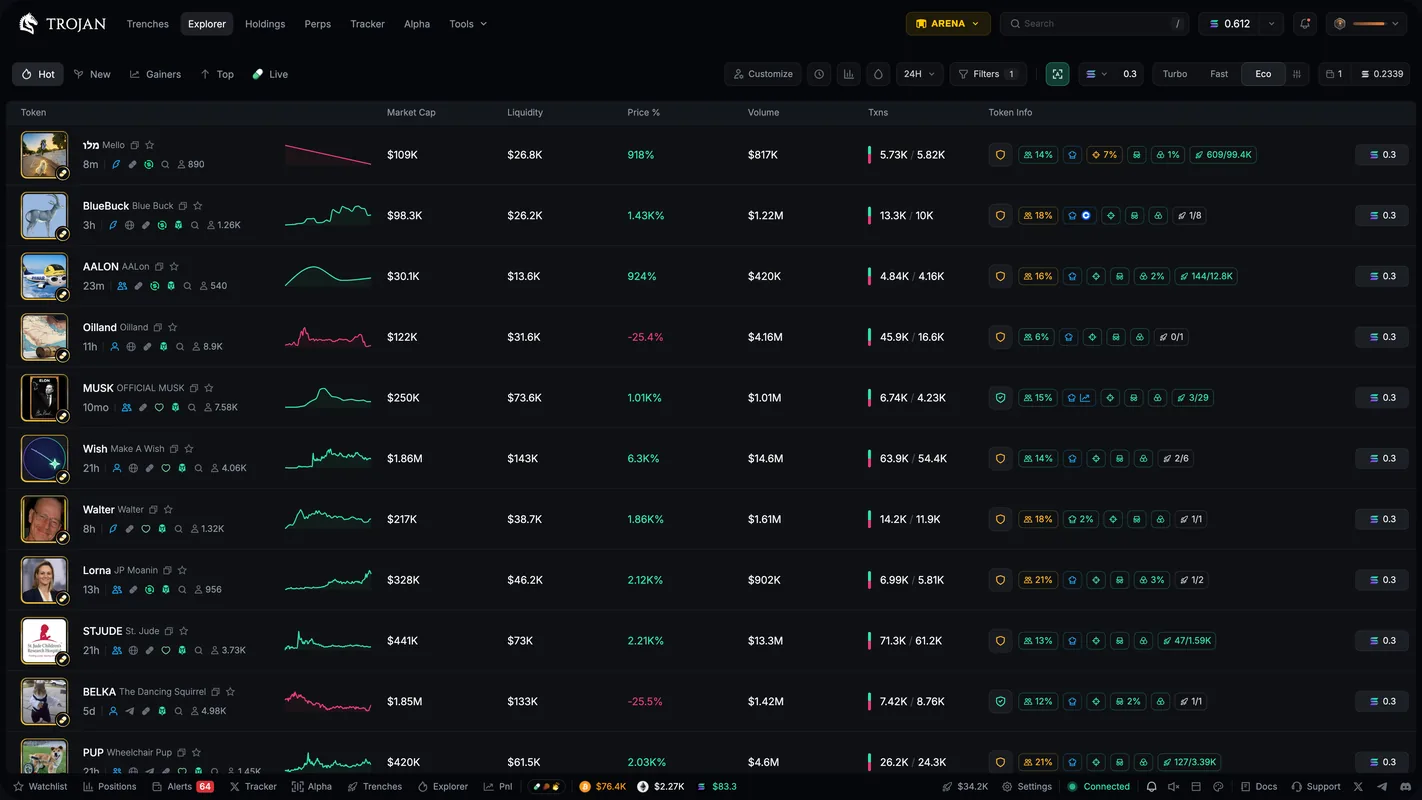
To see which tokens have money flowing in, open Explorer. Hot uses a score Trojan calculates itself, based on volume, liquidity, number of trades and number of wallets taking part. Gainers are tokens pumping hard, New is the newest tokens, Live is tokens that are livestreaming, and Top ranks by market cap, volume or trade count.
The quick filter bar covers timeframe (from 5 minutes to 24 hours), token age, liquidity and volume. You can filter deeper by DEX and by the holdings of the dev, snipers, insiders and the top 10. Safe search hides tokens that fail the safety check, but Trojan states clearly that this is for reference only, not a guarantee. We use it as a rough first-pass sieve.
The Telegram bot has its own Trenches with four groups: New Pairs, Graduated, Migrating and Igniting Engines (tokens about to hit a DEX). For tokens you want to come back to, save them to the Watchlist to open the chart or buy quickly.
Checking a token before you buy: the chart and Trade Panel
A token's trading page has the chart in the middle, the order table below and the Trade Panel in the right column. The chart has drawing tools, Fibonacci, RSI, MA and other indicators, plus Bubblemaps to show clusters of linked wallets. On the candles you can switch on bubbles marking your own trades, the dev's, tracked wallets, KOLs, snipers, bundlers, and even the moments the token was mentioned in a Telegram or Discord group. Dense dev and sniper bubbles on a stretch where the price just pumped are your cue to slow down.
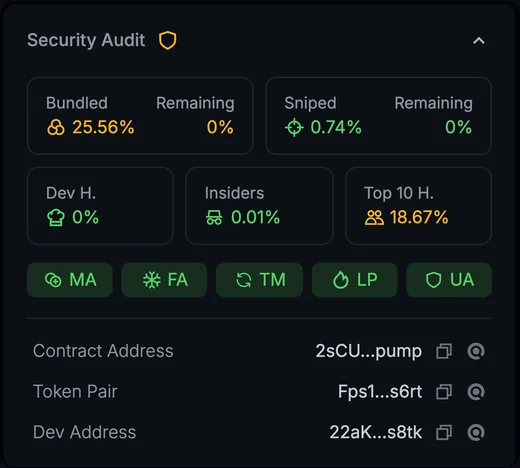
The token card at the top of the Trade Panel lets you copy the address, add the token to your watchlist, open its social pages, and see whether the token has paid for DEX Screener. Right below it is Security Audit, the first place we look: what percentage sits in bundled wallets, with snipers, the dev, insiders and the top 10 holders, plus the token contract's permissions.
The expandable sections below:
- HolderScan: whether holders are dumping or accumulating.
- Dev Scanner: the tokens this dev has launched before.
- Similar Tokens: tokens with the same name, most likely copycats.
- Holder Analytics, plus Performance, which shows how far the price is from its peak.
- Fees Paid: total fees paid on the token; put it next to volume to spot tokens launched with bundled buys.
Tracking good wallets, X posts and calls in chat groups
If you find plays by watching other people's wallets, Trojan has a chain of three tools: Analyzer to evaluate a wallet, Wallet Tracker to follow it, and copy trade to mirror it.
Wallet Tracker: click Add Wallet, paste the address, give it a name and attach an emoji. Whenever that wallet buys or sells a token you have open, the emoji shows up on the chart. Each wallet has its own notification toggle and alert sound, and can be put into a group. In Trenches, the token card also shows clearly which wallet is the dev's.
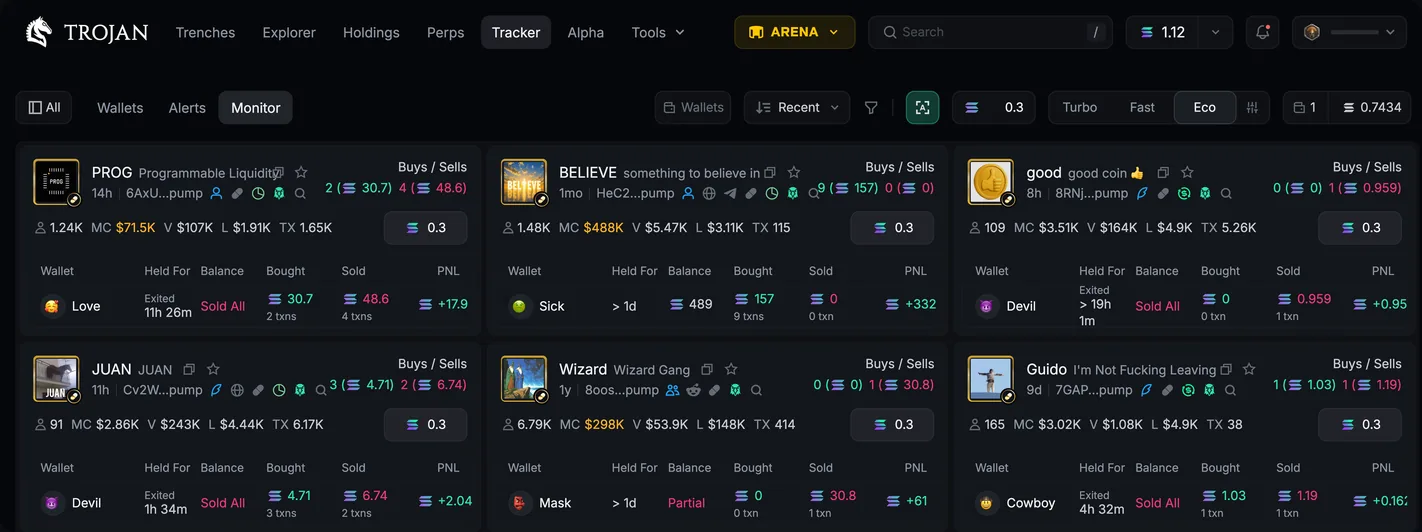
The Alerts tab is a feed of all trades from the wallets you track, filterable by type: first buy or add-on buy, partial or full sell, transfer, token creation. The Monitor tab looks at it per token: which wallets got in, how much they sold, how long they held.
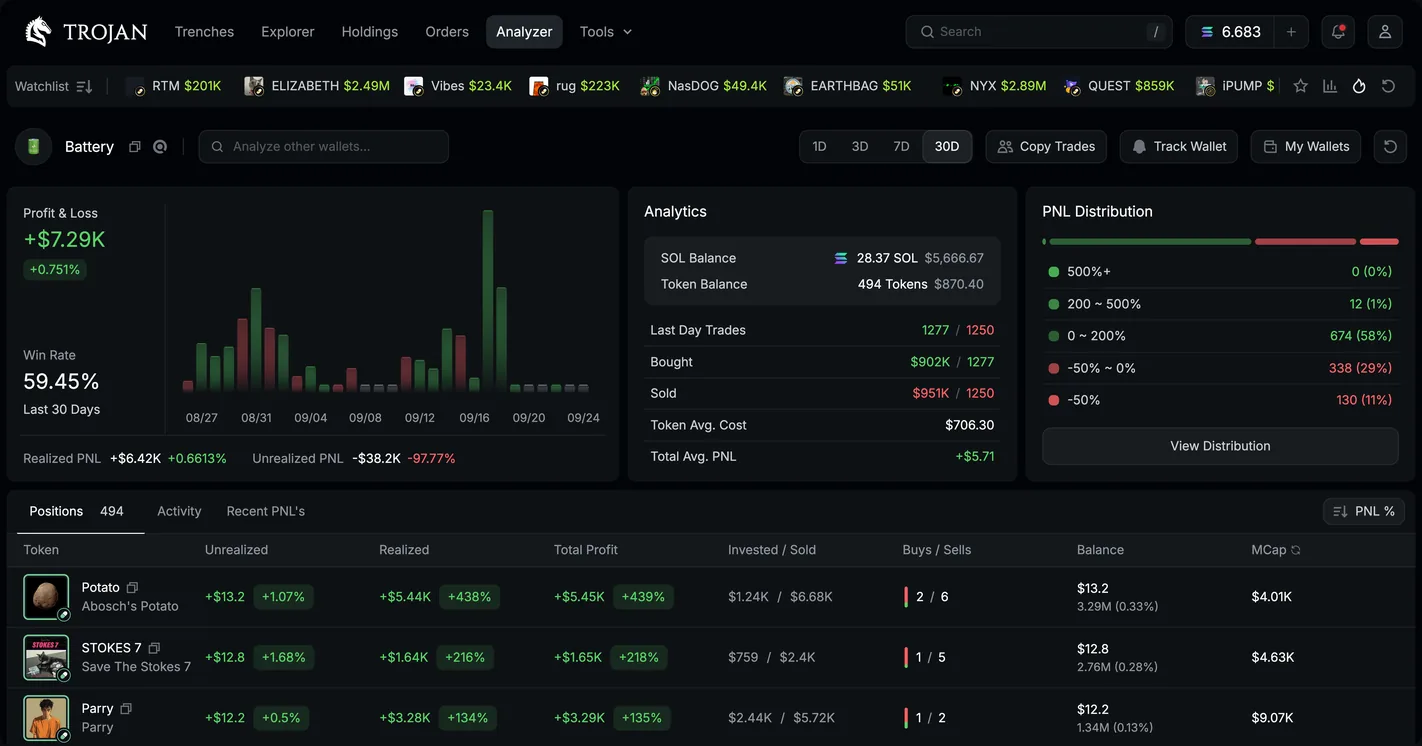
Analyzer shows how much a wallet has realized in profit and loss, how much is still unrealized, its win rate across trades, plus a PnL chart, trade history and current holdings. The most worthwhile part, in our view, is the profit and loss breakdown: did the wallet profit from one big hit, or steadily across many trades? A wallet that lives off one lucky hit is very hard to copy for profit. If it looks fine, click Track Wallet to add it to your tracking list, or Copy Trade to start copying its trades right away.
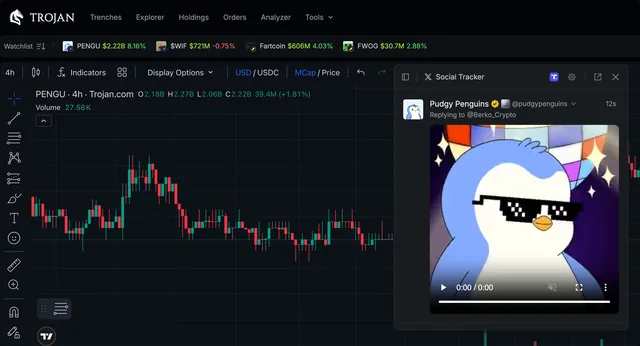
X Tracker pulls posts from X into the terminal the moment they're published. Token addresses and cashtags in a post are highlighted in their own color, and clicking an address opens that token for trading. You choose which accounts to follow, the alert sound, and whether to include reposts, replies, quote posts and Truth Social posts.
Alpha brings calls from your chat groups into the terminal, via the TokenScan bot. To connect: invite @tokenscan to your Telegram or Discord group, give it admin rights, type /connect in the group, then choose Connect to Trojan. In the Ranked tab, Trojan ranks each group, each call and each caller by performance. Groups that haven't allowed public listing show up anonymously; to block spam, a group can send no more than 40 calls per day.
Quick entries: the Buy panel on web and buying in chat
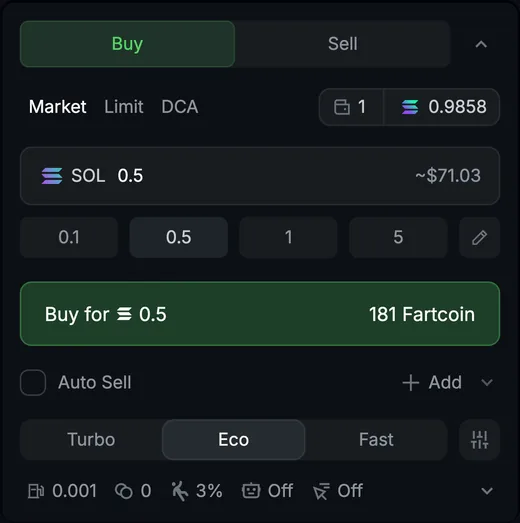
- Market ordersClick Buy, type an amount or pick a preset, then confirm. If you select several wallets, each one buys the full amount. To sell, pick a percentage; Sell Init pulls out only the capital you put in, and the rest stays in the token.
- One-click buyingThe Quick Buy button sits right on the token card. Instant Trade is a floating panel with preset buy and sell buttons, which you can assign hotkeys to. With Clipboard Buy, the moment you copy a token address a button to buy it appears at the top of the page, so you don't have to paste it into the search box.
- Pay with SOL or stablecoinsBuy with SOL, USD1 or USDC. Network fees are always paid in SOL, so don't let your wallet run out of SOL.
- Three settings profilesThree prebuilt profiles you can edit freely, each with priority fee, slippage, MEV Protection, Bribe (an extra tip paid when MEV protection is on) and Spam Buy (splits an order into up to 10 small transactions).
In the Telegram bot, the fastest way is to paste a token address or link into the chat, pick how much SOL to buy and click Buy. Turn on Auto Buy and the bot buys as soon as you paste an address. Bundle Buys lets you buy at the same time with up to 10 wallets.
- Confirm TradesWhen on, the bot only sends the order after you click Buy or Sell. When off, tapping an amount sends the order immediately: faster, but easier to buy by mistake.
- Priority fee levelsThe two built-in levels are Fast (0.0015 SOL) and Turbo (0.0075 SOL), or enter your own. This goes to the Solana network, and you still pay it if the transaction fails.
- Advanced or SimpleThe default is Advanced, with every feature. Simple trims the menu for people who only buy and sell, but you lose items like copy trade and watchlist. If you can't find a button, you're probably in Simple.
Pending orders, DCA and auto take profit and stop loss on web and bot
- LimitThe trigger is a price or a market cap level. For sell orders, a positive trigger is take profit (T/P) and a negative one becomes stop loss (S/L). On the chart, hover over a price level and click the + that appears on the price line: the order or price alert is placed at exactly that level.
- DCASpreads orders at intervals over a period of time, for example over 25 minutes, buy 0.25 SOL every 5 minutes, 5 times in total. MCap Range blocks fills when market cap goes outside the range you set.
- Auto-SellMust be turned on before you buy. For every buy that fills, Trojan attaches take profit and stop loss levels based on your buy price, for example sell half when the price doubles and sell everything when it drops 25%.
- Orders pagePending orders live in Orders, under three tabs: Event, Limit and DCA. To stop one, cancel each order individually or click Cancel All.
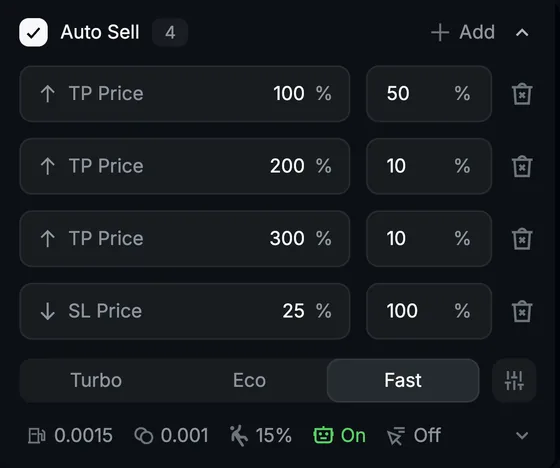
The Telegram bot has its own set of pending orders:
- Limit OrdersWait for a price, market cap or % change; wait for an event (token reaches a DEX, dev sells); or run at a scheduled time. Orders can be given an expiry, and there's a trailing stop loss: the stop level moves up following the price peak.
- DCA OrdersEnter a total amount and the bot splits it up and buys gradually at intervals over the time you choose; you can set a minimum and a maximum price.
- Auto Sell on the botEvery buy gets take profit and stop loss attached in advance, like Auto-Sell on web.
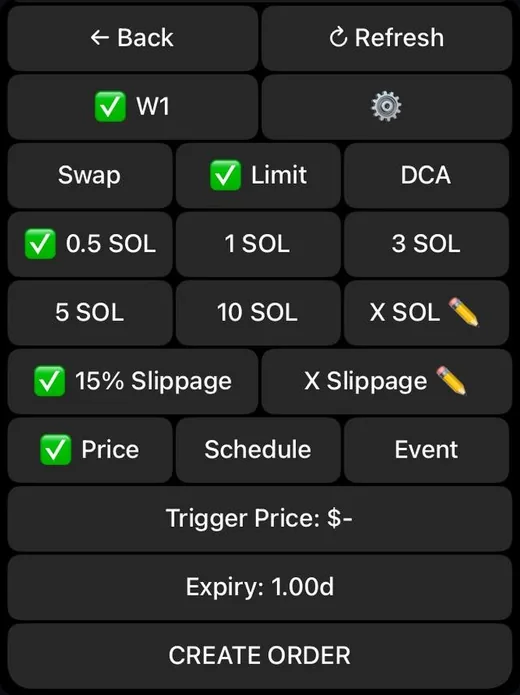
According to the docs, trailing stop, scheduled orders and order expiry are only described for the bot. The terminal makes up for it by letting you place orders right on the chart and by DCA with a market cap condition.
Copy trade on Trojan: copying a wallet on the terminal and in the bot
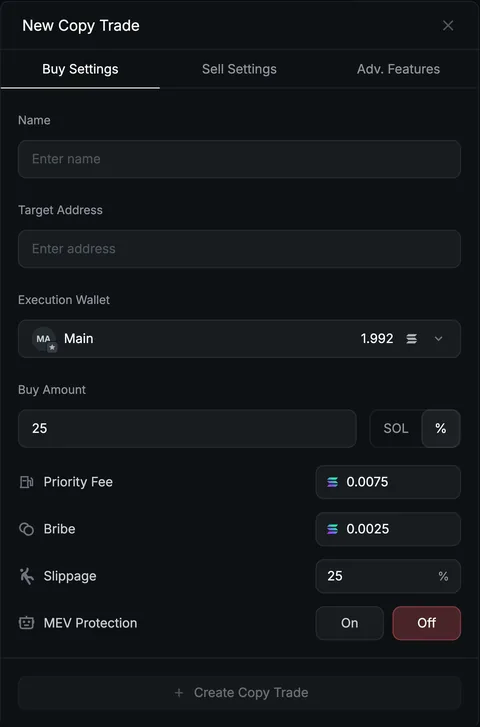
On the terminal, open the Tools menu, choose Copy Trading, then click + New Copy Trade. Settings are split into three tabs: Adv. Features for advanced options, Buy Settings and Sell Settings for the two directions. In the list of wallets you're copying, you can pause or resume each wallet or the whole batch, and edit with Edit.
- Buy sidePaste the wallet to copy into Target Address, and pick which of your wallets will spend the money. Each trade is either a fixed amount of SOL or a percentage of the source wallet's trade: set 10%, and if the source wallet puts in 10 SOL, you put in 1 SOL.
- Sell sideCopy Sell sells at the same ratio as the source wallet; Auto Sell uses preset take profit and stop loss levels. Leave both empty if you want to sell manually.
- Trade filtersSet a market cap range, a minimum liquidity level and a cap on the amount per trade. You can skip tokens that haven't left the launchpad's bonding curve, and block re-buying a token you still hold.
- Fees and MEV protectionEach direction has its own priority fee, Bribe, slippage and MEV Protection.
On the bot: Copy Trade, then + New. The Tag field takes a name to remember it by, and Target Wallet takes the pasted address. The buy amount is a fixed number of SOL, or follows Buy Percentage: at 50%, a 1 SOL trade from the source wallet becomes 0.5 SOL for you. On the sell side, Copy Sells sells at the source wallet's ratio, or applies a ready-made Auto Sell profile. Adjust fees for both directions along with slippage, then click Add.
Advanced Features gives finer control:
- a cap on the buy amount per trade;
- only buy a token the first time, or allow re-buying old tokens;
- only copy tokens that have renounced;
- skip Pump.fun tokens that haven't left the bonding curve;
- liquidity and market cap ranges, with a minimum and maximum;
- a minimum trade threshold for the source wallet;
- don't buy tokens on the block list;
- how many times to retry a failed trade.
Pause All stops every wallet you're copying at once.
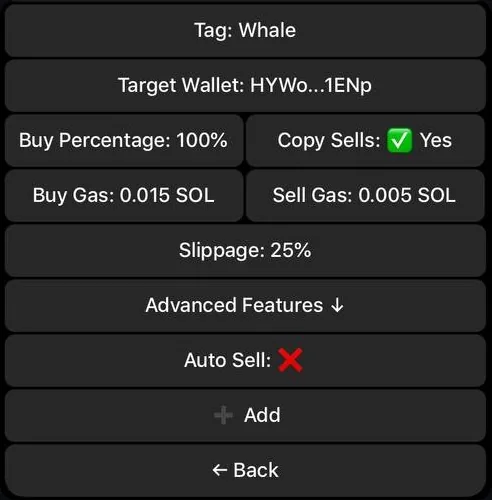
According to the docs, the bot version has a few filters the terminal doesn't mention: renounced tokens, the source wallet's trade threshold, block list, retry count. The terminal, in turn, splits MEV protection by direction and goes straight over from Analyzer. If copy trading is your main way of trading, see also the copy trade bots we picked.
Sniper on the Telegram bot: buy fresh tokens and catch the DEX migration
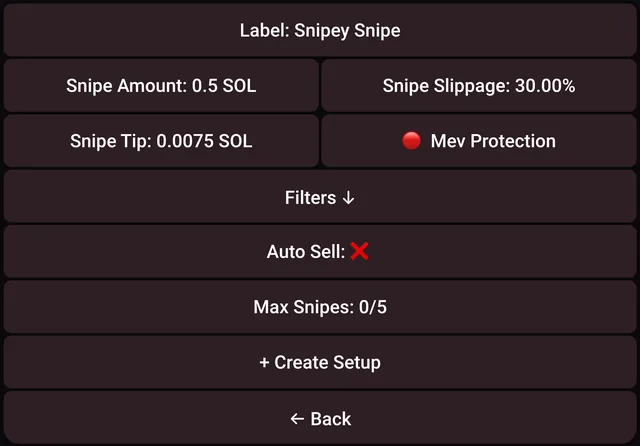
Auto Sniper watches for new tokens and automatically buys those that pass your filters. Create one with + New Setup: set a name, the SOL amount per snipe, slippage and the tip so your transaction gets processed early. The filters let you choose:
- which platform the token came from;
- whether mint authority and freeze authority are still there;
- whether it has socials yet;
- keywords, and allowed or blocked dev wallets;
- liquidity, percentage of supply in the pool, percentage the dev holds.
Max Snipes is the maximum number of buys; once it's reached, the setup stops itself.
Migration Sniper watches for the exact moment a token leaves the bonding curve for a DEX pool, to buy or sell right then, with the amount, slippage, tip and tip cap you set. Tokens about to migrate are grouped in Trenches → Migrating for quick selection; on the terminal, the About to Migrate column also has a snipe icon.
Opening leveraged positions on the Perps page, powered by Hyperliquid
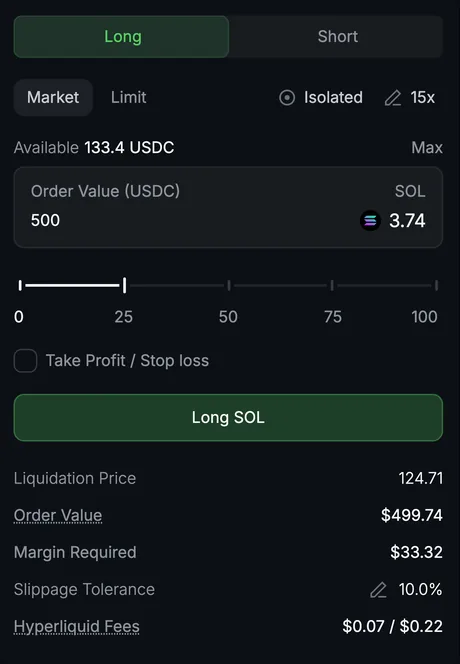
The terminal's Perps page runs on Hyperliquid, with margin in USDC. First, move funds to the Perps Wallet with the Transfer button. An order includes these choices:
- the asset;
- Long (expecting the price to go up) or Short (expecting the price to go down);
- leverage set on a slider, with the cap depending on the asset;
- Market or Limit;
- Cross margin (positions share collateral) or Isolated margin (each position has its own separate amount);
- TP/SL if you want.
At the top are open interest, funding and 24-hour volume. At the bottom are open positions with their liquidation price, unfilled orders and history.
Wallets on Trojan: Holdings, deposits and withdrawals, consolidating wallets and cleaning up dead tokens
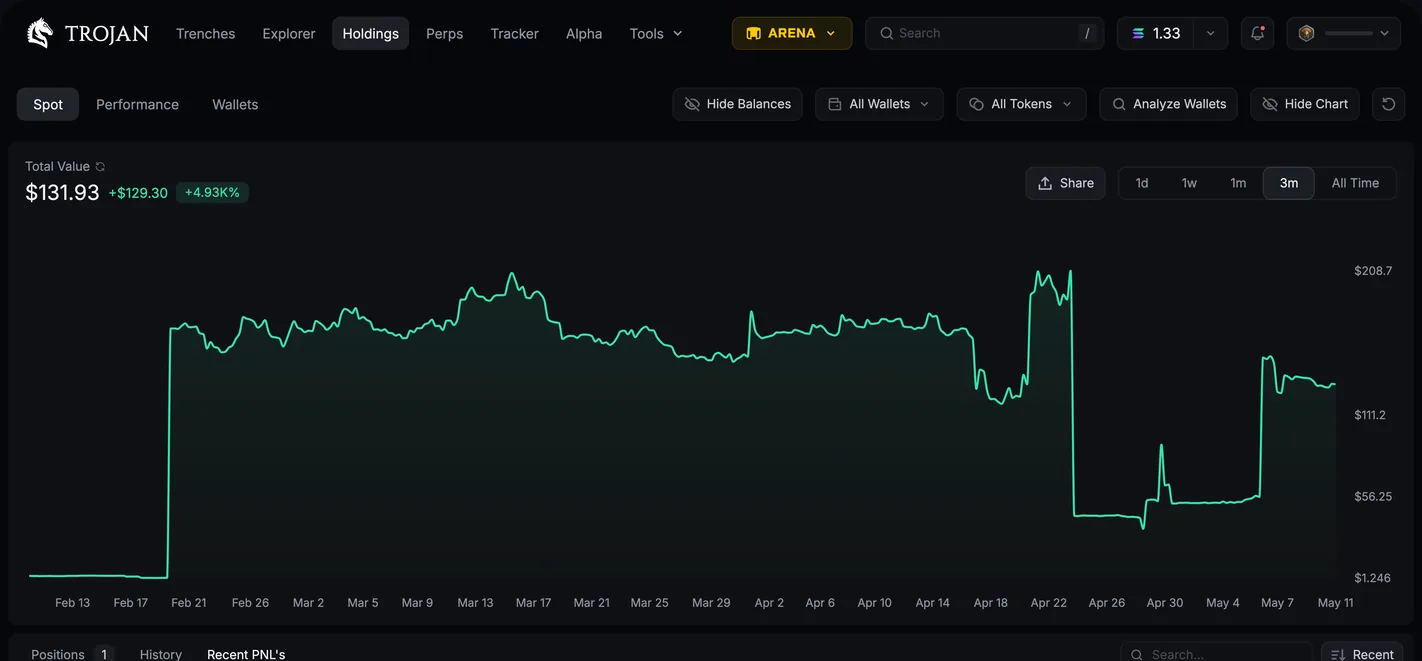
Holdings is where you view your assets, split into three tabs. Spot lists the tokens you hold and can hide dust balances and spam tokens. Performance is a profit and loss calendar by day and by month. Wallets is for managing wallets. The value chart lets you view a single wallet or combine several wallets over time; the PNL button exports a profit and loss card in the Pro or Meme template, or with your own image.
The Wallets tab keeps up to 10 active wallets at a time; to create more, archive some. Funds get into a wallet four ways:
- send to the wallet address, or scan the QR code;
- transfer from the same wallet you use to log in;
- use a card to buy SOL via MoonPay;
- bring funds over from another chain with deBridge.
Besides Withdraw, there's Consolidate to gather balances into one wallet, Distribute to spread them across several wallets, and functions to import a wallet by private key and export a private key.
On the Telegram bot, Withdraw lets you withdraw SOL, ETH or tokens, and move between ETH and SOL with deBridge, which takes about 18 to 35 minutes. Dead tokens can be burned, and empty token accounts can be closed, with each account returning about 0.002 SOL. Once burned, it's gone for good, so check carefully before you click.
How much Trojan charges and how it pays you back
Trojan takes 1% on every successful buy and every successful sell, on both the terminal and the bot; failed trades aren't charged this fee. On top of that come costs outside Trojan:
- priority fee, and Bribe if MEV protection is on;
- the first time you buy a token, your wallet has to open a token account for it, costing about 0.002 SOL; when you sell it all, this comes back;
- separate fees on some launchpads;
- taxes on some Token-2022 tokens.
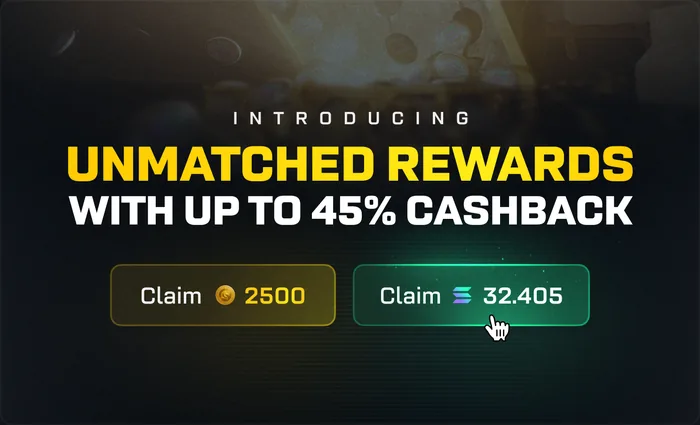
Cashback brings your real cost below 1%. On the terminal, the rewards program is Arena: you earn Gold from your trading volume, consecutive trading-day streaks and quests (daily and seasonal). Your Gold amount decides your rank, and each rank has its own fee rebate paid in SOL:
- Degen: 10% fee rebate
- Warrior: 15%
- Gladiator: 20%
- Commander: 25%
- Titan: 35%, meaning your real fee is about 0.65% per trade
People who've used the Telegram bot have an edge: import your old bot wallet into the terminal and you get a Gold multiplier right away.
Jackpot draws every 48 hours, with a prize equal to 10% of the fees Trojan collects, and a single winner takes it all; you put in Gold to enter. Referral commission is calculated across 5 tiers: for whatever fees the people you invited pay, you get back 27.5% to 47.5% of that amount, depending on your Honors level from I to IV.
Is Trojan safe: settings to turn on right away
As of our check, there has been no confirmed hack of Trojan. Most of the warnings in the Trojan docs target mistakes on the user's side, and each mistake has a way to prevent it:
- Keep your private key to yourselfNever send your key to anyone. Trojan admins and support never ask for your key; whoever asks is a scammer.
- Only use the official botsThe real bots are listed at trojanonsolana.com/links, and @solana_trojanbot is the main bot. Whichever backup bot you use, check its name against that list.
- Secure Action PasswordTurn it on in the Telegram bot so every withdrawal or key export requires a password. If you forget it, it's gone for good and can't be recovered, so save a hint with it.
- Sell ProtectionThe bot asks again whenever you sell more than 75% of the tokens you hold, to prevent selling everything by a misclick.
- Don't keep a lot of money in the bot walletThe bot wallet only accepts SOL and tokens on the Solana network. Keep just enough for your trading capital in there, and move profits to your own wallet.
GemsRadar's verdict: where Trojan is strong, where it's weak, who it's for
This is our opinion, drawn from what the Trojan docs describe.
Pros
- Almost everything in one placeFinding and checking tokens, tracking wallets, copy trade, sniper, pending orders, even perps; on desktop, mobile and Telegram.
- Token checks right next to the order panelSecurity Audit, Dev Scanner, Similar Tokens, Fees Paid and Bubblemaps help you filter out bundled-buy tokens and copycats before you buy.
- Copy trade in both placesBy ratio or fixed amount, plenty of filters, linked straight from Analyzer; the bot has Pause All for emergency stops.
- Clear cashbackA failed trade doesn't cost you the 1%. The terminal pays back 10% to 35% by Arena rank, and the bot pays back 20% to every user.
- No confirmed incidentsPlus a separate password for withdrawals and key exports, and Sell Protection against accidental sells.
Cons
- Spot only on SolanaThe wallet only accepts SOL and Solana tokens; to trade memecoins on other chains you need other tools.
- A lot to learnTwo platforms, two sets of orders, two rewards programs. Beginners can easily set things up wrong, or get stuck in Simple without knowing why a button is missing.
- You have to deposit into a Trojan walletLogging in with Phantom gives only basic swaps; for Limit and DCA you need a wallet created by Trojan or a wallet with an imported key.
- Automation has gapsAuto-Sell must be turned on before you buy and you have to clean up old sets yourself; the sniper can sometimes buy past Max Snipes; copy trade misses buys made through custom programs.
- Fees on both sides1% on the buy, 1% on the sell: a round trip costs about 2% before cashback, not counting the priority fee, which you still lose when an order fails.
Good for Solana memecoin traders who want one tool that covers everything from finding a token to taking profit, especially people who often copy wallets or like checking holders. Heavy traders will find the Arena ranks worth climbing; people already using the Telegram bot can move over to the terminal gradually, and importing the old wallet also gets you a Gold multiplier.
Not so good for people who need spot trading outside Solana, people who don't want to keep funds in the bot's hot wallet, or beginners put off by learning many settings; for that last group, Simple mode on the bot is easier going. To put Trojan next to other bots by fees, chains or safety, see the bot comparison table.
Your first three steps with Trojan
- Open Trojan through the GemsRadar linkGoing through our link costs you no extra fees.trojan.com
- Create an account or start the botThe web version lets you log in with a Passkey, a Google account or a Solana wallet like Phantom. Then you set a username; this name is also your friend invite link. If you enter with Phantom, remember to create or import a Trojan wallet to use Limit and DCA. On Telegram, click Start and the bot creates a wallet.
- Start with a small amountSend a little SOL to the wallet, turn on Auto-Sell first, then try a small buy or copy a wallet with a low amount. Only scale up once it looks fine.
Through our referral link, at no extra cost.
Open TrojanScreenshots taken on November 16, 2026; the interface may change. Not investment advice: memecoins are high-risk, only use money you can afford to lose.