
What STBOT is and where you can trade with it
SolTradingBot, STBOT for short, is a memecoin trading bot that runs inside Telegram, with its homepage at soltradingbot.com. As the name suggests, it was built for Solana first. On that chain the bot trades on Pump.fun, PumpSwap, boop.fun, Moonshot, Meteora, Orca, Jupiter, Raydium (both CLMM and LaunchLab) and the newer launchpads Bags, Heaven and Sugar.
STBOT announced its multichain launch on Oct 27, 2026 (UTC+7). One bot now covers six chains: besides Solana, there are Ethereum, Base, BNB Chain, Monad and Robinhood.
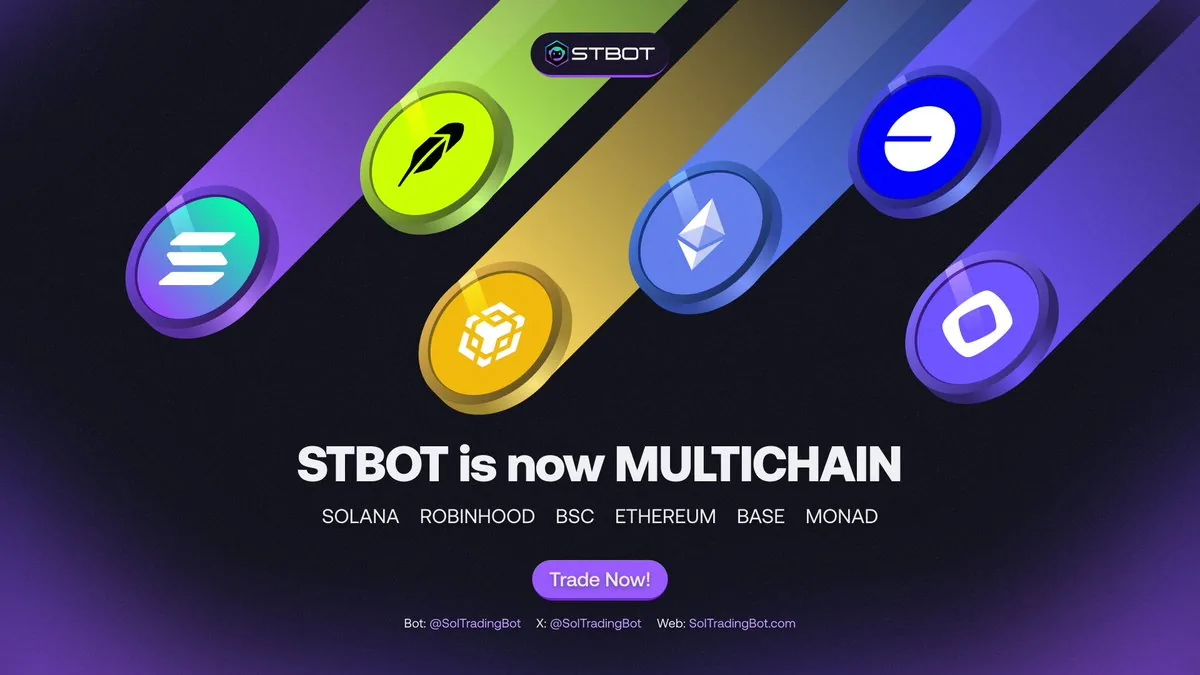
Alongside the bot come a Chrome extension for placing orders on other sites, a web version for managing multiple wallets, Signal Bot for Telegram groups and a few new-token alert channels. In our view, STBOT fits best with new-token hunters on Solana and people who run many wallets at once.
First time opening the bot: main menu, shortcut commands and backup bots
Send /start to @SolTradingBot and it sets up a wallet for you and opens the main menu. The menu has almost twenty buttons; we've grouped them to make them easier to remember:
- Trading: Buy & Sell, Limit Orders, DCA Orders, Copy Trades.
- Hunting new tokens: Token Sniper, Sniper Pumpfun, Sniper Moonshot.
- Wallets and account: Wallets, Profile, Trades, Transfer SOL, Security, Settings.
- The rest: Referral System, Market Maker Bot, Our STBOT Tools, Backup Bots, Help.
The row of flags in the menu switches the language. Most entries have a shortcut command: /wallet, /profile, /settings, plus /limitorders, /dcaorders, /referral and /cashback.
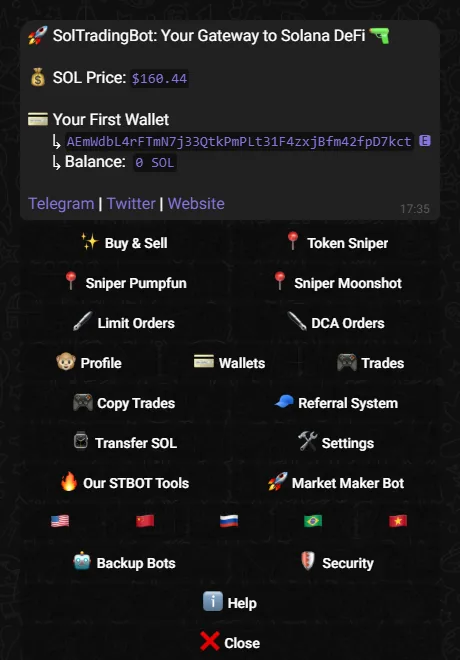
Four buttons don't get their own section in this article:
- Our STBOT ToolsLinks to the tools outside the bot: the multi-wallet web version, Signal Bot, the Chrome extension and the token alert channels.
- Backup BotsBackup bots share wallets and settings with the main bot. If the main bot is overloaded, switch to one of these to keep trading.
- TradesReview the orders you've filled.
- Market Maker BotA service STBOT runs for token projects that need a market maker; individual traders don't need it.
Find and watch tokens without leaving Telegram
- The /search commandAvailable since May 23, 2026. Type a name or ticker, the bot finds the token and you can place an order right from the result.
- The /alert commandAvailable since May 21, 2026. You set a condition for a token; when it's met, the bot messages you.
- New token channelsThree channels STBOT runs for Solana: Solana New Token Bot, Solana New Pumpfun Bot and Solana New Listing Bot.
Signal Bot (@stbotsignalbot), available since Jul 16, 2026, is for people who run a Telegram group or channel. Add the bot to your group and it scans Solana on-chain data by itself and posts tokens it thinks are worth watching, with a referral link you set. When members trade through that link, you earn commission.
Manual trading: read the token panel, then pick a button
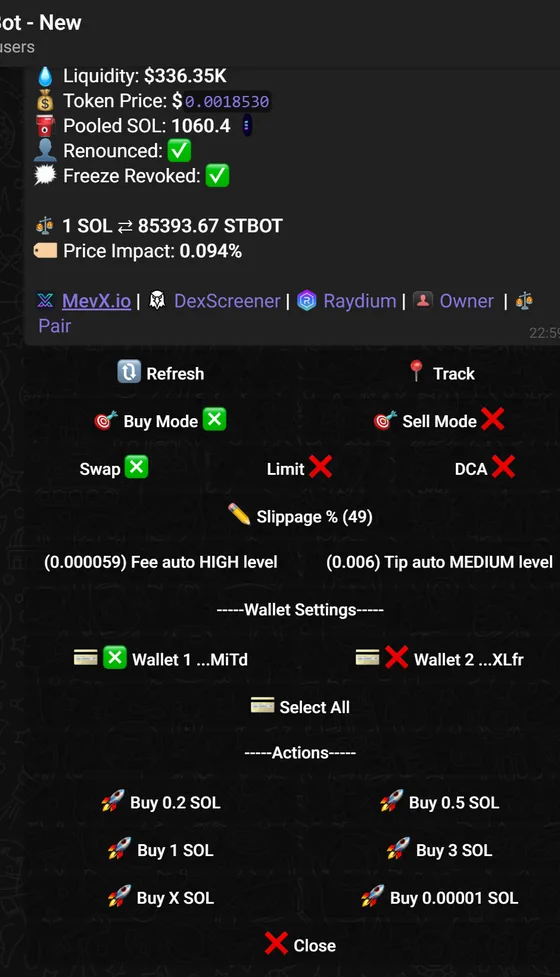
The basic way to buy is to send the token address to the bot. It returns a panel so you can check things quickly before putting money in:
- price, liquidity and the amount of SOL in the pool;
- whether the token has renounced, whether freeze authority has been revoked;
- the order's price impact;
- chart links on MevX or DEX Screener, plus links to the pool and the token's owner wallet.
Below the panel are the order buttons. Pick Buy Mode or Sell Mode, then the order type: Swap to buy or sell right away, Limit or DCA to place a pending order. Auto tip, fee level and Slippage are also adjusted here.
To use several wallets, pick wallets in Wallet Settings, or tap Select All so every wallet joins the order in one go. Then tap Buy 1 SOL, Buy 0.2 SOL, or Buy X SOL to type your own amount. When selling, you choose a percentage of the tokens.
- Sell All and Burn AllIn /profile, pick a wallet and tap Sell All to sell every token in that wallet. Burn All burns all tokens in the wallet, so check which wallet is selected before you tap.
- Random Buy/SellAdded Jun 20, 2026. You enter a minimum and a maximum; on each buy or sell, the bot picks a random amount between the two.
- PNL Display and Preview ChartPNL Display sits at the bottom of the token panel and shows the capital you put in, the current value and profit/loss in percent. The bot also pins a message listing the profit/loss on tokens you've traded. To see the chart before entering, turn on Preview Chart.
STBOT Extension: enter trades right on Photon, GMGN or Pump.fun
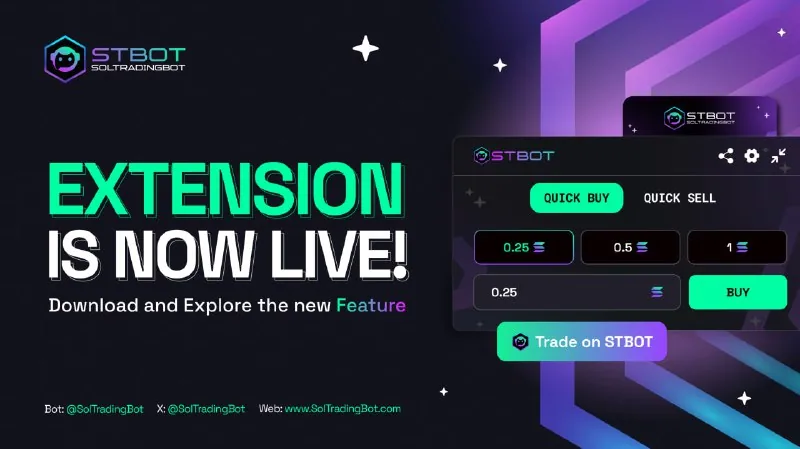
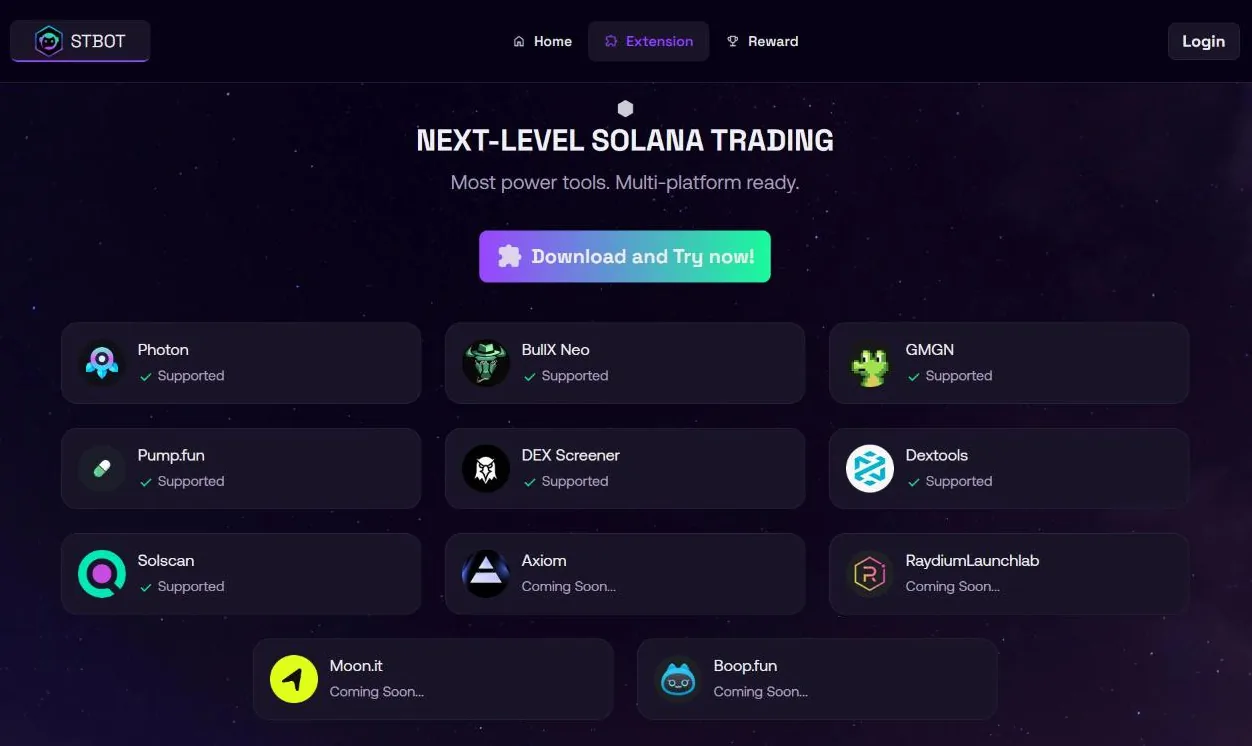
STBOT Extension has been available since May 20, 2025. This Chrome extension adds an order panel to the sites memecoin traders keep open to check tokens: Photon, GMGN, BullX Neo, Pump.fun, DEX Screener, DEXTools and Solscan. On Telegram Web, a Buy button also appears next to each token address. To sign in, click Login and authenticate in the Telegram bot the extension opens.
The order panel has two sets of preset buttons. Quick Buy buttons are by SOL amount. Quick Sell sells by percentage, by SOL amount, or just sells back your initial capital. On the panel you can also change tip, slippage, fee, Anti-MEV and place orders on several wallets at once. The Trade on SolTradingBot button sends that token over to the Telegram bot.
Sniping: buy the moment a token opens, sell when it hits a DEX
STBOT has three sniping tools: two to buy the moment a token opens for trading, and one to sell at the right moment when a token moves to a DEX.
- Token SniperFor tokens that already have an address but haven't opened for trading. Paste the address, pick a wallet, set the tip, priority fee and slippage. The bot pins the pending order in the chat, buys as soon as the token opens, then reports whether the order went through or failed.
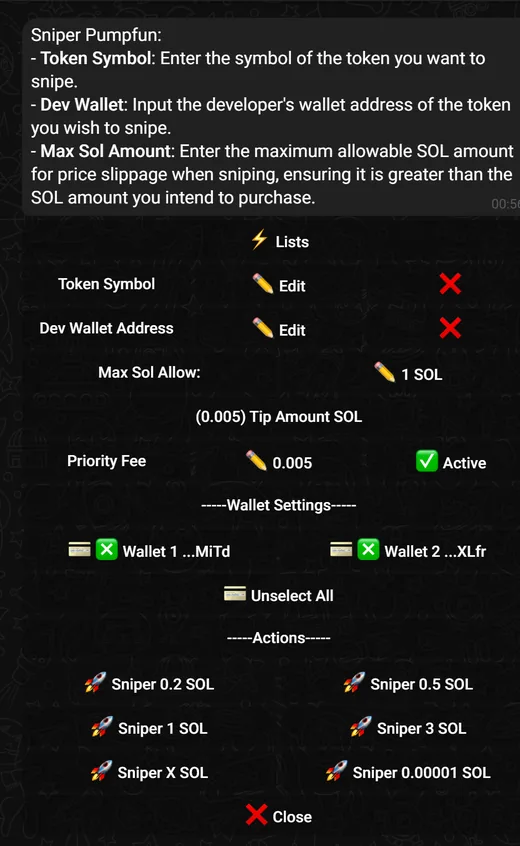
- Sniper Pumpfun, Sniper MoonshotFor tokens about to launch on Pump.fun or Moonshot. You fill in the token's ticker and dev wallet, the amount of SOL to buy, the wallet to buy with, the maximum SOL you're willing to accept, plus tip and priority fee. For tokens launching on LaunchLab, use the /sniperlaunchlab command.
- Sell SniperFor tokens you hold on Pump.fun: set the percentage to sell in advance, and the bot sells right as the token leaves the bonding curve for a DEX. STBOT's docs wrote this section back when Pump.fun tokens still went to Raydium; now they go to PumpSwap.
Copy trade: mirror a wallet's orders with two settings
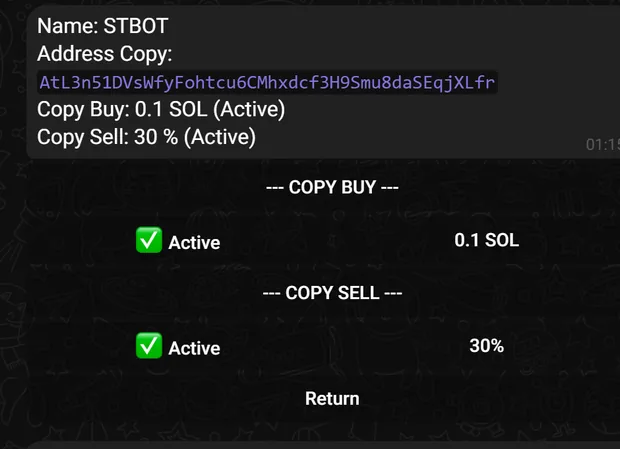
STBOT's copy trading follows a wallet you pick and buys and sells in line with it. How to set it up:
- Go to Copy Trades and choose which of your wallets will do the trading.
- Tap Add wallet, paste the address of the wallet to follow, and give it a short name: letters and numbers only, up to 8 characters.
- Copy Buy: turn it on, then enter the amount of SOL to spend each time that wallet buys.
- Copy Sell: turn it on, then enter the percentage of tokens to sell each time that wallet sells.
The buy and sell sides toggle independently, so you can copy only the buys and decide when to take profit yourself. To stop following a wallet, tap Delete and confirm.
Limit orders, DCA and auto-buy, auto-sell rules
- LimitIn Buy Mode, choose Limit and enter how many percent the price must drop before the bot buys. In Sell Mode, Limit is used to set take-profit and stop-loss levels in percent. Every limit order has an expiry; pending orders are listed and cancelled in /limitorders.
- DCASpreads a buy or sell over several rounds. You set how far apart the rounds are (interval), how long the whole process runs (duration), and the lowest and highest price range in which the order may fill. The DCA order list is in /dcaorders.
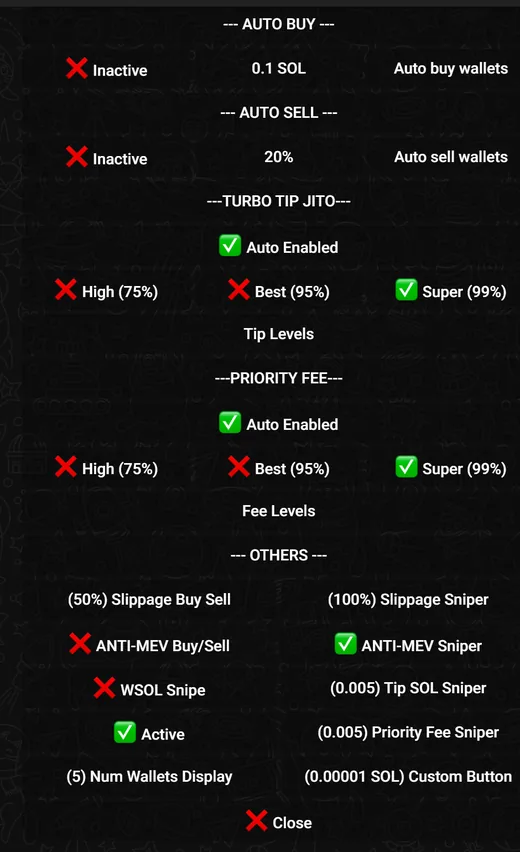
- Auto BuyTurn it on in /settings, pick a wallet and the SOL amount per buy. From then on, as soon as you paste a token address the bot buys right away, so remember to turn it off when you only want to view token info.
- Auto SellThere are two modes but only one can run at a time. CA Sell: whenever you paste a token address, the bot immediately sells a fixed ratio. Order Sell: you build a list of sell rules, triggered by TP/SL levels in %, after a period of time, when the token hits a DEX or when the dev sells, with slippage and expiry. Rules apply to both swap and limit orders, as long as the total sell percentage doesn't exceed 100%.
In /settings: tip, priority fee, slippage and sandwich protection
/settings holds almost all of the bot's parameters. Besides the Auto Buy and Auto Sell switches covered above, this is where you tune order speed and safety.
For Priority Fee and Turbo Tip Jito, let the bot choose, or pick one of three levels: Super 99%, Best 95%, High 75%. Slippage is set separately for regular buys and sells and for sniper. Sniper also has its own tip and fee, plus a WSOL Snipe option.
Anti-sandwich protection has two separate switches: Anti-MEV Sniper for snipe orders and Anti-MEV Buy/Sell for regular orders. Turn them on so your orders avoid being sandwiched by MEV bots.
The buttons are customizable too: each buy button carries a SOL amount you choose, each sell button carries a percentage. Num Wallets Display decides how many wallets the trade screen shows.
Managing multiple wallets and locking them with 2FA
Everything about wallets lives in /wallet:
- Bulk wallet creationGenerate New Wallet creates one more wallet. If you need many wallets, for example for sniping, Generate 10 Wallets or Generate 5 Wallets creates a batch; the bot hands you each wallet's private key to store.
- Import, replace and delete walletsConnect Wallet brings a wallet you already own into the bot with its private key. Edit replaces a wallet, and wallets you no longer use can be deleted.
- Withdraw and consolidate SOLTransfer SOL sends SOL to an external wallet; you enter the receiving address and the amount. Transfer All SOL To One sweeps SOL scattered across your wallets into a single wallet.
- Tracking in /profileEach wallet gets a list of the tokens it holds, with profit/loss, value, balance, amount bought and amount sold.
- The /wallets commandAvailable since Nov 18, 2026. Type /wallets to see your wallet list by chain, check balances and manage wallets in one place. Good for people holding wallets on several chains.
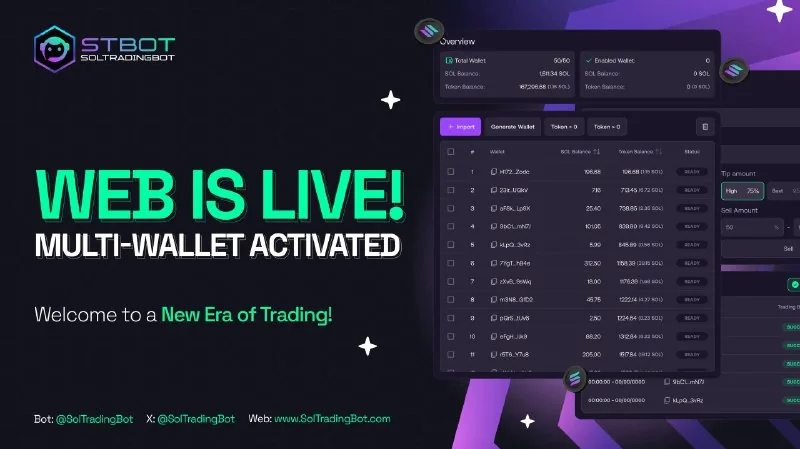
Since Jul 30, 2025, multi-wallet management also works on the web, at soltradingbot.com/tools. We think the web version suits people running many wallets at once, such as dedicated snipers.
Once a wallet holds funds, lock it down early:
- Turn on SecurityLink the bot with Google Authenticator to get 2FA codes, then create a password of at least 6 characters with no spaces. From then on the bot asks for the password every time you transfer funds out, delete a wallet or export a private key; changing or removing the password needs a 2FA code.
- Store your keys, don't import your main walletCopy the private key of every wallet the bot creates and store it somewhere safe. Connect Wallet requires pasting a private key into the bot, so only import a secondary wallet opened just for the bot; don't hand over your main wallet.
- Only keep working capitalThe bot signs transactions on your behalf, so wallets in the bot should only hold the money you're actively trading with. Move profits out to your own wallet.
Trading fees and what gets paid back
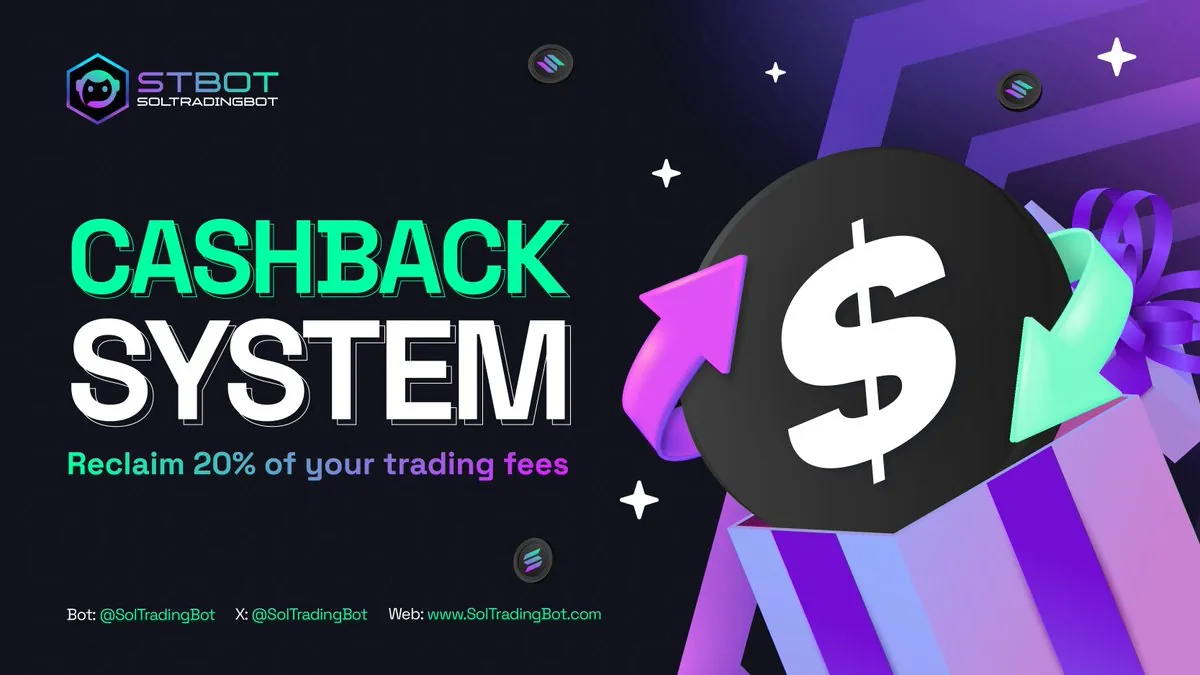
On fees, STBOT publishes very little. The docs give no fee rate, only mention a 20% fee rebate through cashback. According to independent reviews, the bot charges 1% on each order, on both the buy and the sell side. That figure doesn't come from STBOT, so check what fee the bot shows before your first order.
On top of the bot fee, every trade also costs network fees, plus the Jito tip and priority fee at the level you pick. STBOT's terms of use state clearly that gas fees are borne by the user.
To make up for it, STBOT has a few ways of returning money to users:
- 20% fee rebateAvailable since Sep 9, 2025. On every swap, snipe or limit order, 20% of the fee you pay is added to your cashback balance, shown in USD. Check it with the Cashback button or the /cashback command.
- The /claimyoursol commandAdded Jan 18, 2026. Type /claimyoursol to submit a request to get SOL back from fees you've paid, based on your total trading volume.
- Pump.fun fees waiting to be claimedAvailable since Mar 10, 2026. The /pumpfuncashback command lists the Pump.fun fees your wallets haven't claimed yet, and lets you claim them.
- 30% referral commissionGet your invite link in Referral System (or /referral). Every trade by someone who signs up through your link earns you 30% commission. Withdraw with the Create Claim Request button, and see past withdrawals in Claim History. If you have a Telegram group, attach the link to Signal Bot.
Our take: strengths, weaknesses and who it's for
STBOT fits best with new-token hunters on Solana and people running many wallets at once. If you're used to checking tokens on Photon, GMGN or DEX Screener, you get the Chrome extension on top, and if you have a Telegram group, there's Signal Bot. Complete beginners should go slowly: the menu has almost twenty buttons, and Auto Buy or CA Sell fire the moment you paste a token address, so one wrong switch costs you real money.
- Many ways to snipeBy address of a token not yet open, by ticker and dev wallet on Pump.fun or Moonshot, a dedicated command for LaunchLab, plus Sell Sniper to exit when the token hits a DEX.
- Strong multi-walletCreate 5 or 10 wallets at once, enter trades on all of them with Select All, consolidate SOL into one wallet, and there's a dedicated web version.
- Get part of the fees back20% fee rebate into cashback, /claimyoursol based on volume and a command to claim pending Pump.fun fees.
- Security and backupA password blocks transfers, key exports and wallet deletion; changing the password needs a 2FA code. If the main bot is overloaded, backup bots share the same wallets.
- Fees not publishedThe docs don't state a fee rate; the 1% per side figure comes from an independent review.
- Copy trade is fairly basicThe two main settings are the SOL amount to copy-buy and the percentage to sell. If you need finer order filtering, see bots that are strong at copy trading.
- Multichain is still newThe five chains besides Solana only arrived on Oct 27, 2026, while the buttons and guides are still mostly in SOL. On the new chains, test with small money first.
- Docs are partly outdatedThe Sell Sniper section is still written for the era when tokens went to Raydium, and interface screenshots may differ from the current bot.
To put STBOT next to other bots on fees, chains and features, see our bot comparison table.
Get started with STBOT in three steps
- Open the right botGo to @SolTradingBot through our link. Going through this link, you pay no extra fees.soltradingbot.com
- Send /start, store your private keyThe bot creates your first wallet as soon as you send /start. Go to /wallet to copy the private key somewhere safe, then turn on 2FA and set a password in Security.
- Deposit a little, test a small orderDeposit a little SOL into the wallet; to trade on another chain, deposit that chain's coin and check you're on the right network. Go to /settings to review slippage and Anti-MEV, then try one small buy before raising your size.
Through our referral link, at no extra cost.
Open SolTradingBotScreenshots taken on November 23, 2026; the interface may change. Not investment advice: memecoins are high-risk, only use money you can afford to lose.